

- Receive a voice OTP. Meta, Google, and most other platforms will read a verification code aloud over a phone call when SMS is not an option. This is how you verify a Vobiz number during WhatsApp channel setup.
- Test that a newly purchased DID actually rings before you point it at an application or a SIP trunk.
- Listen to what a caller hears while you are building an IVR.
You need nothing installed - no softphone, no SIP client. Just a browser with microphone access and your Vobiz API credentials.
Before you start
- A DID purchased from Vobiz, or the trial number assigned to your account.
- Your Vobiz Auth ID and Auth Token.
- A browser tab you can leave open. The playground only rings while it is connected.
Step 1 - Copy your API credentials
Open the Vobiz Console dashboard and find the API credentials card. Copy both values.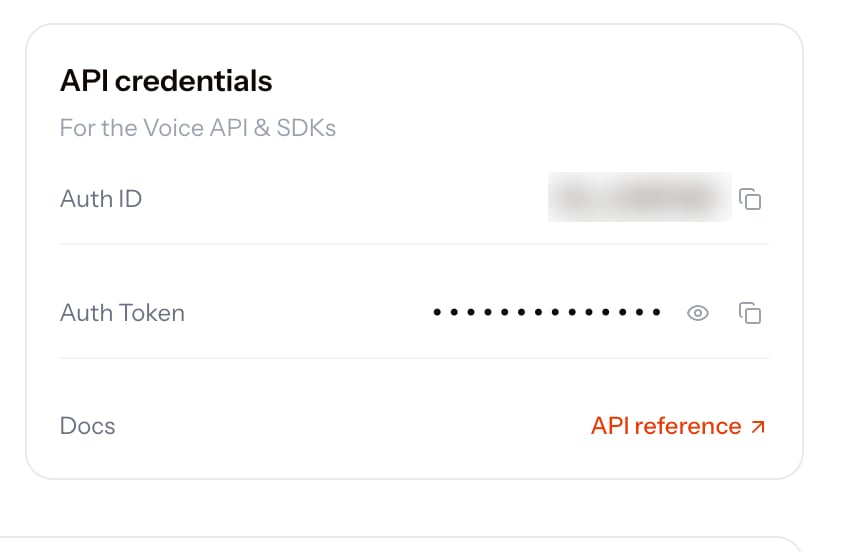
API credentials on the Vobiz dashboard
MA_. The Auth Token is hidden behind the eye icon - it is not your console login password.
Step 2 - Connect the playground
Go to rtc-demo.vobiz.ai and stay on the Zero-Config Setup tab.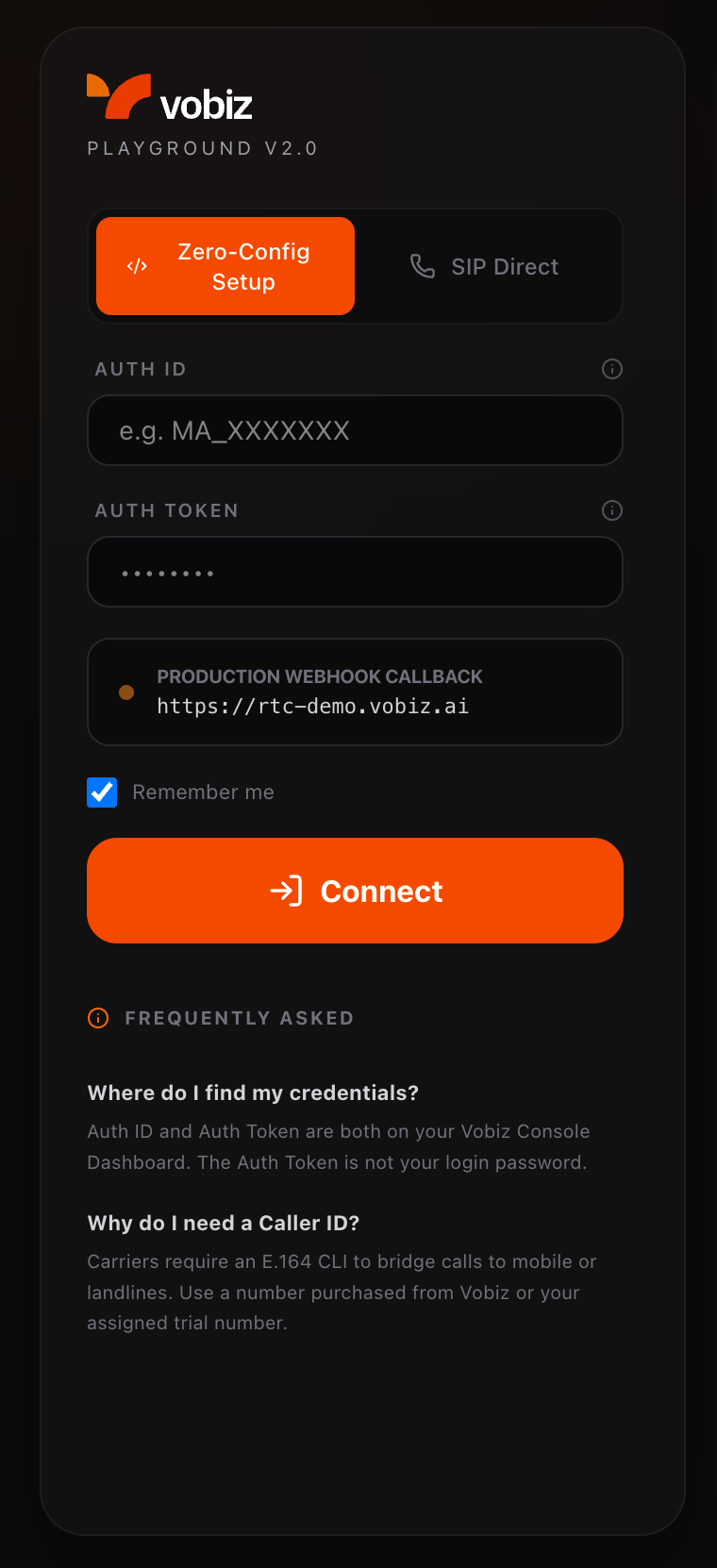
Vobiz Playground V2.0 - Zero-Config Setup
1
Enter your credentials
Paste your Auth ID into
AUTH ID and your Auth Token into AUTH TOKEN.2
Leave the webhook callback alone
Production Webhook Callback is fixed at
https://rtc-demo.vobiz.ai. This is the server that answers the call and bridges it into your browser - you do not host anything yourself.3
Click Connect
Tick Remember me if you expect to come back, then click Connect. Allow microphone access when the browser asks.
The first time you connect, Vobiz automatically creates a voice application called Vobiz WebRTC Playground in your account. You need it in the next step.
The SIP Direct tab is for a different job - registering your own SIP client against
registrar.vobiz.ai with endpoint credentials. For receiving a call in this browser tab, Zero-Config is the one you want. See SIP Endpoints if you need the other path.Step 3 - Attach your number to the playground application
An inbound call only reaches your browser if the DID is routed to the playground application. Go to Voice Applications and open Vobiz WebRTC Playground.URL
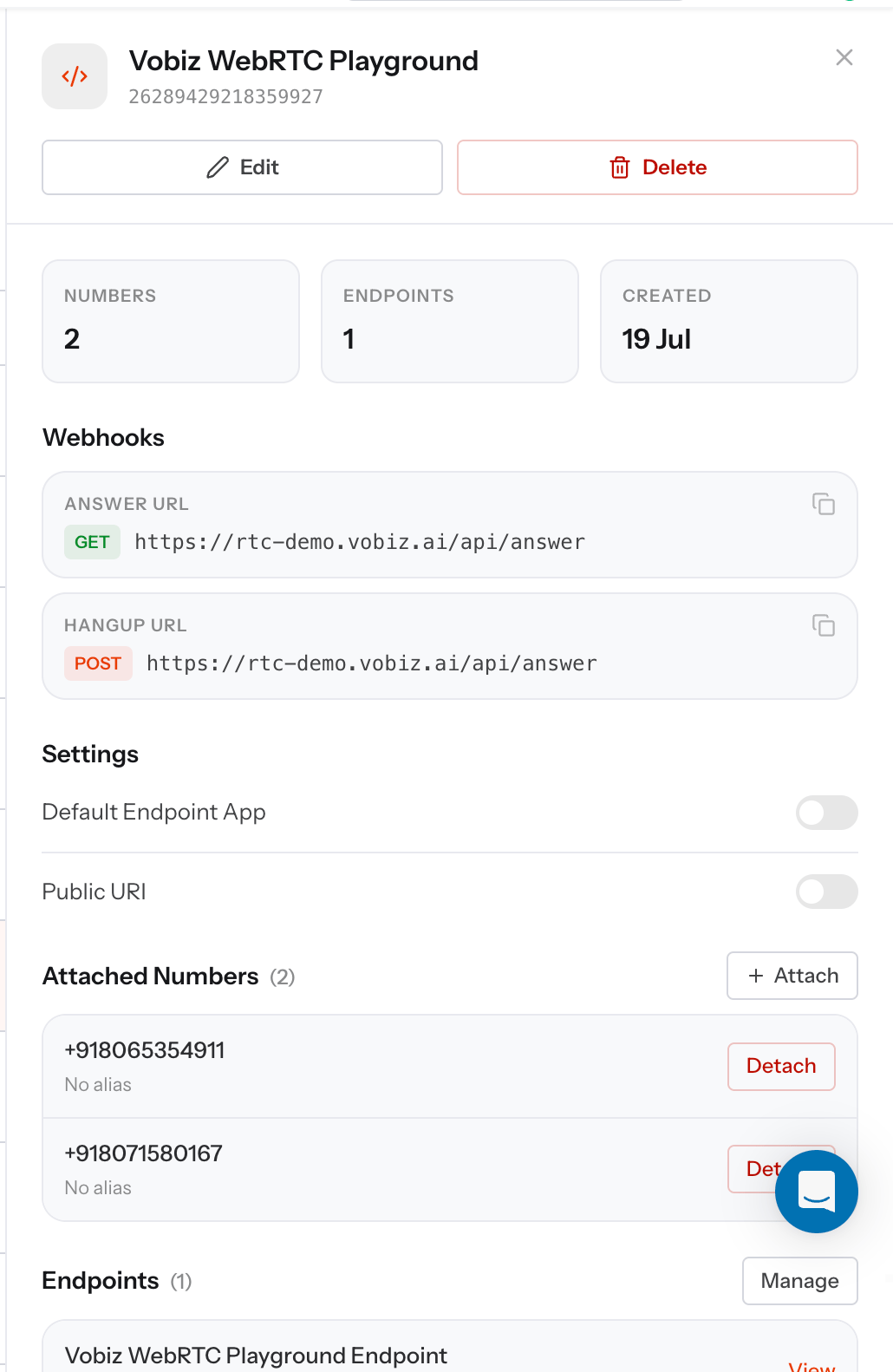
Vobiz WebRTC Playground application - Attach a number
https://rtc-demo.vobiz.ai/api/answer, which is what hands the audio to your browser.
Step 4 - Answer the call
Go back to the playground tab and confirm it still shows as connected. Then trigger the call - dial the DID from another phone, or ask the platform you are verifying to call you. When the incoming-call notification appears, click Accept. The audio plays through your browser.You hear the caller - or, for a verification call, the automated voice reading your code.
Using this to verify a number by voice call
This is the most common reason people reach this page. A Vobiz DID cannot receive SMS, so when a platform offers “Text message” or “Phone call” as verification methods, you must choose Phone call.1
Set up the playground first
Complete steps 1 to 4 above and leave the playground connected, with the number you are verifying attached to Vobiz WebRTC Playground.
2
Switch the verification method to a call
On the platform’s verification screen, choose the option to change your verification method and select Phone call rather than text message.
3
Answer in the browser and read back the code
Accept the call in the playground, listen to the code, and type it into the verification field.
Troubleshooting
Next steps
- Vobiz WebRTC Playground → - the full playground reference, including placing outbound calls and Caller ID Override.
- Voice Applications → - attach numbers, set Answer and Hangup URLs, and serve your own XML.
- SIP Endpoints → - register your own softphone against
registrar.vobiz.aiinstead. - WhatsApp Console Walkthrough → - connect a WhatsApp Business channel end to end.