

URL
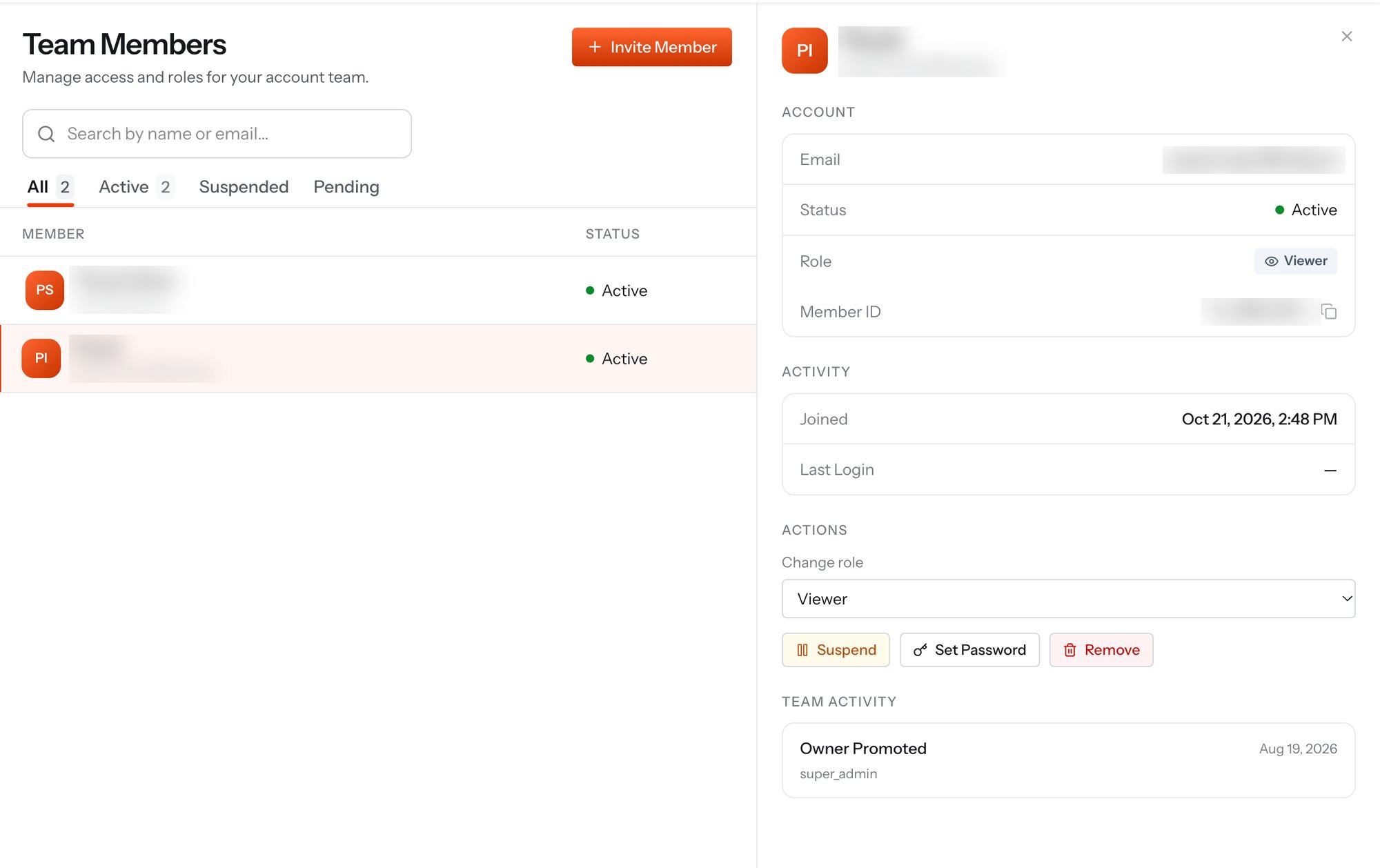
Team Members - the member list with a member's detail panel open
The member list
The list shows every member with their name, email and status. The tabs above it filter by status:
Use the search box to find a member by name or email.
Roles
Every member has one role. Pick it when you add the member and change it later from the detail panel.Viewer - read-only access
Viewer - read-only access
Can see everything in the account but cannot change anything.
- View the dashboard, call logs, recordings, numbers, applications, trunks, campaigns, invoices, balance and KYC status
- Cannot buy or release numbers, edit applications or trunks, run campaigns, add funds or change settings
- Cannot see the account Auth Token
- Can see the team list but cannot invite or manage members
- Changes their own password through Forgot password on the sign-in page
Editor - builds and runs things, no team management
Editor - builds and runs things, no team management
- Buy, release and assign numbers
- Create and edit applications, webhook URLs, trunks, IP access control lists, credentials and campaigns
- Add funds and generate invoices
- Create and edit sub-accounts and regenerate their credentials
- Cannot see or rotate the Auth Token, submit KYC, manage auto-recharge or channel subscriptions, or edit company and GST details
- Cannot manage team members
Manager - everything an Editor can do, plus the team
Manager - everything an Editor can do, plus the team
- Can see the Auth Token, but cannot rotate it
- View and turn off auto-recharge; buy or cancel channel subscriptions
- Invite members as Viewer, Editor or Manager
- Change roles, suspend, reactivate, remove and reset passwords, but only for Viewers and Editors
- Cannot manage other Managers or the Owner, transfer ownership, complete KYC, edit company or GST details, or delete the account
Owner - the account holder
Owner - the account holder
The Owner can do everything and can never be removed. There is one Owner per account.The Owner can hand ownership to a Manager. The transfer is confirmed with an OTP and takes effect after a 24-hour cooling-off period, and it is recorded in the team activity log.
Add a team member
Click + Invite Member in the top right. The Add Team Member dialog creates a new login for a colleague.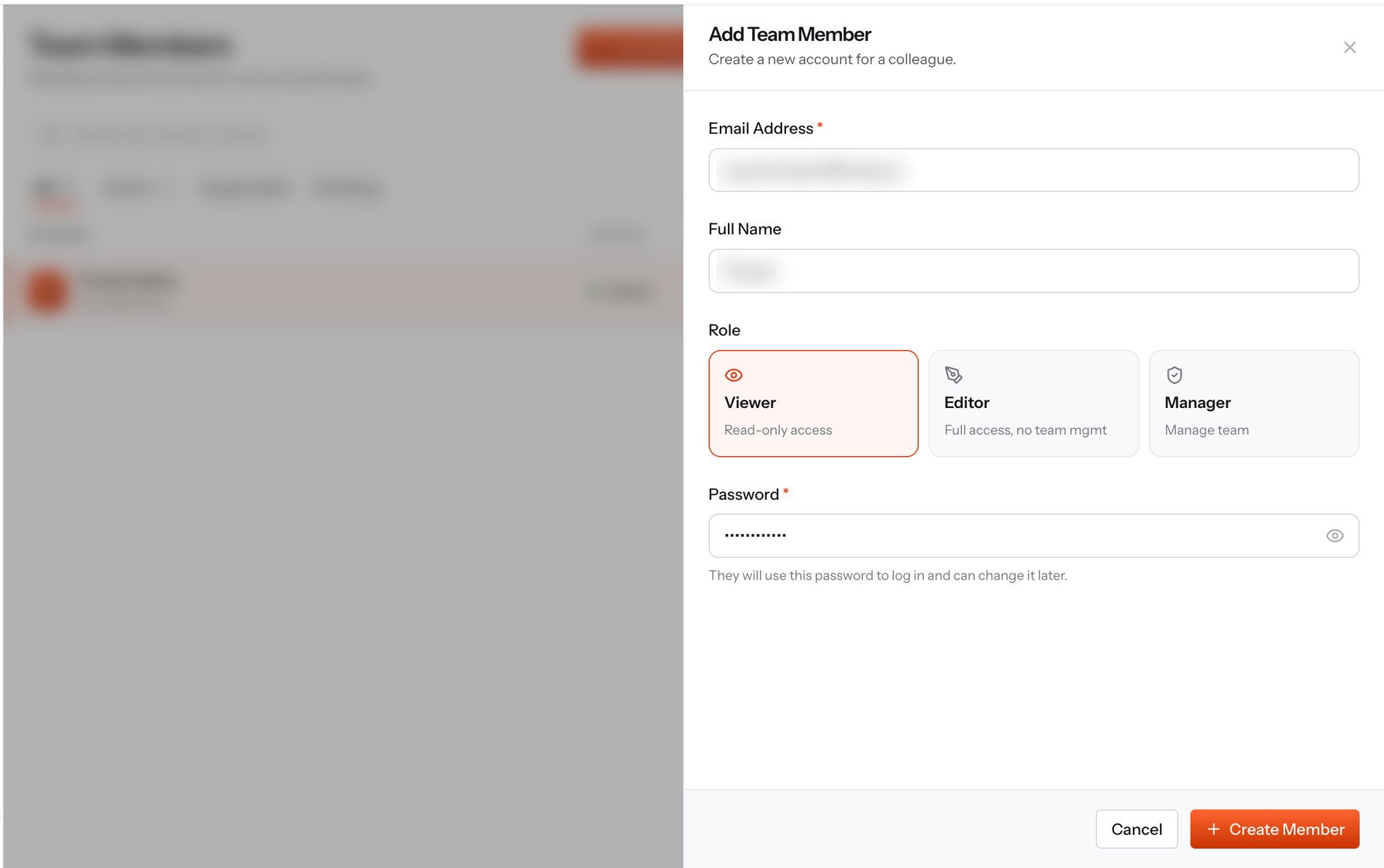
Add Team Member - email, name, role and the first password
Click Create Member. The member appears in the list immediately, and you share the email and password with them through your own channel. No invitation email is needed.
A team member signs in at console.vobiz.ai with the email and password you set here and lands in your account. They do not get a separate Auth ID or Auth Token. API calls still use the account’s credentials from the Dashboard, which only Managers and the Owner can see and only the Owner can rotate.
The member detail panel
Select a row to open the detail panel.Account
Activity
Actions
These actions are available to Managers and the Owner. A Manager can use them on Viewers and Editors only; changes to other Managers are for the Owner, and the Owner cannot be suspended or removed.
Team activity
The panel ends with the Team Activity log: a dated list of team changes such as role changes and owner promotions, with the role that made each change. Use it to answer “who changed this, and when” without leaving the page.Team members compared with sub-accounts
Dashboard
Where the account’s Auth ID and Auth Token live.
Sub-Accounts
Child accounts with their own credentials and numbers.