

The Vobiz app on Zapier is in Beta. Its actions may change before general release.
What you’ll build
By the end of this guide, you’ll have:- a Zap that uses the Vobiz app, connected to your Vobiz account with your Auth ID and Auth Token;
- a working Get Account Balance step, tested against your live account;
- the list of Vobiz actions you can add to any Zap, such as Make Call.
What’s in the Vobiz app
The app currently offers actions, which run after a trigger in your Zap. Use another app’s trigger, or Zapier’s own Schedule by Zapier, to start the Zap.
See All Vobiz actions for what each one does.
Prerequisites
- Vobiz account → sign up at vobiz.ai
- Your Auth ID and Auth Token - on the Vobiz Console Dashboard, under API credentials. See Authentication.
- Vobiz phone number - needed for Make Call and the number actions → Buy a phone number
- Zapier account - a free account works to build and test a Zap. Sign up at zapier.com.
Add Vobiz to a Zap
Step 1: Find the Vobiz app
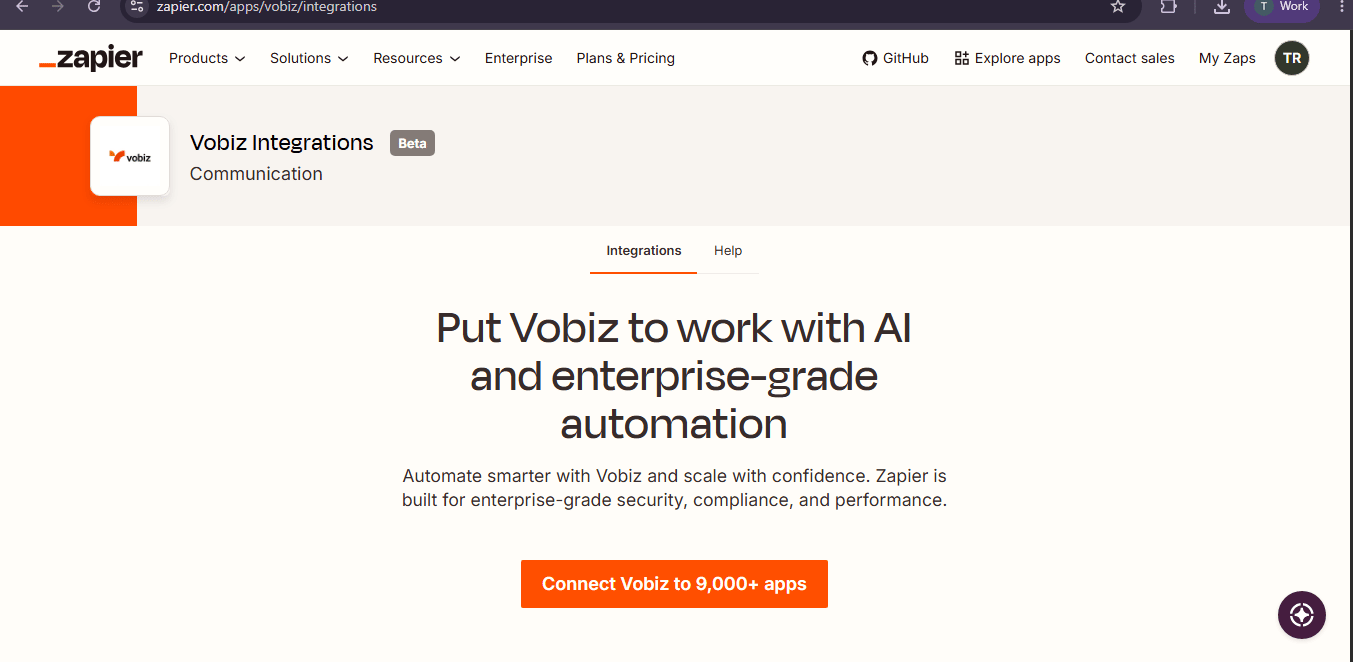
Open the Vobiz Integrations page on Zapier and click Connect Vobiz to 9,000+ apps. Zapier opens a new Zap with Vobiz already added as a step.
Step 2: Choose a trigger
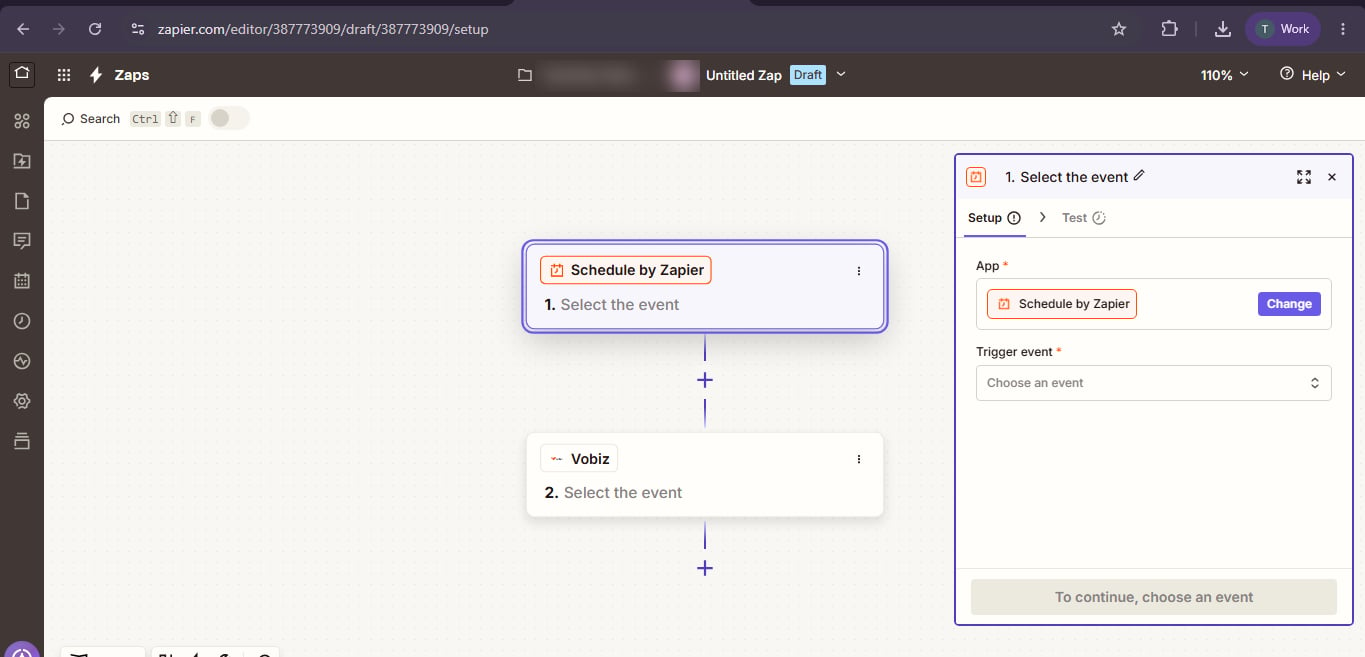
The new Zap has two steps: 1. Select the event for the trigger, and 2. a Vobiz step. Vobiz actions need something to start the Zap. To try the app, use Schedule by Zapier.
1
Open the trigger
Click step 1 and, under Trigger event, click Choose an event.
2
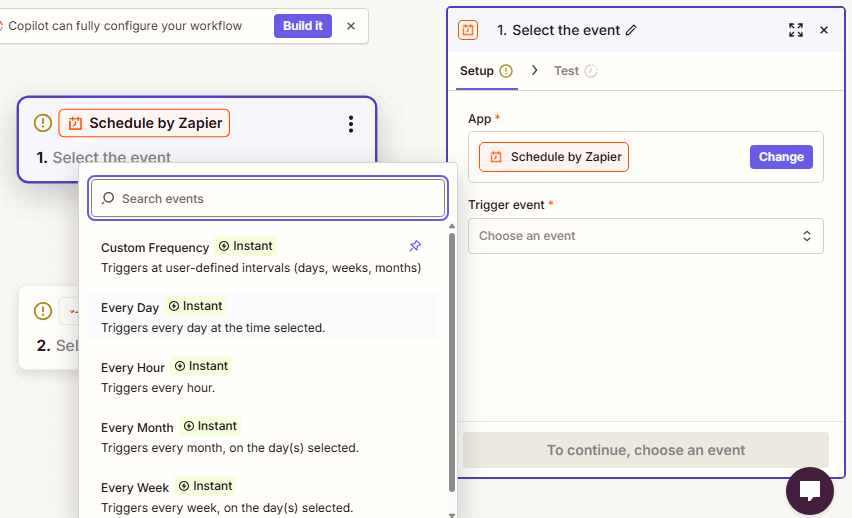
Pick how often it runs
Select an event, for example Every Day, Every Hour, Every Week or Custom Frequency.
Step 3: Configure the trigger
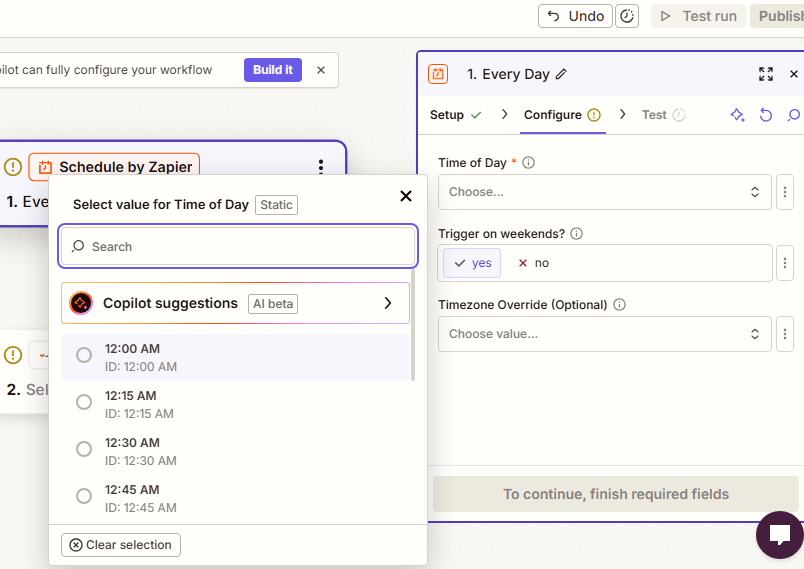
Under Configure, choose a Time of Day. Leave Trigger on weekends? and Timezone Override (Optional) as they are, or change them to suit you. Then continue to Test.
Connect your Vobiz account
The Vobiz app signs in to Vobiz with your Auth ID and Auth Token. You connect them once, and every Vobiz step in your Zaps can use that connection.Step 1: Copy your Auth ID and Auth Token
1
Open API credentials
In the Vobiz Console, open Dashboard and scroll down to API credentials.
2
Copy both values
Copy the Auth ID (it starts with
MA_), then the Auth Token. The eye icon shows the Auth Token.Step 2: Connect Vobiz in Zapier
1
Choose the Vobiz step
In your Zap, click step 2, the Vobiz step, and under Account choose Sign in (or Connect a new account).
2
Enter your credentials
A Connect to Zapier window opens for Vobiz. Paste your X-Auth-ID and X-Auth-Token. Both are required.
3
Connect
Click Connect. Zapier returns you to the Zap with your Vobiz account selected.
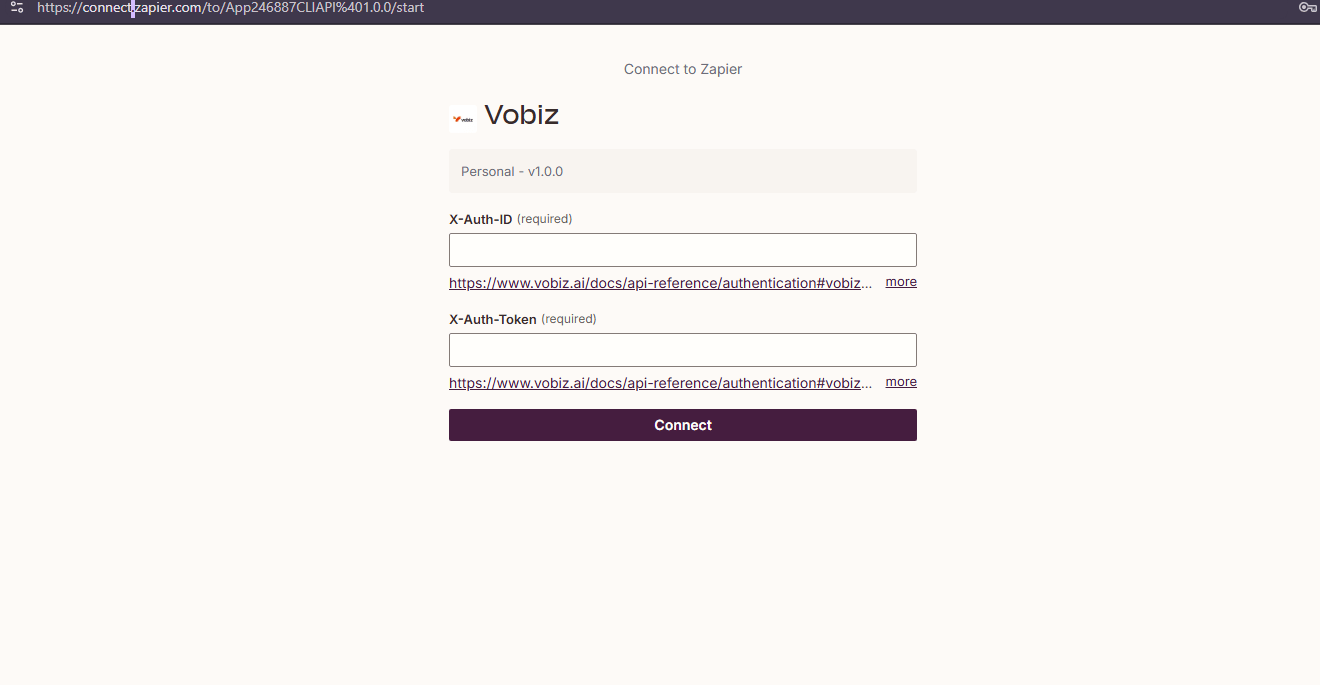
Zapier sends these values to Vobiz as the
X-Auth-ID and X-Auth-Token headers. To work as a sub-account, connect a second Vobiz account in Zapier with that sub-account’s Auth ID (SA_…) and Auth Token.Your Vobiz account is connected. You can pick it on any Vobiz step in any Zap.
Test your first action: Get Account Balance
Get Account Balance is read-only: it costs nothing and changes nothing, which makes it a safe first step.1
Choose the action
In step 2, under Action event, select Get Account Balance.
2
Check the connection
Under Account, make sure your Vobiz account is selected, then continue to Test.
3
Test the step
Click Test step. Zapier calls Vobiz and shows the response under Data out, including your account’s available balance and currency.
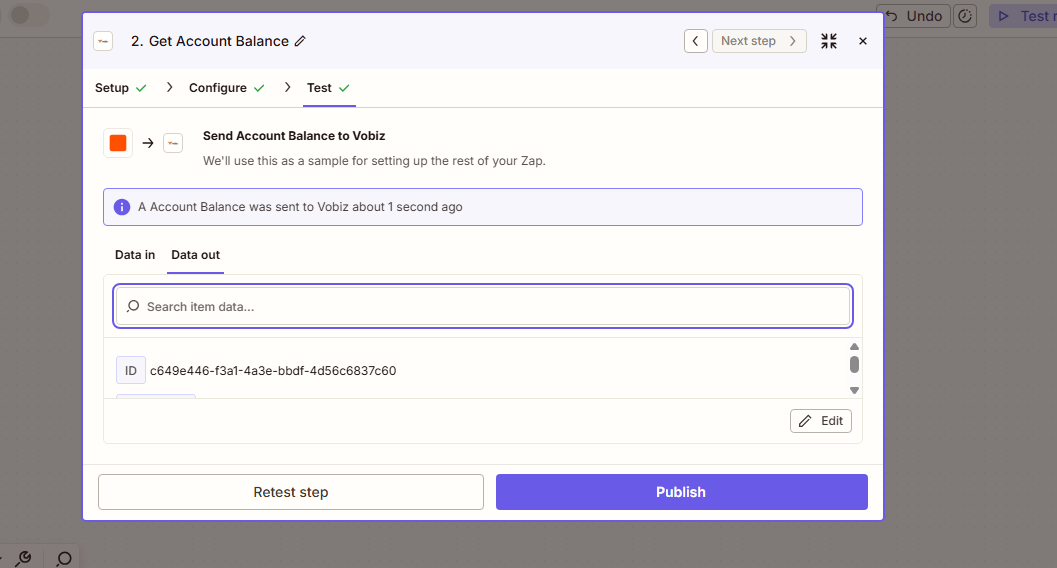
The Vobiz app works in your Zap! Add another Vobiz step, or any of Zapier’s 9,000+ apps, to build on it.
All Vobiz actions
For what each request sends and returns, see the Vobiz API reference: Make a call, Call detail records, Recordings, Account balance, Concurrency, SIP trunks, Applications and Endpoints.
Common Zaps
Each of these starts with a trigger from another app, then adds a Vobiz step.Troubleshooting
Zapier can’t connect to Vobiz
- Copy Auth ID and Auth Token again from API credentials on the Vobiz Console Dashboard, and paste them without spaces.
- Use the main account’s credential (
MA_…) unless you’re working as a sub-account (SA_…). Don’t mix an Auth ID with another account’s Auth Token.
A step fails with an error from Vobiz
Zapier shows Vobiz’s error message on the failed step. Compare it with Errors and Rate limits. Common causes are a balance that’s too low, a phone number written without its country code (write it like +91XXXXXXXXXX), and a phone number or trunk that doesn’t exist on this account.
An action you expect isn’t listed
The Vobiz app is in Beta and covers the actions in All Vobiz actions. For call, SIP and WhatsApp features it doesn’t cover yet, use Zapier’s Webhooks by Zapier with the Vobiz API, or use the n8n integration.
Next steps
- Learn how Vobiz authenticates requests: Authentication.
- Understand calls: Make a call in the Vobiz API reference.
- Work with call data: Call detail records and Recordings.
- Set up SIP trunking: SIP trunks.
- Automate with n8n instead: n8n integration.
- Explore Zapier: Zapier Help Center.