

Source code
SIP Endpoints
What you get
How it works
- Salesforce frames a page you host. A Call Center record holds the panel’s URL; the panel uses Open CTI to make numbers clickable, open records and write Tasks.
- Your backend serves the panel and talks to Vobiz. The panel never calls the Vobiz API itself. The backend calls the Vobiz REST API and answers Vobiz’s webhooks.
- Audio goes straight between the browser and Vobiz. The panel registers as a Vobiz SIP endpoint over a secure WebSocket. Call audio never passes through your backend.
- Outbound: the browser places the call, Vobiz asks your backend what to do, and the backend puts the agent in a conference room and dials the destination into it.
- Inbound: the backend holds the caller in a conference room with hold audio and the panel rings. When the agent accepts, the panel joins that room.
Prerequisites
Set it up
Get the code and configure the backend
backend/.env, set PUBLIC_BASE_URL to the backend’s public HTTPS address, with no trailing slash:Start it and expose it over HTTPS
PUBLIC_BASE_URL, then check it from outside your network:Trust the backend in Salesforce
- URL: your backend’s origin, e.g.
https://calling.example.com - CSP Context: All
- CSP Directives: tick
frame-srcandconnect-src - Permissions Policy Directives: tick microphone
Import the Call Center
call-center/call-center-definition.xml from the repository. Open the imported Vobiz Calling record, click Edit, and set CTI Adapter URL to:agentId for this agent (letters, digits, - or _, up to 40 characters). Type a plain & here; the & in the XML file is only XML escaping.Assign the agent
Add the Open CTI Softphone utility item
Hard-refresh and open the phone
Several agents
Salesforce stores one adapter URL per Call Center, so create one Call Center per agent. For each extra agent, copycall-center-definition.xml, change its InternalName, Display Name and the agentId in the adapter URL, import the copy, and assign that agent to it.
Sign in
The panel has two tabs. Any Vobiz account works with either, and agents on different Vobiz accounts can share one backend.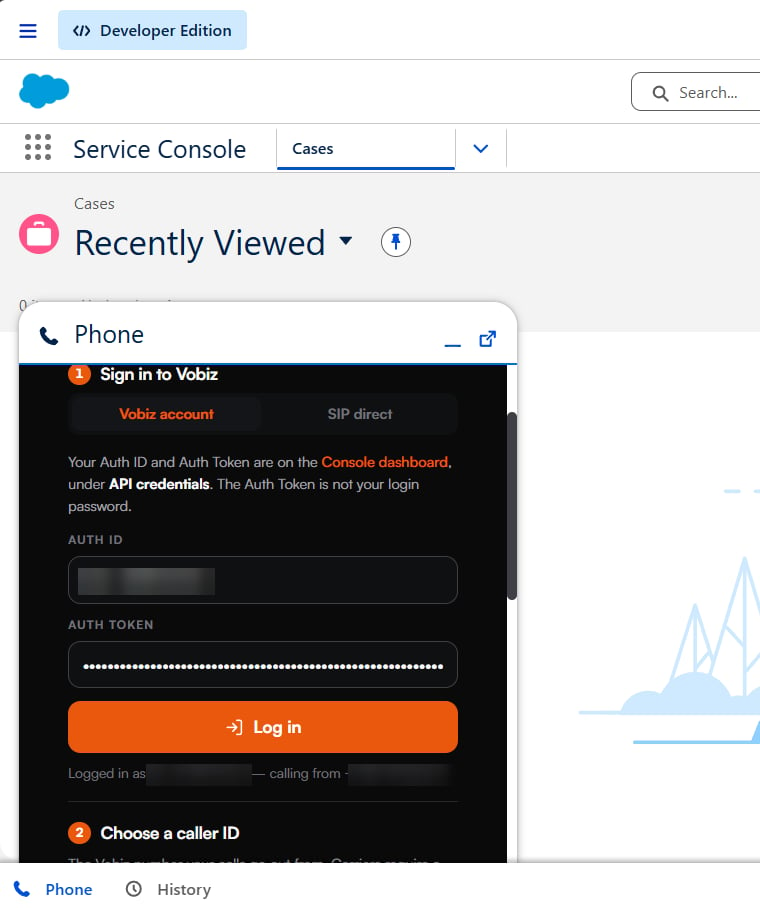
The panel in the Salesforce utility bar, on the Vobiz account tab.
- Vobiz account (recommended)
- SIP direct
MA_XXXXXXXX) and Auth Token, then click Log in.The backend checks them with Vobiz, lists the account’s numbers, and sets up in your Vobiz account:Choose a caller ID
On the Vobiz account tab, Calling from lists every active, voice-enabled number on the account, with the application each is on now. The first is selected; pick another at any time. The backend refuses any number that is not on the account.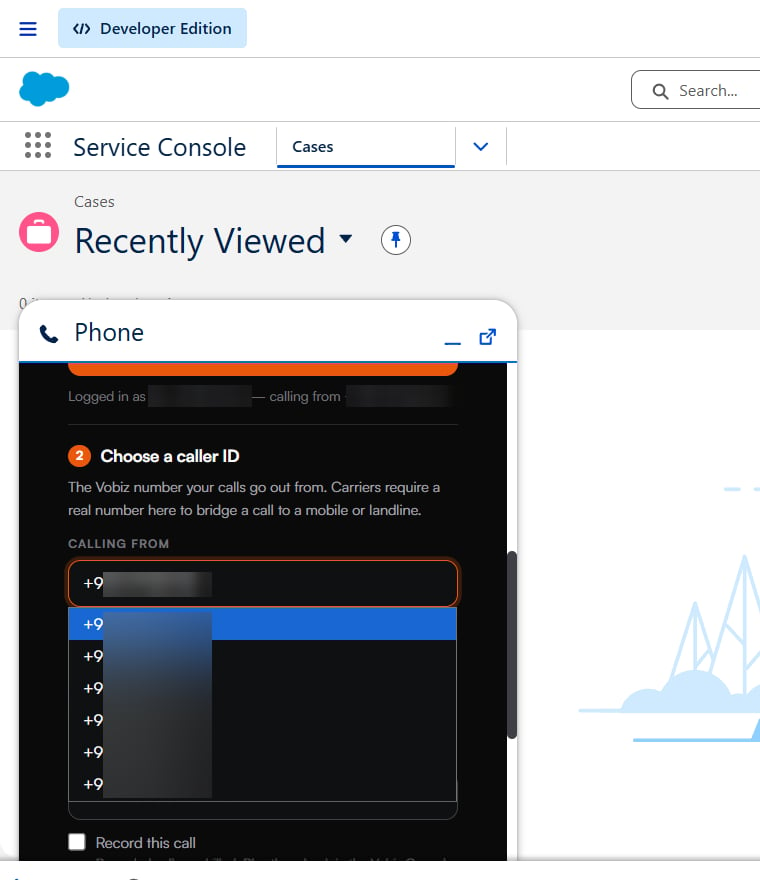
Selecting the outbound caller ID.
What SIP direct does differently
- Outbound works as with an account sign-in: click-to-dial, screen pop, recording and the call Task.
- Inbound calls to the Calling from number ring the panel directly. The caller’s record opens while it rings and the call is logged as a Task — answered, missed or declined. To record these calls and send them to voicemail, use a Vobiz account sign-in.
- The Calling from dropdown and Enable inbound calls come with a Vobiz account sign-in; the panel says Sign in with your Vobiz account to use this.
Enable inbound calls
On the Vobiz account tab, click Enable inbound calls once, under Receive calls here. The backend:- finds or creates an application named
VobizSF_inwith answer URLhttps://calling.example.com/inbound-answer, and - attaches the number selected in Calling from to it.
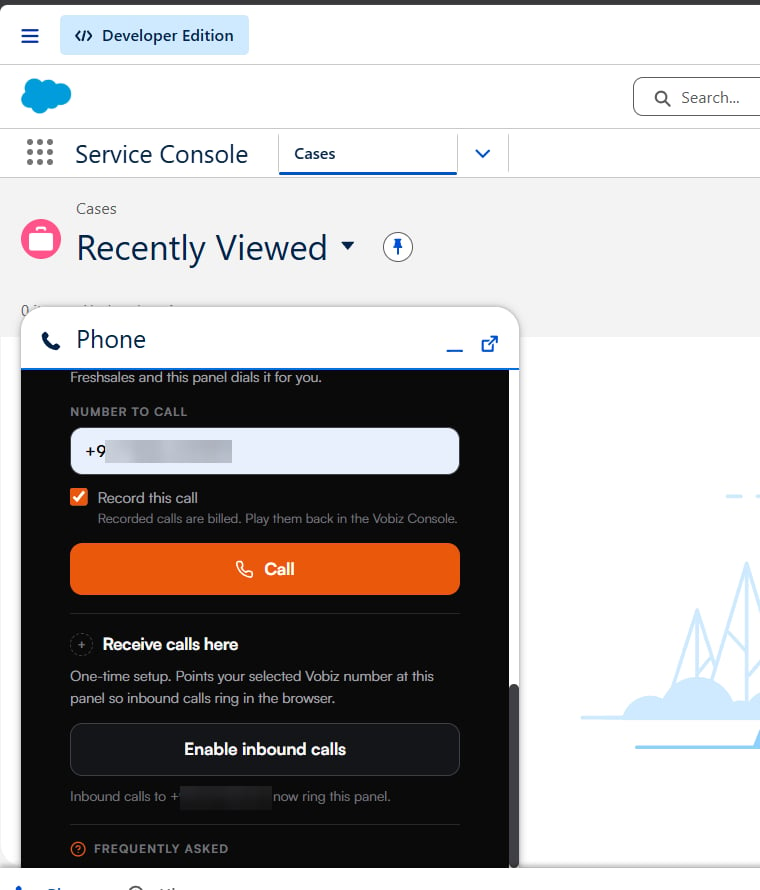
Inbound enabled — the panel names the number now routed to it.
Using it
Make a call
Wait for the status badge to turn green — the Call button stays disabled until the panel is signed in and registered. Type a number in E.164 format and click Call, or click any phone number in Salesforce. The first call asks for microphone permission; allow it.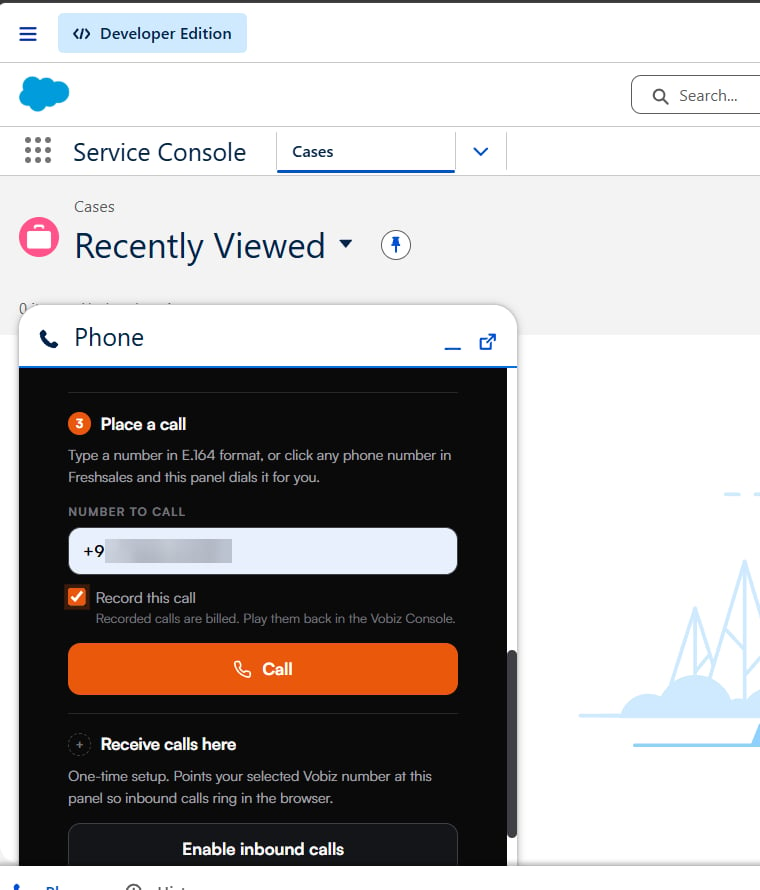
A destination entered, with recording armed.
OUTBOUND_RING_SECONDS).
Receive a call
A call to an enabled number rings every open panel signed in to that Vobiz account, while the caller hears Please hold while we connect you. The panel plays a ringtone, shows the caller’s number and opens their record.- Accept (or Enter) connects you. The first agent to accept takes the call.
- Decline (or Esc) sends the caller to voicemail.
- Unanswered after 45 seconds (
INBOUND_RING_SECONDS), the caller goes to voicemail.
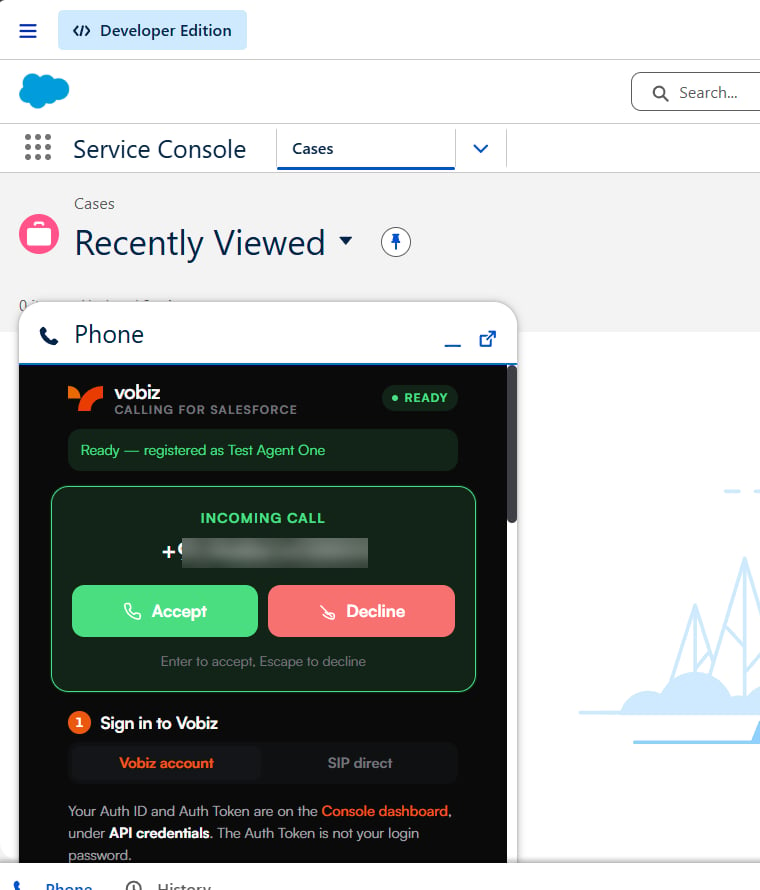
An incoming call, with keyboard shortcuts.
Call logging
When a call ends, the panel writes a completed Task, which appears in the record’s Activity History:Recordings
Tick Record this call before you click Call — or before Accept for an inbound call; recording starts when you join, so hold time is not included. Recorded calls are billed by Vobiz.Configuration
Backend environment variables
Set inbackend/.env or the environment. There are no Vobiz credentials in the backend’s configuration.
CTI Adapter URL parameters
Running it in production
- HTTPS on a stable hostname. If the hostname changes, update
PUBLIC_BASE_URL, every adapter URL and the Trusted URL, and have agents sign in again. - Run one instance. Sessions and calls in progress live in one process’s memory.
- Keep
DATA_DIRon persistent storage, and private. - Set
REQUIRE_VOBIZ_SIGNATURE=trueonce you have confirmed your account signs webhooks. - Keep the process running with a service manager;
GET /healthzreturns{"ok":true}. - Scope the Trusted URL to your exact backend origin, not a wildcard.
Security and privacy
- Your Auth Token never reaches the browser and is never stored on disk. The backend keeps it in memory only and never logs it.
- On disk, the backend keeps only
endpoints.json: endpoint ids and SIP usernames per agent — no passwords, tokens or call data. - The browser receives the agent’s SIP username, a SIP password that changes on every sign-in, the account’s numbers, and an
HttpOnlysession cookie. The SIP password goes only to the Vobiz registrar. - The browser stores nothing on the Vobiz account tab. On SIP direct, only if the agent ticks Remember these: that endpoint’s username, password and caller ID, in local storage.
- Cross-site requests are refused. The backend accepts panel requests only as JSON from its own origin and sends no CORS headers.
- Only an agent’s own line can spend their account, and only Salesforce can frame the panel.
- Webhook signatures are verified with the owning account’s Auth Token when present; a bad signature is refused.
- No recording links. Recordings are played in the Vobiz Console only.
Troubleshooting
The phone panel is blank
The phone panel is blank
frame-src ticked, or the adapter URL is plain HTTP. If you use a tunnel, make sure it does not show a browser warning page.No Phone item in the utility bar
No Phone item in the utility bar
A change to the adapter URL has no effect
A change to the adapter URL has no effect
“Salesforce org not known” or “Not configured”
“Salesforce org not known” or “Not configured”
org (or it is not a Salesforce host), or missing agentId.“Cannot reach the calling backend”
“Cannot reach the calling backend”
https://calling.example.com/healthz, and load the panel from https://calling.example.com/salesforce/softphone.html — it only talks to the address it was loaded from.“Vobiz rejected that Auth ID and Auth Token”
“Vobiz rejected that Auth ID and Auth Token”
Calls end with “Please sign in to the softphone again”
Calls end with “Please sign in to the softphone again”
SESSION_HOURS). Sign in again.The call connects with no audio
The call connects with no audio
Inbound callers go straight to voicemail
Inbound callers go straight to voicemail
Inbound callers hear “this number cannot take calls right now”
Inbound callers hear “this number cannot take calls right now”
Inbound calls never reach the panel
Inbound calls never reach the panel
SIP direct calls fail as soon as they start
SIP direct calls fail as soon as they start
https://calling.example.com/answer, or Calling from is not a number on that account.Every call fails and the backend logs “signature invalid”
Every call fails and the backend logs “signature invalid”
PUBLIC_BASE_URL does not match the address Vobiz was given. Set it exactly, restart, and sign in again.Operating notes
- Sign in again after the backend restarts, and run one backend instance — sessions are held in memory.
- Each call has two CDRs, one per leg.
- Use one agent per Call Center, and one Salesforce tab per agent.
- Each agent takes one inbound call at a time. Other callers go to voicemail.
- Agents call from the browser.
- Calls are logged as Tasks.
- Recordings and voicemails are in the Vobiz Console.
- A Vobiz account sign-in gives you the caller ID dropdown, Enable inbound calls, and recording and voicemail for inbound calls.
- Serve the panel from the backend. It talks to the address it was loaded from.
Next steps
- Source code and README — setup, configuration and the backend contract for building your own backend.
- SIP Endpoints — the endpoints the panel registers as.
- Applications — where the
VobizSFandVobizSF_inapplications appear. - Call Detail Records — reading the two CDRs each call produces.