


What you get
Click-to-call
Inbound in the browser
Screen pop
Call logging
Recordings
Caller-ID choice
How it works
- The panel runs in the Zendesk top bar. A ticket-sidebar part tells it which ticket is open and offers Call requester. A background part relays Zendesk’s click-to-dial event.
- When an agent signs in, the backend checks the Auth ID and Auth Token with Vobiz and sets up what it needs inside that Vobiz account.
- The browser registers with Vobiz as a SIP endpoint and carries the call audio over WebRTC. Your microphone and speakers are the phone.
- To call out, the browser starts the call. Vobiz asks your backend’s
/answerURL what to do, and the backend tells Vobiz to record the call and dial the customer from your chosen number. - For inbound calls, Vobiz asks the same
/answerURL, and the backend rings the signed-in agents of the Vobiz account that owns the number. - When the call ends, the panel writes the call log to Zendesk.
- Recording audio is fetched from Vobiz by the backend and streamed to the agent through a signed link. Your Auth Token never reaches the browser.


Prerequisites
Set up
Clone and install
Expose port 8092 over HTTPS
https://… URL it prints.Configure backend/.env
backend/.env holds deployment settings only. Never put a Vobiz Auth ID, Auth Token, SIP password or phone number in it - agents sign in from the panel.Start the backend and check it
<Hangup reason="rejected"/> - that is expected. An error page or a timeout means Vobiz cannot reach your backend.Run the Zendesk app locally
https://<your-subdomain>.zendesk.com/agent/dashboard?zcli_apps=true. The Vobiz icon appears in the top bar. If the panel stays blank, allow your browser’s local network access prompt for localhost:4567.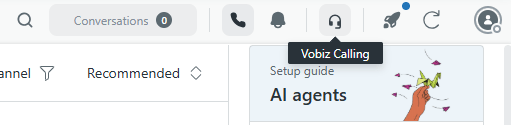
The Vobiz Calling softphone in the Zendesk top bar.
Sign in and call
Sign in
The panel has two tabs: Vobiz account and SIP direct.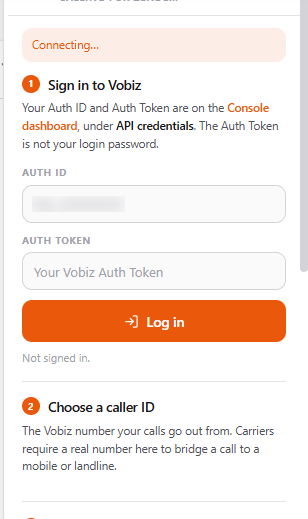
The panel on load, inside Zendesk.
Vobiz account (recommended)
Enter your Auth ID (MA_XXXXXXXX) and Auth Token, then click Log in. The backend checks them with Vobiz. A wrong pair is refused and nothing is created.
On a successful sign-in, the backend sets up the following in your Vobiz account. You never create these by hand.
- One application named
Zendesk-Calling-Vobiz, with answer URL<PUBLIC_BASE>/answer(method POST). If an application with that answer URL already exists, it is reused. An application with any other answer URL is never changed. - One SIP endpoint per Zendesk agent, attached to that application. Each sign-in sets a fresh random SIP password on it. Only that browser session receives the password, and it is never written to disk.
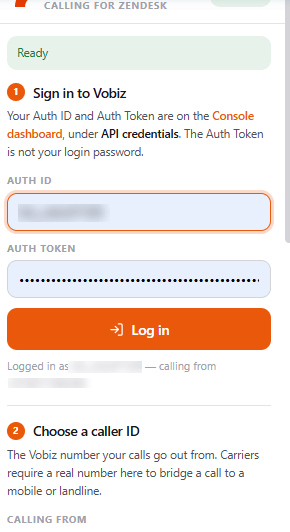
Signed in, with the caller ID chosen.
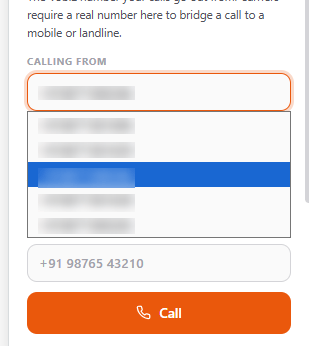
Any of your active numbers can be the caller ID.
SIP direct
Use this to sign in as one existing SIP endpoint, without account-wide credentials. Enter the endpoint’s SIP username and SIP password (Console → Voice → Endpoints), and the number to call from in Calling from (+91XXXXXXXXXX), then click Connect. The password goes straight from your browser to Vobiz; the backend never receives it.
Nothing is set up for you in this mode. Before you connect, point the endpoint and your number at an application whose answer URL is your backend’s /answer.
- Console
- API
- Voice → Applications → create an application with answer URL
https://calling.example.com/answer, method POST. - Voice → Endpoints → your endpoint → set its application to that one.
- Phone Numbers → your number → attach it to the same application.
- The number you type is used as the caller ID and as the inbound number that rings you. Vobiz refuses a caller ID that the endpoint’s account does not own.
- The caller-ID dropdown, Enable inbound calls and the recordings list are not available. Calls are still recorded in Vobiz, but ticket notes carry no recording link.
- Call logs are always written through your own Zendesk session.
- Remember username and caller ID keeps those two in this browser. The password is never stored; you type it each time.
Enable inbound calls
In Vobiz account mode, under Receive calls here, click Enable inbound calls once. This attaches the selected number to theZendesk-Calling-Vobiz application, so calls to that number ring the panel.
Using it
Outbound calls
- Wait for the READY badge. Call stays disabled until the panel is signed in and registered with Vobiz.
- Type the number in international format (
+91XXXXXXXXXX) and click Call, or press Enter. Or open a ticket and click Call requester in the Vobiz sidebar - it uses the phone number on the requester’s profile. - Allow microphone access the first time. Click Hang up to end the call.
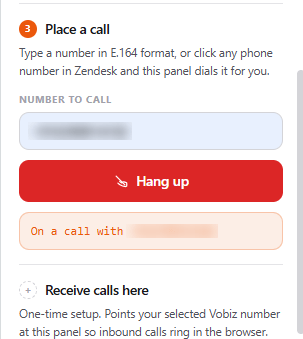
An active call.
Inbound calls
Keep the panel signed in and READY. When a call arrives, the panel opens, plays a ring tone, shows a Zendesk notification and the caller’s number, and adds their name if a Zendesk user has that phone number. Click Accept or press Enter to answer - this also opens the caller’s Zendesk profile. Click Decline or press Escape to reject. A call rings for 30 seconds. If no agent of that account is signed in, the caller hears “Sorry, no one is available to take your call. Please try again later.” and the call ends.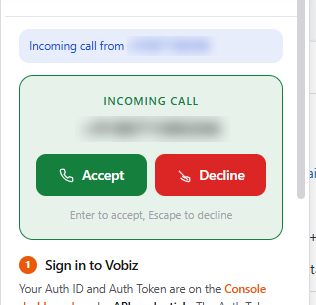
An incoming call, with Zendesk's own notification.
Call logging
When a call ends, the panel writes it to Zendesk:- Outbound call made while a ticket is open: a private internal note on that ticket.
- Outbound call with no ticket open, and every inbound call: a new ticket, type Task, status Solved, with the matched Zendesk user (if any) as the requester.
[Vobiz Call Log] and lists the date, direction, phone number(s), duration and a Listen to Call Recording link.
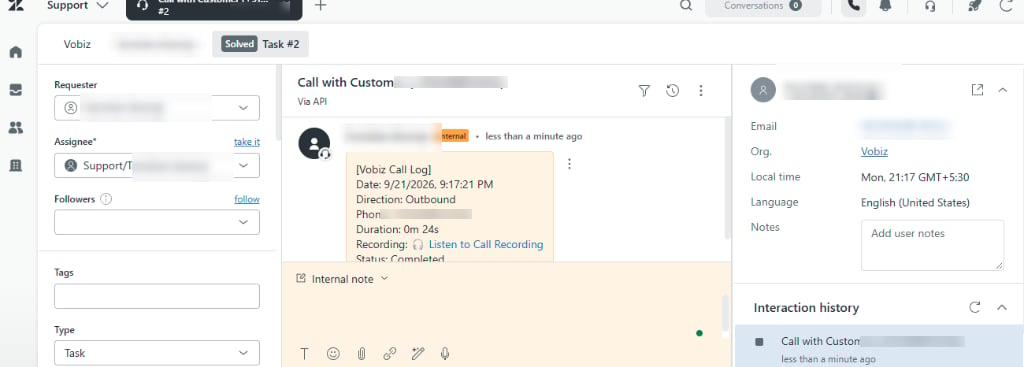
A call log on a ticket, as an internal note.
ZENDESK_SUBDOMAIN,ZENDESK_EMAILandZENDESK_API_TOKENset: the backend writes the log as that Zendesk user. If your Zendesk account has Talk Partner Edition, the backend writes a Talk voice comment (or voice ticket) instead of a plain note.- Left blank (or if the backend write fails): the panel writes the log through the signed-in agent’s own Zendesk session, so it is attributed to the agent.
POST /transcription-ready, appends a transcript to a ticket as a private note. It is off unless TRANSCRIPTION_WEBHOOK_SECRET is set, and the caller must send Authorization: Bearer <that secret>.
Recordings
Every call is recorded (MP3, up to one hour per call).- In the panel: Recordings of calls made here lists up to 10 recent recordings of calls this backend handled for your Vobiz account.
- In the ticket: the recording link plays once Vobiz has finished processing the file, usually within a minute. Until then it answers “The recording is still processing”. Ticket links expire after 7 days by default.
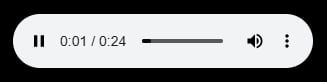
Playing a recording in the browser.
Configuration
Zendesk app settings
Set these in Admin Center → Apps and integrations → Zendesk Support apps → Vobiz Calling → Settings, or inzcli.apps.config.json when running locally.
Backend environment variables
Set inbackend/.env or the process environment.
Deploy to production
The backend- Serve it on a stable HTTPS hostname. Quick tunnels change hostname on restart.
- Run exactly one instance. Sign-ins, Auth Tokens and recent calls are kept in memory, so a second instance would not know about agents signed in to the first.
- Set
SIGNING_SECRETto a fixed random value so recording links survive restarts. - Put
DATA_DIRon persistent storage so each agent keeps the same SIP endpoint across redeploys. - Run it under a process manager. After any restart, agents must sign in again.
Build the package
npx @zendesk/zcli login -i, run npx @zendesk/zcli apps:validate . and npx @zendesk/zcli apps:package .. The backend is never included in the package.Upload it as a private app
Fill in the settings and install
Security and privacy
- Your Auth Token never leaves the server and is never stored on disk. It is kept in the backend’s memory only, never sent back to the browser, never logged and never written into a ticket. After sign-in the browser holds only an opaque session token, valid for 12 hours.
- The SIP password reaches only the signed-in browser. WebRTC needs it to register. It is minted fresh at each sign-in, served only to that session, and never stored in the browser. In SIP direct mode it never reaches the backend at all.
- On disk, the backend keeps only
DATA_DIR/endpoints.json: each Auth ID and Zendesk user ID mapped to its SIP endpoint ID and username. No password, no token. - Recording links are signed and expire. They carry no credentials, are tied to one Vobiz account, and expire after 5 minutes (panel) or 7 days (tickets). The backend fetches the audio from Vobiz itself and never fetches a URL supplied by the caller.
- Zendesk credentials are fixed on the server. The subdomain, email and API token come only from
backend/.env. - Caller IDs are checked. In Vobiz account mode, only numbers on that account can be used. Every value placed in the call instructions is validated and escaped.
- CORS is restricted to Zendesk’s app origins, localhost, and
ALLOWED_ORIGINS. - Vobiz webhooks are not signature-checked.
/answer,/dial-statusand/recording-readymust be public. A forged request can at most add a fake entry to the in-memory call list; it cannot obtain credentials or place calls to arbitrary numbers.
Troubleshooting
The panel says “Not configured” or “Backend URL must start with https://”
The panel says “Not configured” or “Backend URL must start with https://”
http:// and not localhost. Fill in Backend URL (your backend’s HTTPS URL), then reload.The panel says “Cannot reach the calling backend”
The panel says “Cannot reach the calling backend”
https://<backend>/health in a browser. If you load the app from a custom origin, add it to ALLOWED_ORIGINS.“Login failed: Vobiz did not accept that Auth ID and Auth Token”
“Login failed: Vobiz did not accept that Auth ID and Auth Token”
“This backend has no public https PUBLIC_BASE”
“This backend has no public https PUBLIC_BASE”
PUBLIC_BASE is empty or not https://. Set it to your public HTTPS URL and restart the backend.“Could not find or create the Zendesk calling application” or “Could not set up a SIP endpoint”
“Could not find or create the Zendesk calling application” or “Could not set up a SIP endpoint”
“No numbers found on this account”
“No numbers found on this account”
The badge stays OFFLINE, or says “Registration failed”
The badge stays OFFLINE, or says “Registration failed”
registrar.vobiz.ai:5063. In SIP direct mode, check the username and password in Console → Endpoints.Calls fail at once and nothing appears in the backend log
Calls fail at once and nothing appears in the backend log
/answer. Run the curl check from Set up from outside your network. If your tunnel hostname changed, update PUBLIC_BASE and Backend URL, restart the backend and sign in again.The badge drops to SIGNED OUT with “Please sign in again”
The badge drops to SIGNED OUT with “Please sign in again”
The customer's phone never rings
The customer's phone never rings
bleg=(none …): the destination is unreachable, or the caller ID is not a number on this Vobiz account. Check the number format (+91XXXXXXXXXX) and your caller ID. The CDR shows how the call ended.The call connects but nobody hears anything
The call connects but nobody hears anything
stun.l.google.com:19302) must be reachable.Inbound calls never ring the panel
Inbound calls never ring the panel
Clicking a phone number in Zendesk does nothing
Clicking a phone number in Zendesk does nothing
Outbound calls create a new ticket instead of using the open one
Outbound calls create a new ticket instead of using the open one
A recording link says it is invalid, expired, or that the backend restarted
A recording link says it is invalid, expired, or that the backend restarted
SIGNING_SECRET changed - set a fixed secret. “The calling backend restarted since this link was made”: sign in to the panel with that Vobiz account, then open the link again.An agent keeps getting signed out
An agent keeps getting signed out
Limitations
- Sign in again after the backend restarts. Auth Tokens and sessions live in memory only. Sessions also expire after 12 hours. The panel shows SIGNED OUT when this happens.
- Run one backend instance. State is not shared between instances.
- One panel per agent at a time. Each Zendesk agent has one SIP endpoint; signing in again elsewhere signs the older panel out.
- The agent is identified by the panel. The backend binds each session to the Zendesk user ID the panel reports, but does not verify it with Zendesk. Anyone with the Vobiz Auth ID and Auth Token can sign in as any agent.
- Inbound rings everyone on the account. All signed-in agents of the Vobiz account ring together. There is no queue, routing or per-number assignment.
- No hold, mute, transfer or conference.
- Browser only. Calls cannot be sent to an agent’s mobile or desk phone.
- Every call is recorded. Recording cannot be turned off from the app, and stops after one hour. Calls are limited to four hours.
- SIP direct cannot use recordings, the caller-ID dropdown or Enable inbound calls, and its ticket notes have no recording link.
- Click-to-dial on any phone number needs Talk Partner Edition. On other plans, use Call requester or the panel.
- The panel’s recordings list forgets on restart. It lists calls this backend handled since it last started. Ticket recording links keep working.
- Private app only. It is not listed on the Zendesk Marketplace.