


What you’ll build
A self-hosted Dograh instance that places and receives AI voice-agent calls over Vobiz - Dograh dials via the Vobiz REST API, Vobiz fetches a<Stream> instruction, and audio streams bidirectionally over a WebSocket to your agent (STT → LLM → TTS).
Prerequisites
- A Vobiz account with an Auth ID (e.g.
MA_XXXXXXXX) and Auth Token - from the Vobiz Console. - At least one Vobiz phone number (your caller ID), in E.164 without the
+(e.g.91XXXXXXXXXX). - Docker + Docker Compose installed.
- A way for Vobiz’s cloud to reach your server. For local dev, Dograh auto-creates a Cloudflare quick tunnel (see Step 5).
Step 1: Run Dograh
Step 2: Create your account
Open http://localhost:3010, sign up (local auth - no email needed), and you’re in the dashboard.Step 3: Get your Vobiz credentials
From the Vobiz Console, copy:- Auth ID (
MA_…) - Auth Token
- (Optional) Application ID - leave it blank and Dograh auto-creates one and stores it.
- Your Vobiz number(s) you’ll call from.
Step 4: Add Vobiz in Dograh
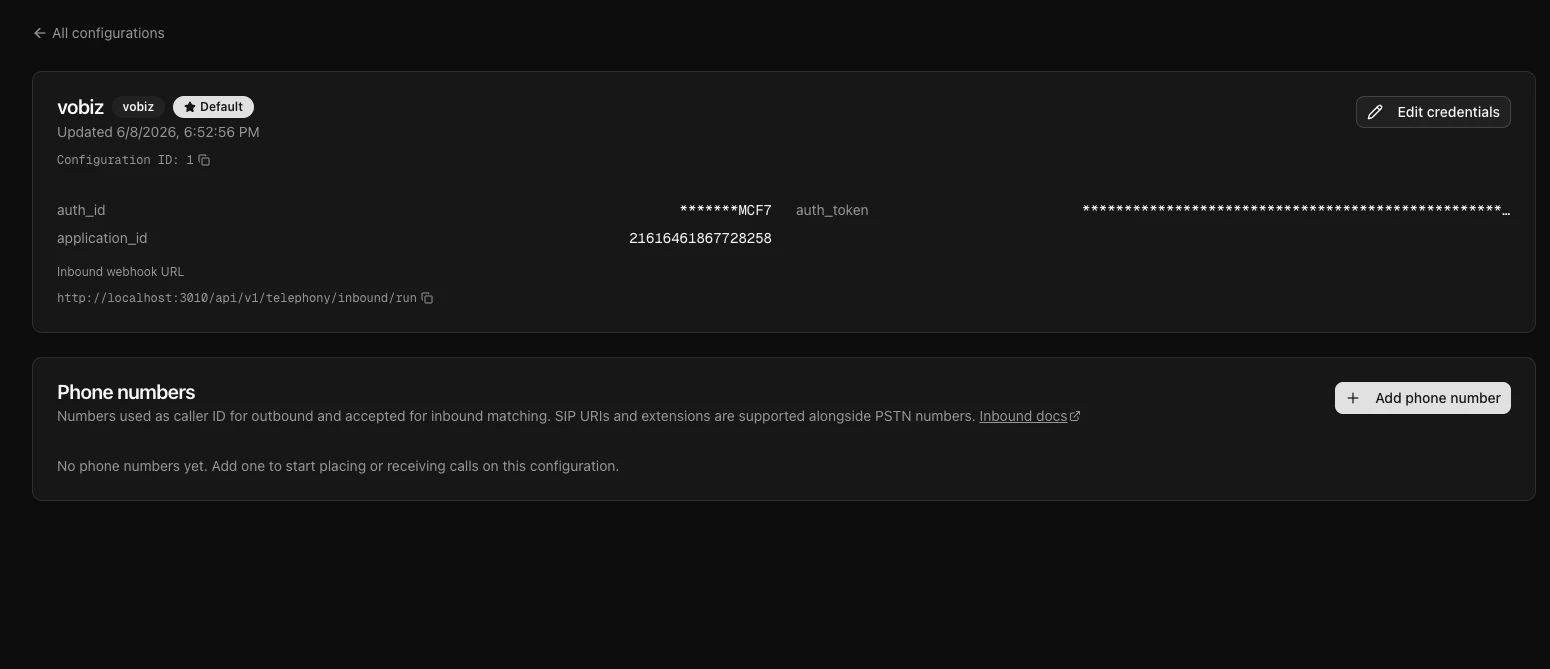
In the dashboard, go to Telephony → Configure Telephony.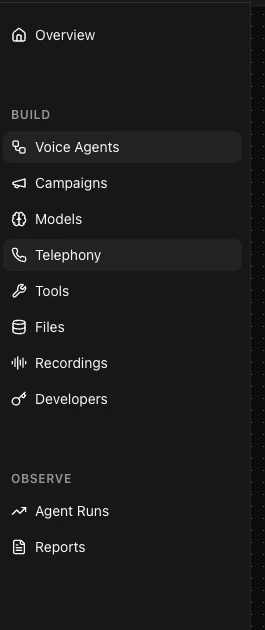
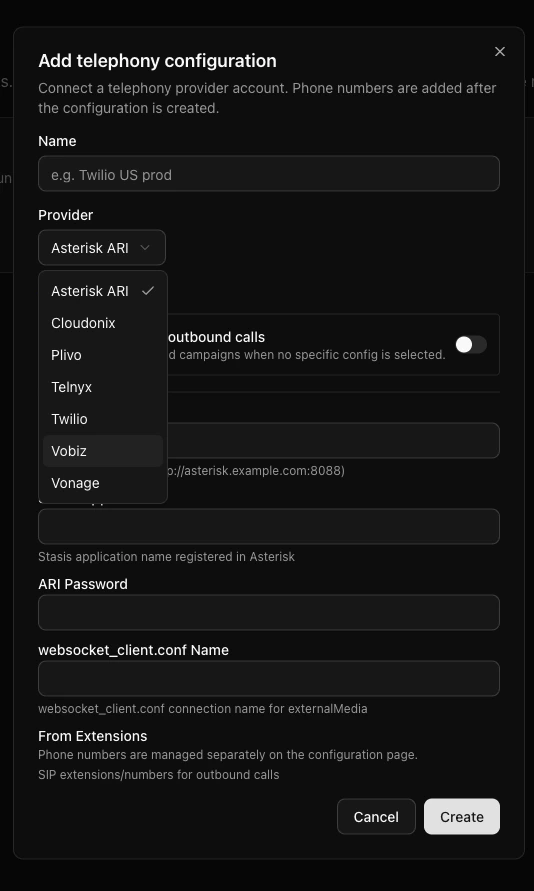
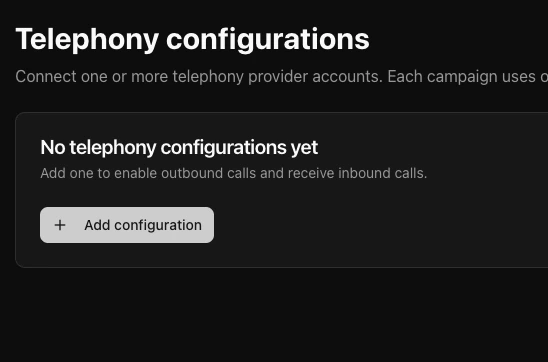
Dograh is now authorized to place and receive calls through your Vobiz account.
Step 5: Make Dograh reachable from Vobiz
Vobiz’s cloud calls back into Dograh for call control and audio:
For these to work, Dograh must be publicly reachable:
- Local dev - Dograh auto-starts a Cloudflare quick tunnel and uses it automatically (no setup). Check it in the health output’s
backend_api_endpoint. - Production - deploy on a server with a real domain (HTTPS) and set
BACKEND_API_ENDPOINT=https://your-domainso the callbacks andwss://stream use a stable, low-latency endpoint. See Dograh’s Docker deployment guide for the remote profile (nginx + HTTPS).
Step 6: Build an agent
Go to Create agent, pick Inbound or Outbound, name it, and describe the use case in a sentence (e.g. “Qualify inbound insurance leads”). Dograh generates a workflow you can edit.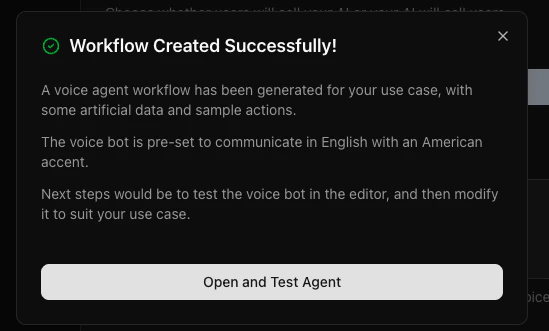
Step 7: Place an outbound call
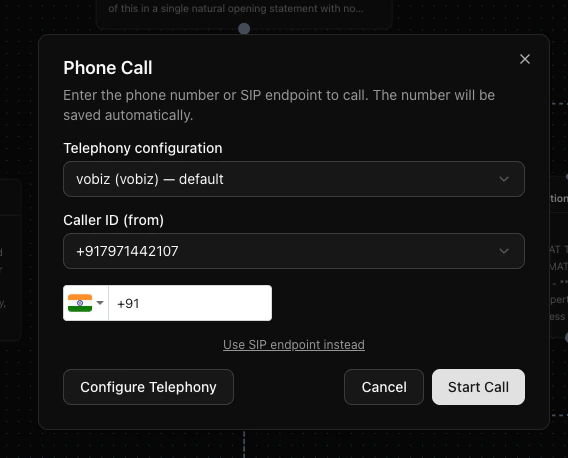
Open your agent and click Call (phone icon):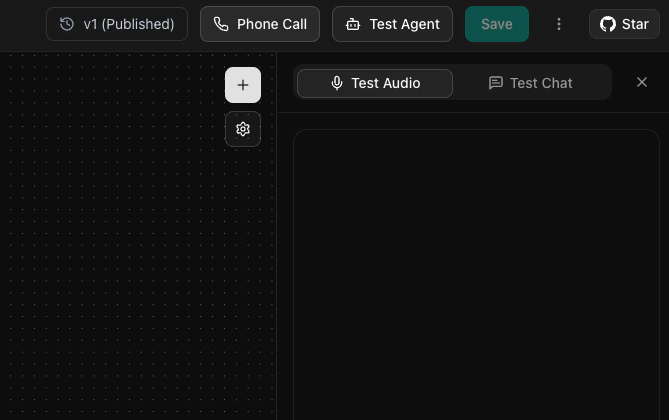
- Telephony configuration:
vobiz (vobiz)- default - Caller ID (from): your Vobiz number
- To: the destination number (E.164)
<Stream> XML, and audio streams over the WebSocket to your agent.
Inbound calls (optional)
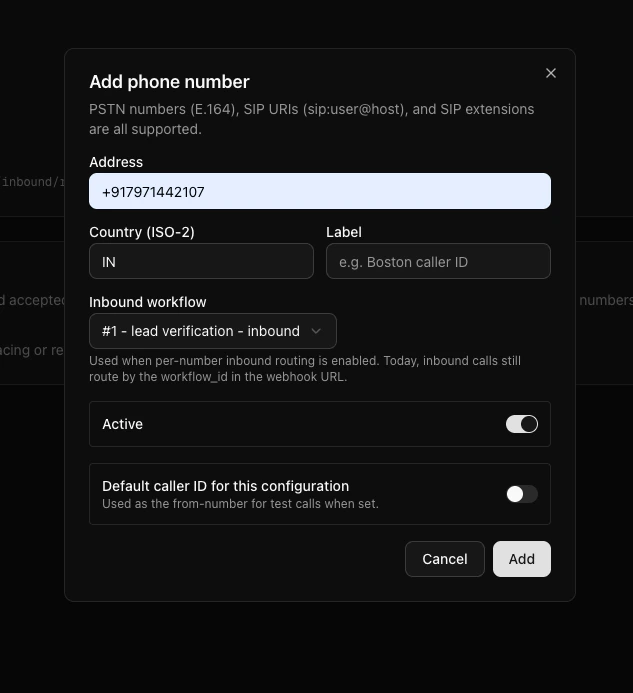
Attach a workflow to a Vobiz number on the account - Dograh updates that Vobiz application’sanswer_url so incoming calls route to the agent.
How it works
Troubleshooting
401 on every request / can't create agent
401 on every request / can't create agent
Stale browser session after a re-clone or secret change. Clear site data for
localhost:3010, or use an Incognito window.Call connects but no audio
Call connects but no audio
Check your STT/LLM/TTS provider keys in Settings (if using the built-in hosted models, verify the account/key is active). Confirm
backend_api_endpoint in the health output is a reachable public URL.Robotic or slow voice with OpenAI TTS
Robotic or slow voice with OpenAI TTS
This Dograh configuration uses μ-law at 8 kHz. Ensure the transport resamples the provider output and encodes it as μ-law/8 kHz before sending
playAudio. Do not label 24 kHz PCM as 8 kHz without converting it. Other custom transports can send supported L16 playback directly when their playAudio metadata matches the real payload.Bot greets but won't continue the conversation
Bot greets but won't continue the conversation
Turn-taking depends on the bot-stopped-speaking signal. Avoid a continuous output mixer on telephony.
Ports clash with another local stack
Ports clash with another local stack
Remap host ports via a
docker-compose.override.yaml (e.g. postgres 5433, redis 6380, api 8001).