

Features
- Click-to-call. Click any phone number in HubSpot, or type one into the panel.
- Inbound calls with a screen pop. A call to your Vobiz number rings every signed-in agent with an Answer / Decline overlay. The first agent to answer takes it.
- Call logging. HubSpot creates a call engagement on the contact’s timeline for every call, inbound and outbound.
- Recordings. Every call is recorded. Agents play recent recordings in the panel.
- Caller ID choice. Agents pick which of your Vobiz numbers their calls go out from.
- Multi-agent. Each HubSpot user gets their own Vobiz SIP endpoint, created automatically on first sign-in.
- Two sign-in modes. Your Vobiz account (Auth ID + Auth Token), or one existing SIP endpoint’s username and password.
- Any Vobiz account. One backend serves any number of Vobiz accounts. Nothing account-specific is configured on the server.
How it works
- HubSpot loads the widget in its calling panel. Your backend serves it at
/widget/. - An agent signs in from the widget. The backend checks the credentials with Vobiz and sets up what the account needs: an application and one SIP endpoint per agent.
- The browser registers as that agent’s SIP endpoint and places outbound calls itself.
- Vobiz asks your backend’s answer URL (
/answer) what to do with each call. Outbound, the backend dials the customer. Inbound, it rings the browsers of the signed-in agents. - Every call is recorded, and Vobiz tells the backend when the recording is ready.
- The widget tells HubSpot when a call starts and ends. HubSpot writes the call to the contact’s timeline using the agent’s own HubSpot session.
Prerequisites
Setup
Clone, install and configure
backend/.env. There are no Vobiz credentials in it.Run the backend and expose it
<Response></Response>. If Vobiz cannot fetch the answer URL, calls fail.Get HubSpot developer access
Create the HubSpot app
backend/.env as HUBSPOT_CLIENT_ID and HUBSPOT_CLIENT_SECRET, and restart the backend.Register the calling widget
HUBSPOT_APP_ID and HUBSPOT_DEVELOPER_API_KEY to backend/.env (or export them; the shell wins). The widget URL defaults to <PUBLIC_BASE>/widget/; set WIDGET_URL only to use a different one.npm run calling:show prints the current settings.Install the app
https://calling.example.com/hubspot/install and choose your HubSpot account. You land on Connected to HubSpot.npm run test-account "Vobiz Calling Test", which uses the key npx hs account auth saved in ~/.hscli/config.yml, or create one in HubSpot).Choose Vobiz as the calling provider
Sign in
The panel opens on a Connecting badge with two sign-in tabs.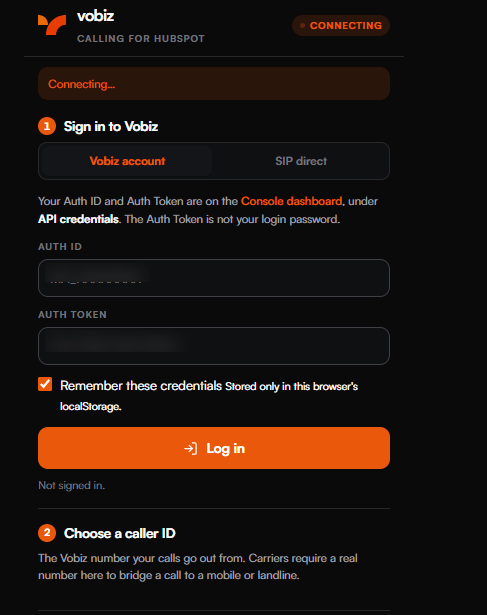
The panel on load, with the two sign-in tabs.
Vobiz account (recommended)
Enter your Auth ID (MA_XXXXXXXX) and Auth Token from the Console → API credentials. The Auth Token is not your Console login password.
When you sign in, the backend checks the credentials with Vobiz and sets up your account:
- An application named
vobiz-hubspot-calling-integration, with its answer URL and hangup URL set tohttps://calling.example.com/answer(POST). If it exists, it is reused and pointed at your backend. No other application is changed. - One SIP endpoint per agent, with the alias
hubspot-<agent>, linked to that application. Each HubSpot user gets their own endpoint. A fresh random SIP password is set on every sign-in and sent only to that agent’s browser.
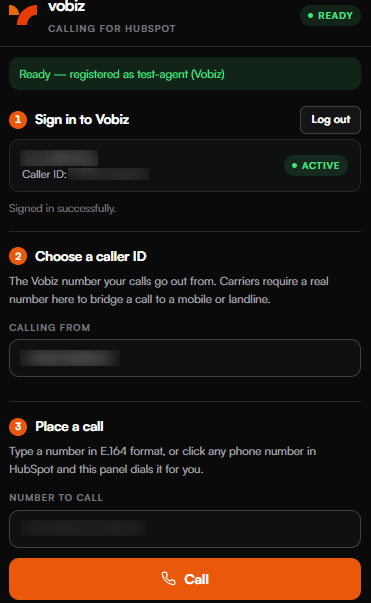
Signed in and ready to call.
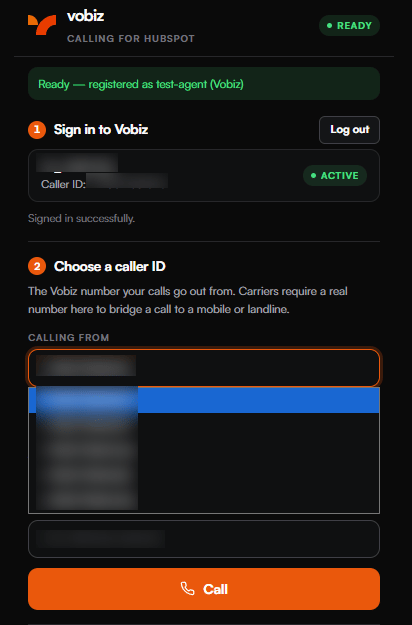
Pick the number your calls go out from.
SIP direct
Use this for agents who should not hold your account’s Auth Token. Enter an existing endpoint’s SIP username, its SIP password, and the Calling from number in E.164 format (+91XXXXXXXXXX). The password stays in the browser and never reaches the backend.
First, point the endpoint and the number at an application whose answer URL is your backend:
- In the Console, create an application with Answer URL and Hangup URL set to
https://calling.example.com/answer, method POST. - Under Voice → Endpoints, set the endpoint’s application to it.
- Under Numbers, attach the caller-ID number to the same application.
{"app_id": "<app_id>"}, then Attach a number.
SIP direct has no number dropdown, no Enable inbound calls and no recordings list; those need the account API. Inbound calls to the caller-ID number ring a SIP direct agent.
Enable inbound calls
Signed in with your Vobiz account, open Enable inbound calls, pick the number customers should call, and click Enable inbound calls. This attaches the number to thevobiz-hubspot-calling-integration application, so calls to it ring your signed-in agents.
You only need to do this once per number.
Using it
Outbound. Click a phone number anywhere in HubSpot, or type a number with its country code into Number to call and click Call. The button is enabled once the badge shows Ready. During the call the panel shows a timer and Hang up.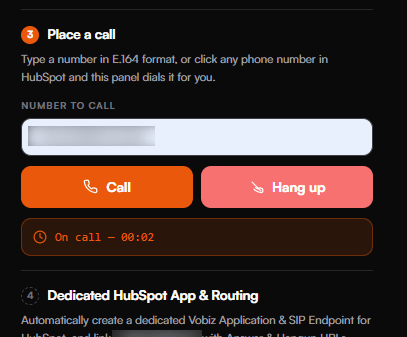
An outbound call in progress.
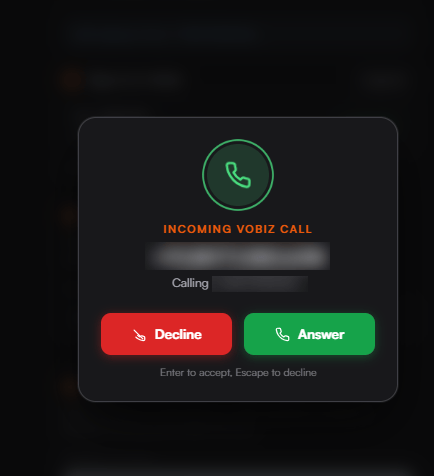
The inbound overlay.
oauth scope.
Recordings. Every call, inbound and outbound, is recorded, up to one hour per call. Call recordings in the panel lists the account’s 15 most recent recordings. Play streams the audio through a signed link that expires after 15 minutes by default.
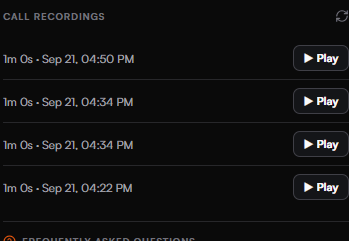
Recent recordings with the inline player.
Configuration
The backend readsbackend/.env.
npm run calling:configure reads HUBSPOT_APP_ID, HUBSPOT_DEVELOPER_API_KEY and WIDGET_URL (plus optional CALLING_APP_NAME, default Vobiz Calling) from backend/.env and your shell (the shell wins). WIDGET_URL defaults to <PUBLIC_BASE>/widget/.
Deploying to production
- Use a stable HTTPS hostname. If it changes, update
PUBLIC_BASE, runnpm run sync-urlsandnpx hs project upload, re-runnpm run calling:configure, and have each account sign in again. - Run exactly one backend instance. Sign-ins and calls are held in memory.
- Keep
DATA_DIRon persistent storage (defaultbackend/data). The agent → endpoint map and the HubSpot OAuth tokens are saved there. - Set
SIGNING_SECRETto a fixed value so recording links survive restarts.
Security
- Your Auth Token never leaves the server and is never stored on disk. It is kept in the backend’s memory, never logged and never returned to the browser.
- The browser gets a session token for that tab and its own endpoint’s SIP credentials. An agent can only read their own.
- SIP direct passwords never reach the backend.
- Recording links carry no credentials. Each is signed for one recording in one account and expires.
- The backend only answers browsers from HubSpot,
localhost, its own origin, and origins you add inALLOWED_ORIGINS. - An inbound call rings only agents of the Vobiz account that owns the number.
- Anyone who signs in with the Auth ID and Auth Token holds your account’s API credentials. Use SIP direct for agents who should not.
Troubleshooting
HubSpot says "Calling is offline"
HubSpot says "Calling is offline"
npm run build, restart, and check that https://calling.example.com/widget/ opens in a browser.The calling panel is blank
The calling panel is blank
npm run sync-urls, then npx hs project upload.Vobiz Calling is not in the provider list
Vobiz Calling is not in the provider list
--not-ready. Check with npm run calling:show, re-run npm run calling:configure, and install from /hubspot/install into this portal."Your account doesn't have access to developer tools"
"Your account doesn't have access to developer tools"
"There was a problem fetching approvers"
"There was a problem fetching approvers"
The install asks for contacts or custom-object permissions
The install asks for contacts or custom-object permissions
HUBSPOT_SCOPES is set to more than oauth. Remove it (the default is oauth), restart, and install again."Vobiz did not accept that Auth ID and Auth Token"
"Vobiz did not accept that Auth ID and Auth Token"
The status never reaches Ready
The status never reaches Ready
The customer's phone never rings
The customer's phone never rings
curl -X POST https://calling.example.com/answer -d "Event=Hangup" must return XML. Sign in again to point the application at the current PUBLIC_BASE.The outbound call ends straight away
The outbound call ends straight away
Inbound callers hear "no one is available"
Inbound callers hear "no one is available"
Inbound calls do not reach the panel
Inbound calls do not reach the panel
The browser rings but HubSpot shows nothing
The browser rings but HubSpot shows nothing
npm run calling:configure without --no-inbound.A recording will not play
A recording will not play
RECORDING_URL_TTL_SECONDS or SIGNING_SECRET changed: refresh the list.Operating notes
- Sign in again after the backend restarts. Sessions and Auth Tokens live in memory. Inbound callers to an account hear the “no one is available” message until one of its agents signs in.
- Run one backend instance. Each instance keeps its own state.
- Use one browser per agent. Signing in from a second browser disconnects the first.
- Inbound calls ring every signed-in agent of the account.
- Every call is recorded, up to one hour per call.
- Recordings are in the panel.
- A Vobiz account sign-in gives you the number list, Enable inbound calls and recordings. With SIP direct, type the password again after a page reload.
- Install the app privately in your HubSpot account.
Next steps
Source code
<Dial>, <Record>, SIP endpoints, Applications.