

What you’ll build
Two trunks on the same Vobiz number, one for each direction:
Inbound is trunk-based routing. No Vobiz application or answer webhook is involved.
Prerequisites
- Cartesia account → Sign in
- Vobiz account with active balance → Create account
- A Cartesia agent — start from a template or from scratch (Step 1 below)
- A Vobiz phone number — the caller ID for outbound calls and the number callers dial for inbound (Step 2 below)
Step 1: Create an agent in Cartesia
1
Open Agents
In the Cartesia dashboard, open Agents and click Create New. Pick a template, such as Customer Support, or Start from scratch.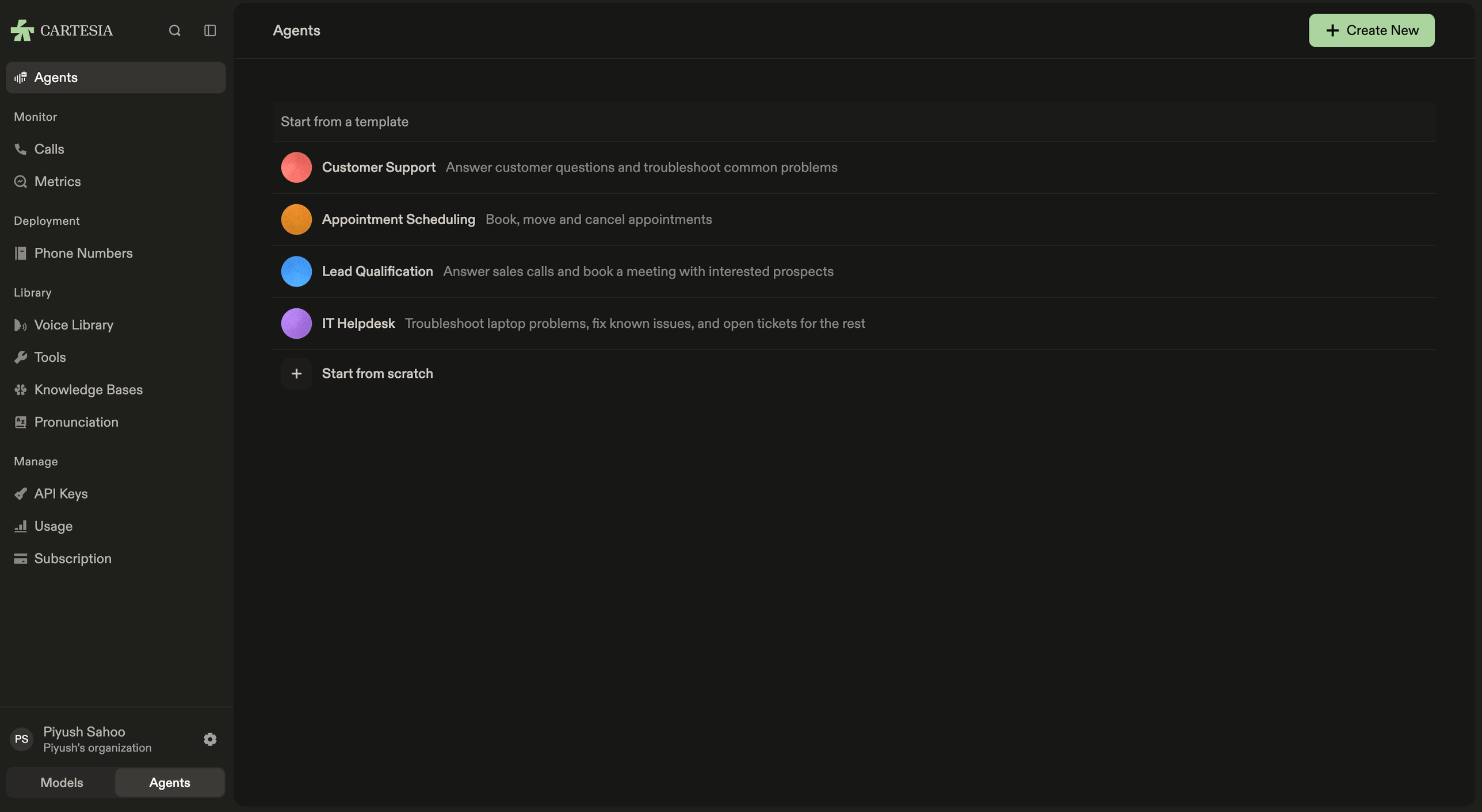
2
Check Phone Numbers
Open Phone Numbers under Deployment. It’s empty until you import your Vobiz number in Step 5.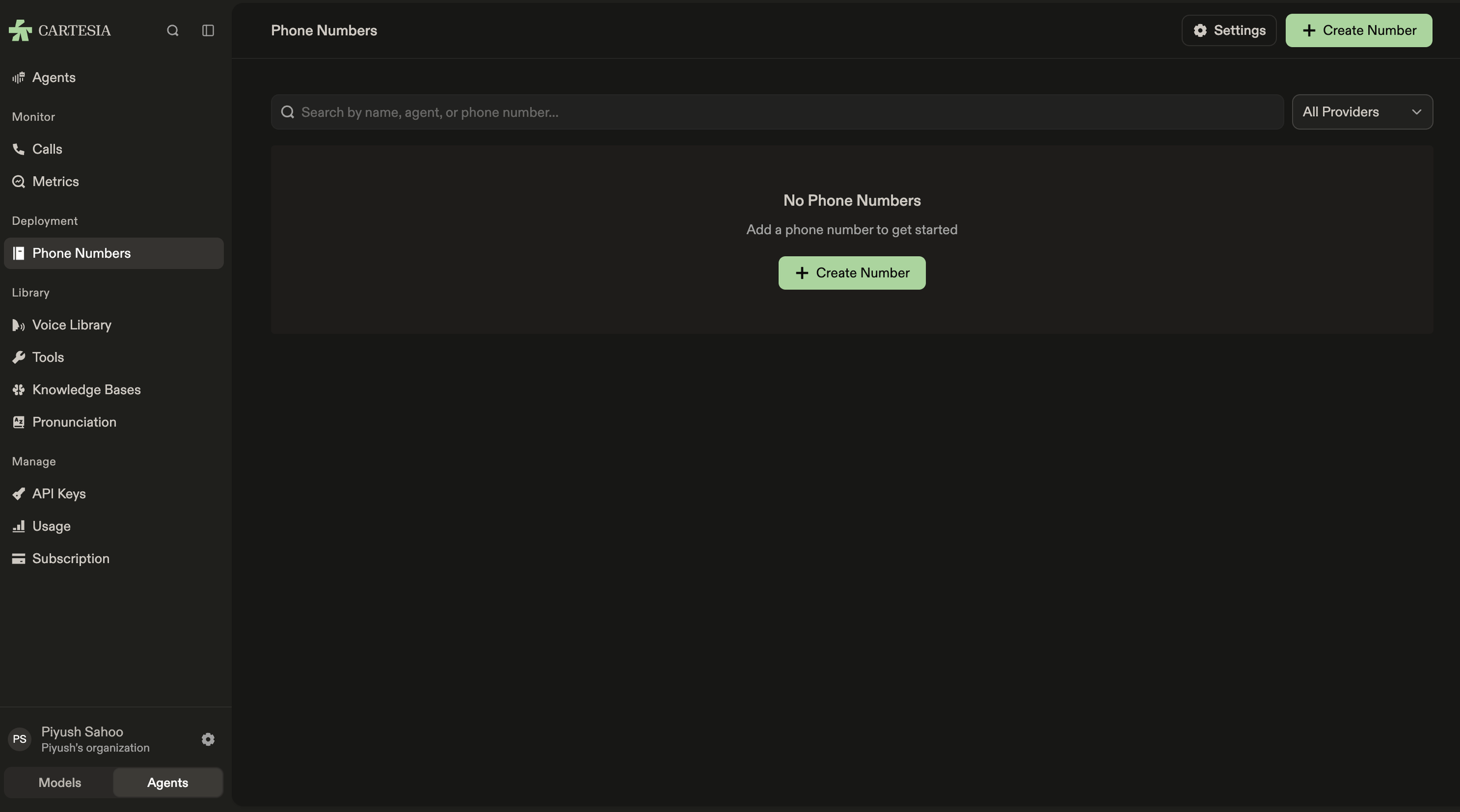
Step 2: Get a Vobiz phone number
Skip this step if you already have a Vobiz number you want to use.1
Open Buy number
Log in to the Vobiz Console and click Buy number under Quick actions.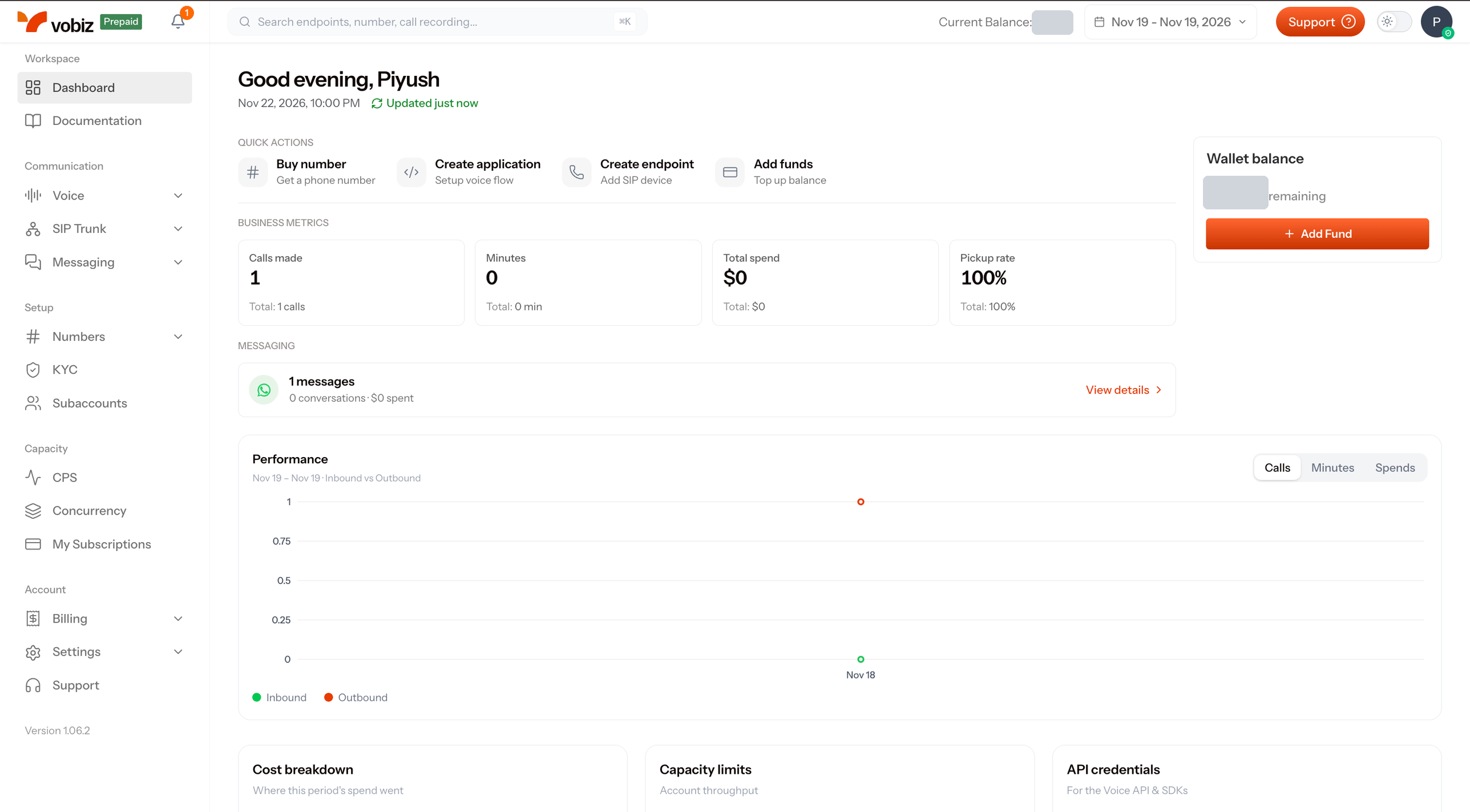
2
Choose a country
Search for the country you want a number in.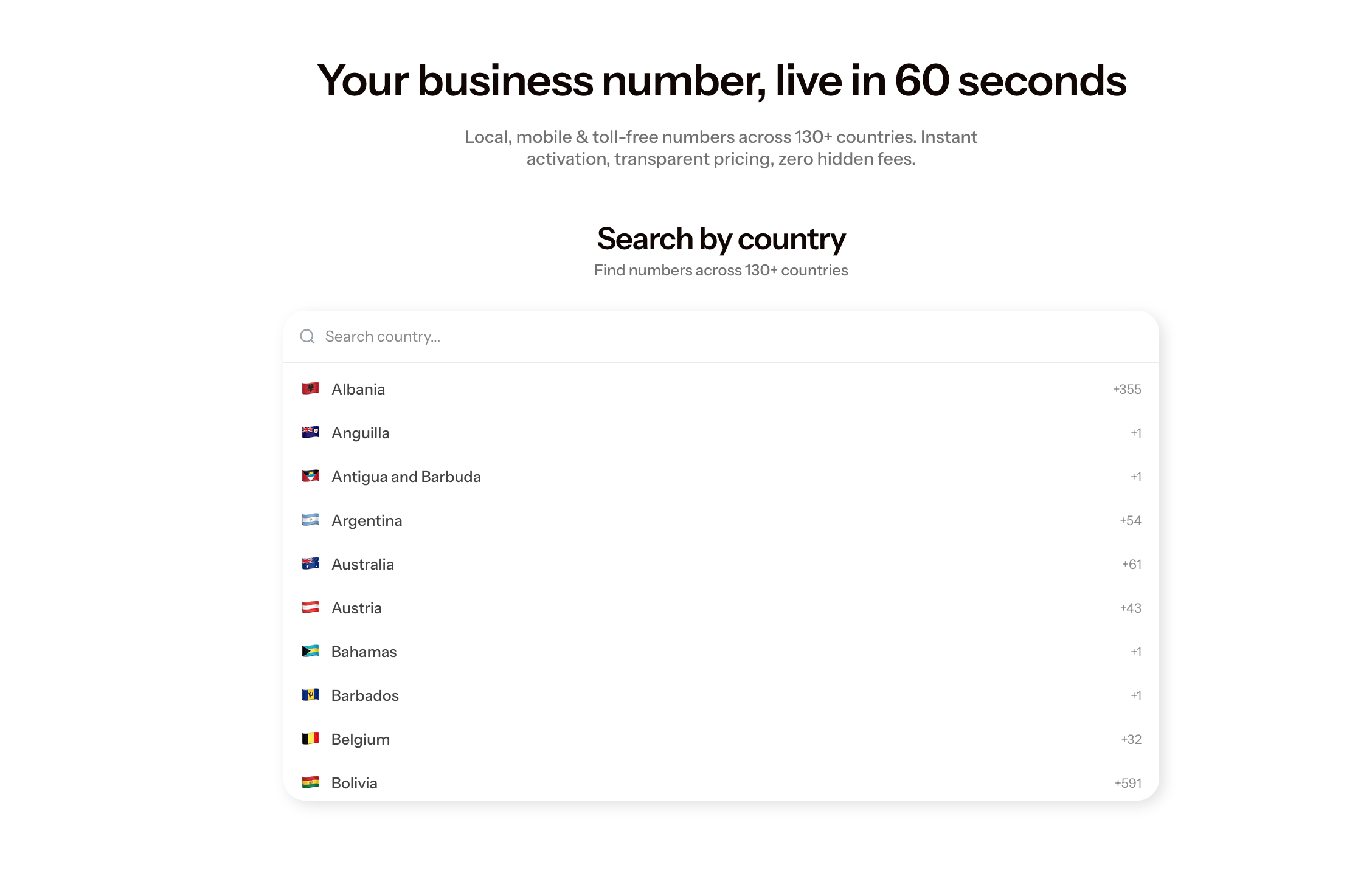
3
Pick a number
Choose a number from the Numbers Inventory with Voice in Supported features, add it to the cart, and click Proceed to checkout.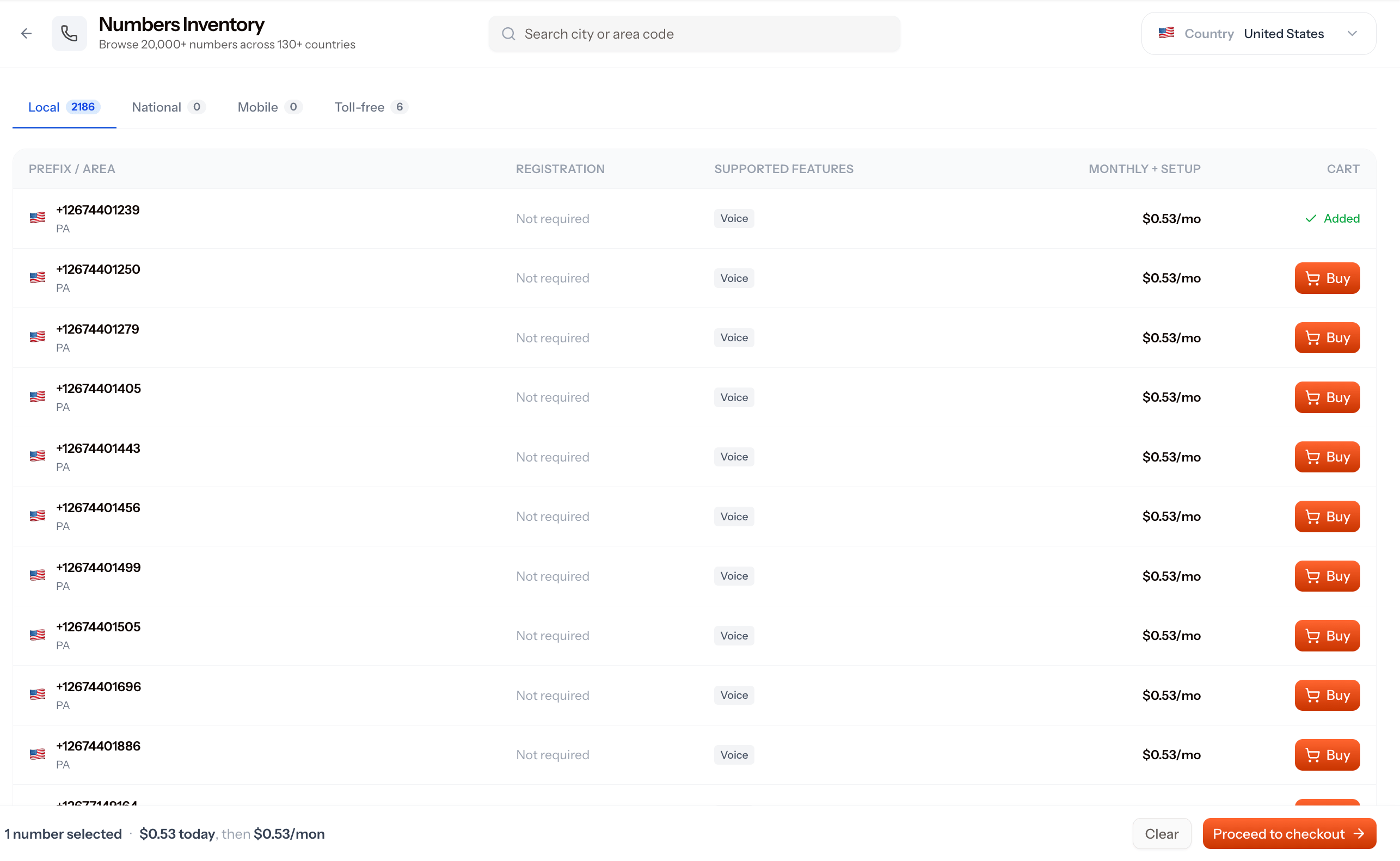
4
Confirm the purchase
Review the cost breakdown and click Confirm & Buy. The setup fee and the first month’s rent are charged to your balance.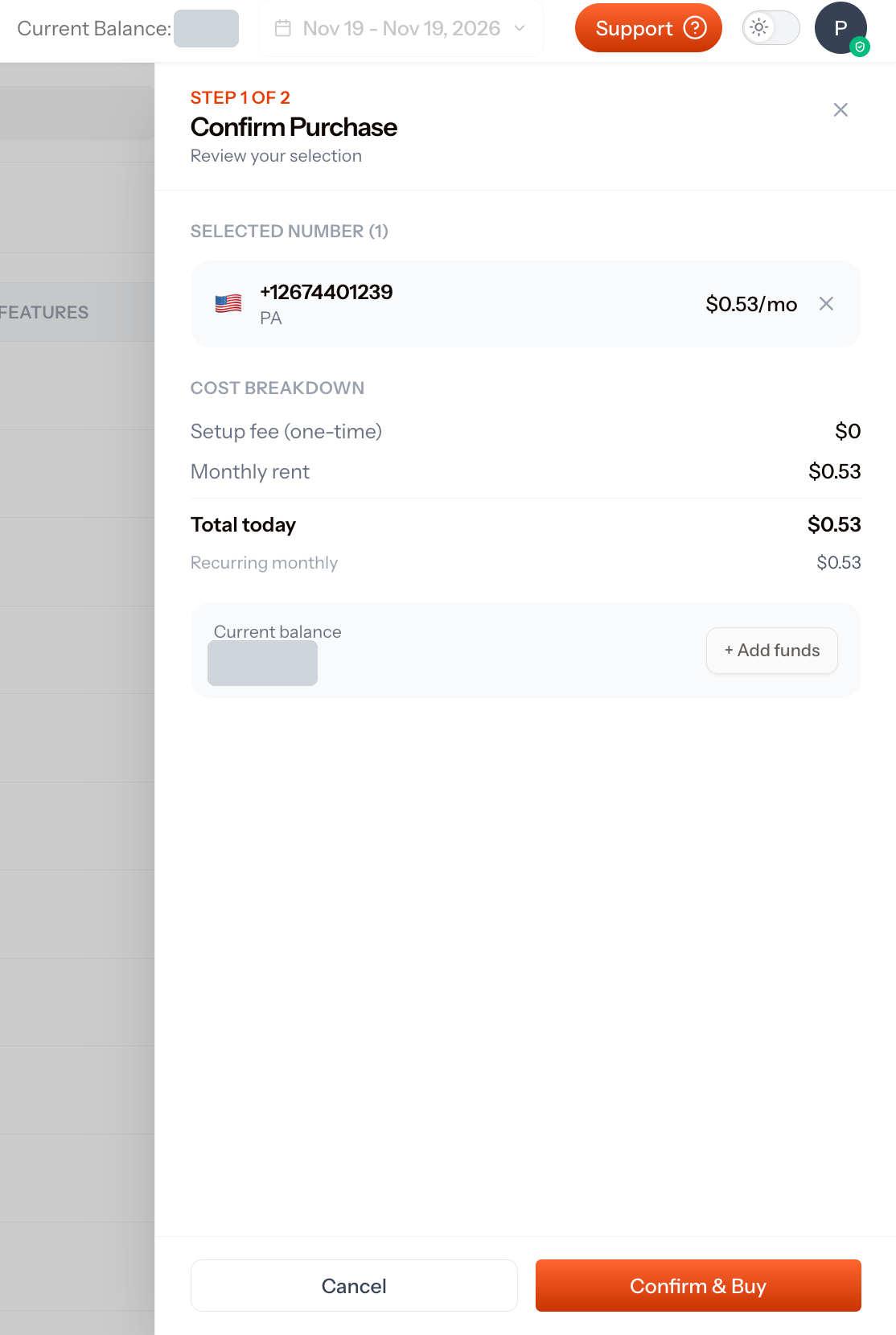
5
Find the number in My Number
Your new number appears under Numbers → My Number.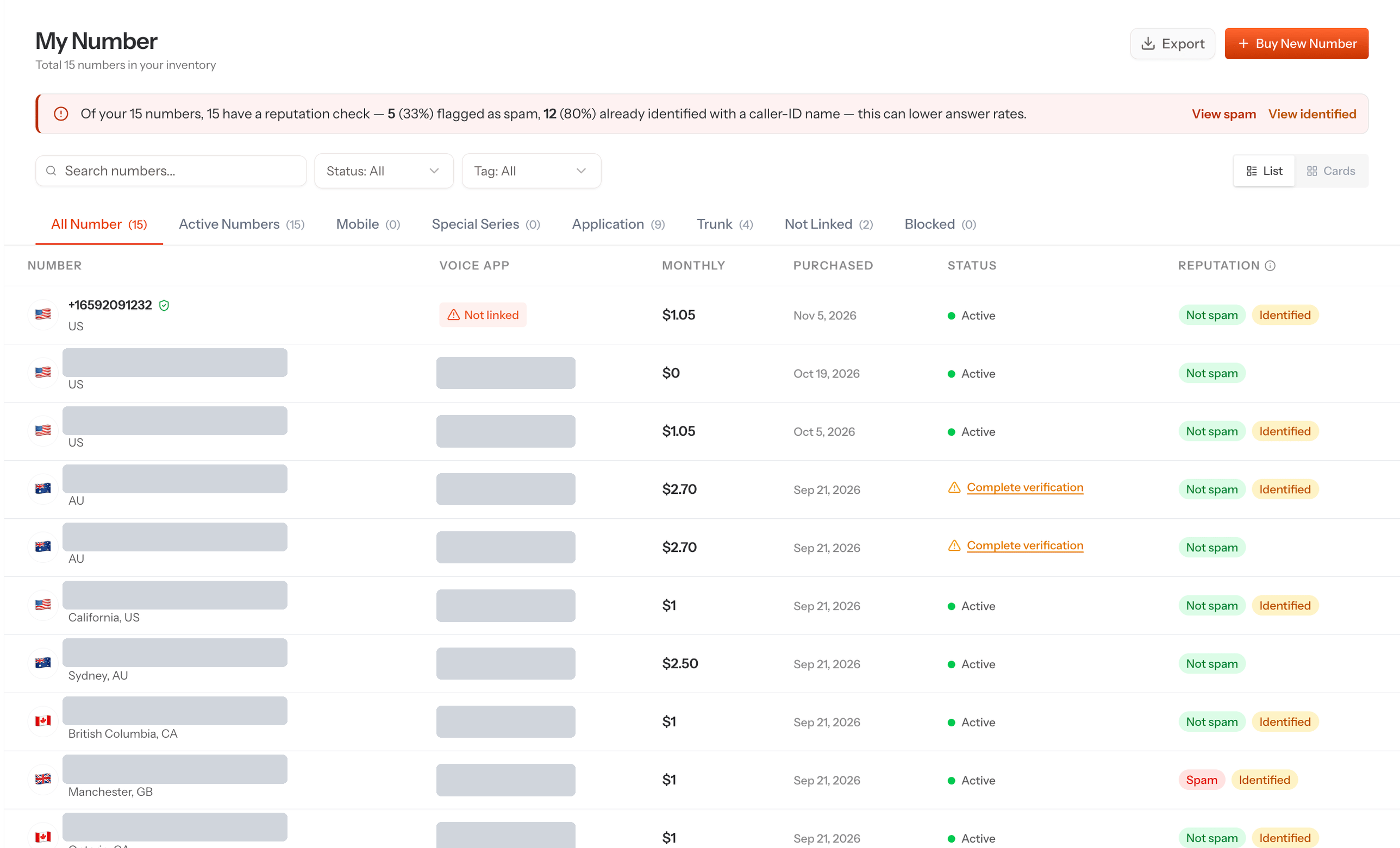
Step 3: Create the outbound trunk in Vobiz
Cartesia sends outbound calls to this trunk, signing in with a SIP credential.1
Open outbound trunks
Go to SIP Trunk → Outbound Trunk and click Create trunk.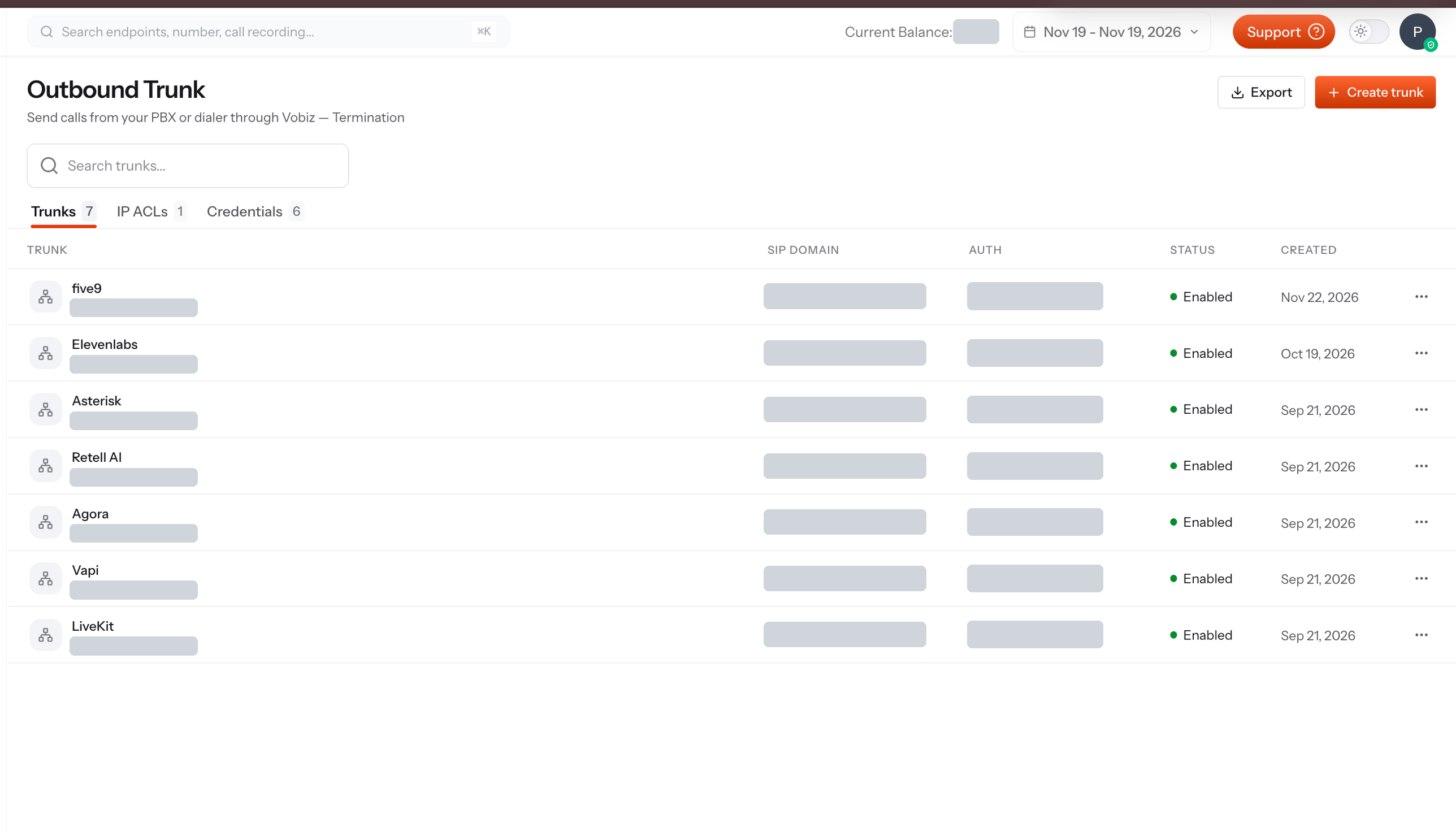
2
Name the trunk
Enter a Trunk Name, for example 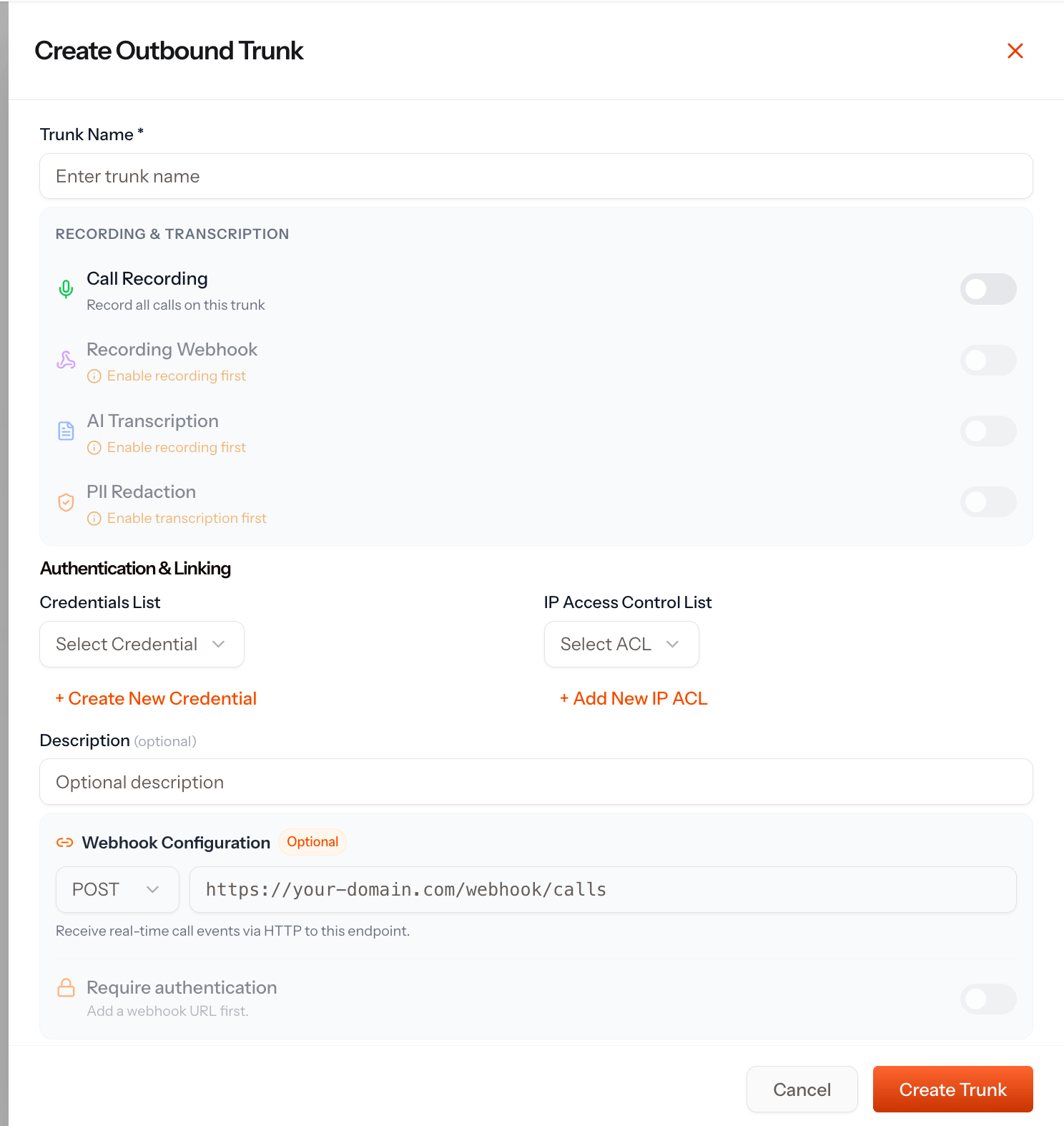
Cartesia. Call recording and transcription are optional.3
Create a SIP credential
Under Authentication & Linking, click Create New Credential. Enter a username and password and keep Active on.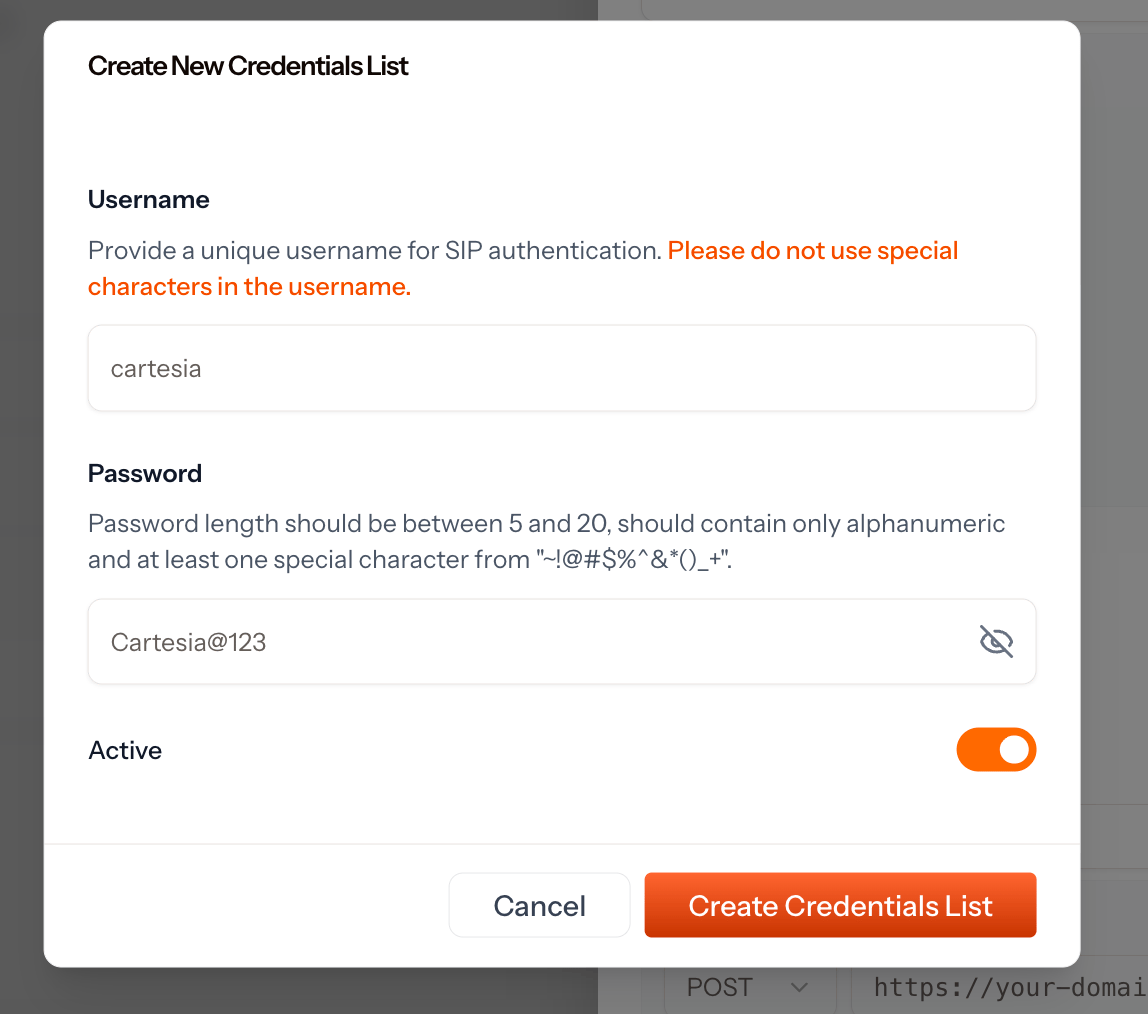
~!@#$%^&*()_+. The values shown are an example — choose your own strong password.4
Select the credential and create the trunk
Select the credential in Credentials List and click Create Trunk.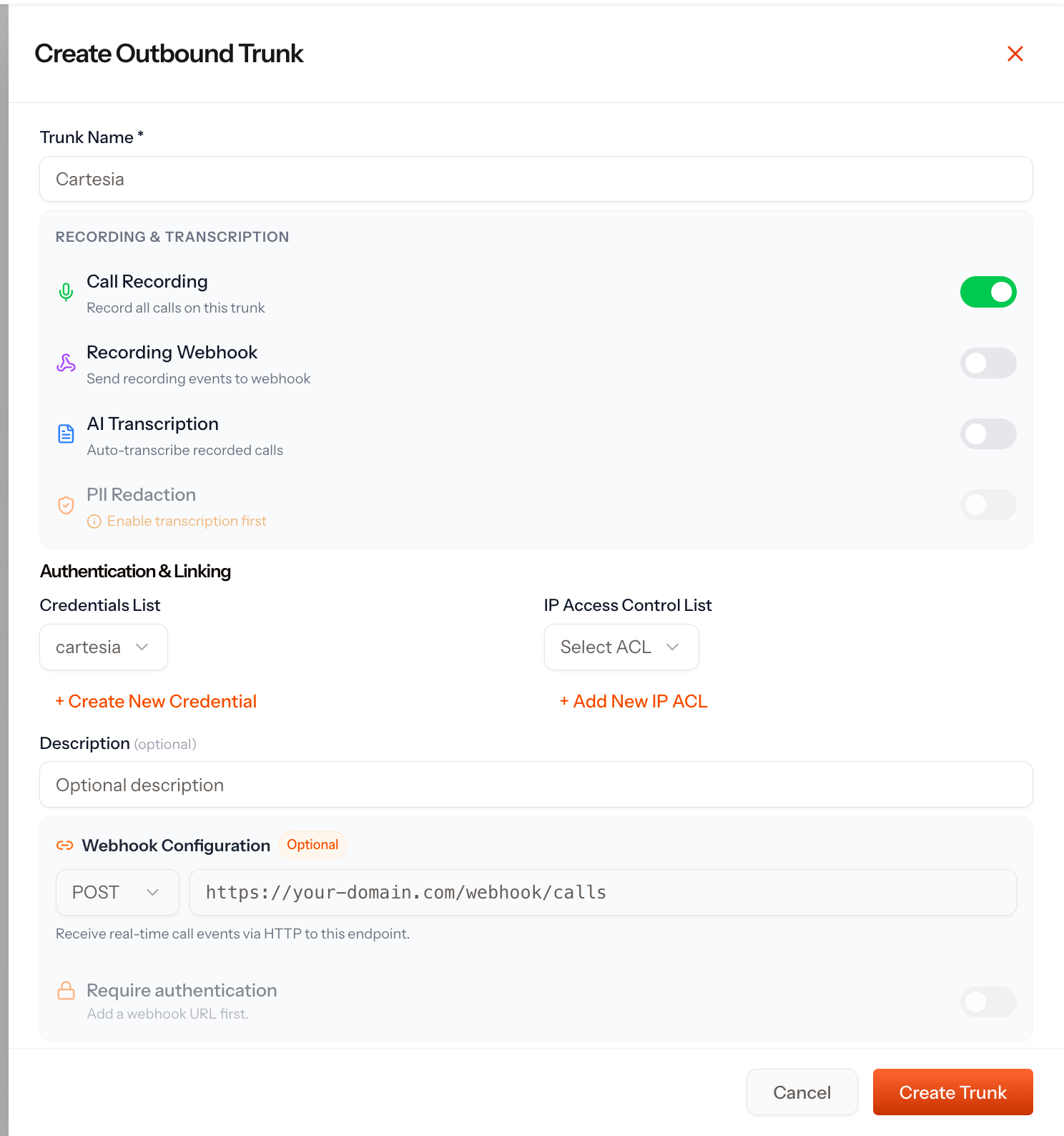
5
Copy the SIP domain
Open the new trunk and confirm it shows Enabled. Copy the SIP Domain (for example, 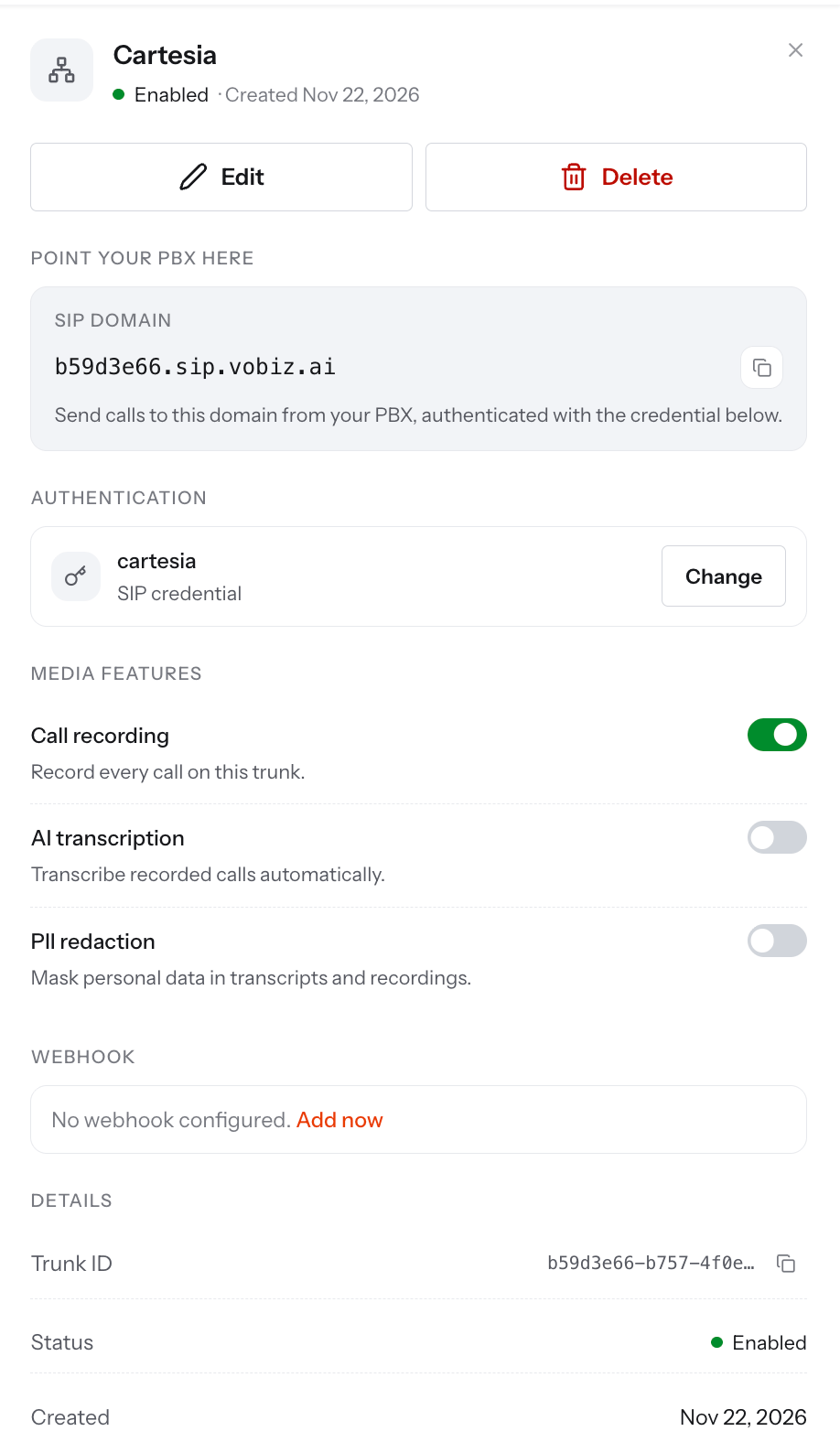
abc123.sip.vobiz.ai) — you enter it in Cartesia in Step 5.Step 4: Create the inbound trunk in Vobiz
The inbound trunk forwards calls on your number to Cartesia’s SIP address.1
Create the inbound trunk
Go to SIP Trunk → Inbound Trunk and create a trunk. Name it, for example
cartesia.2
Add Cartesia's origination URI
Under Origination URI, click Add New URI: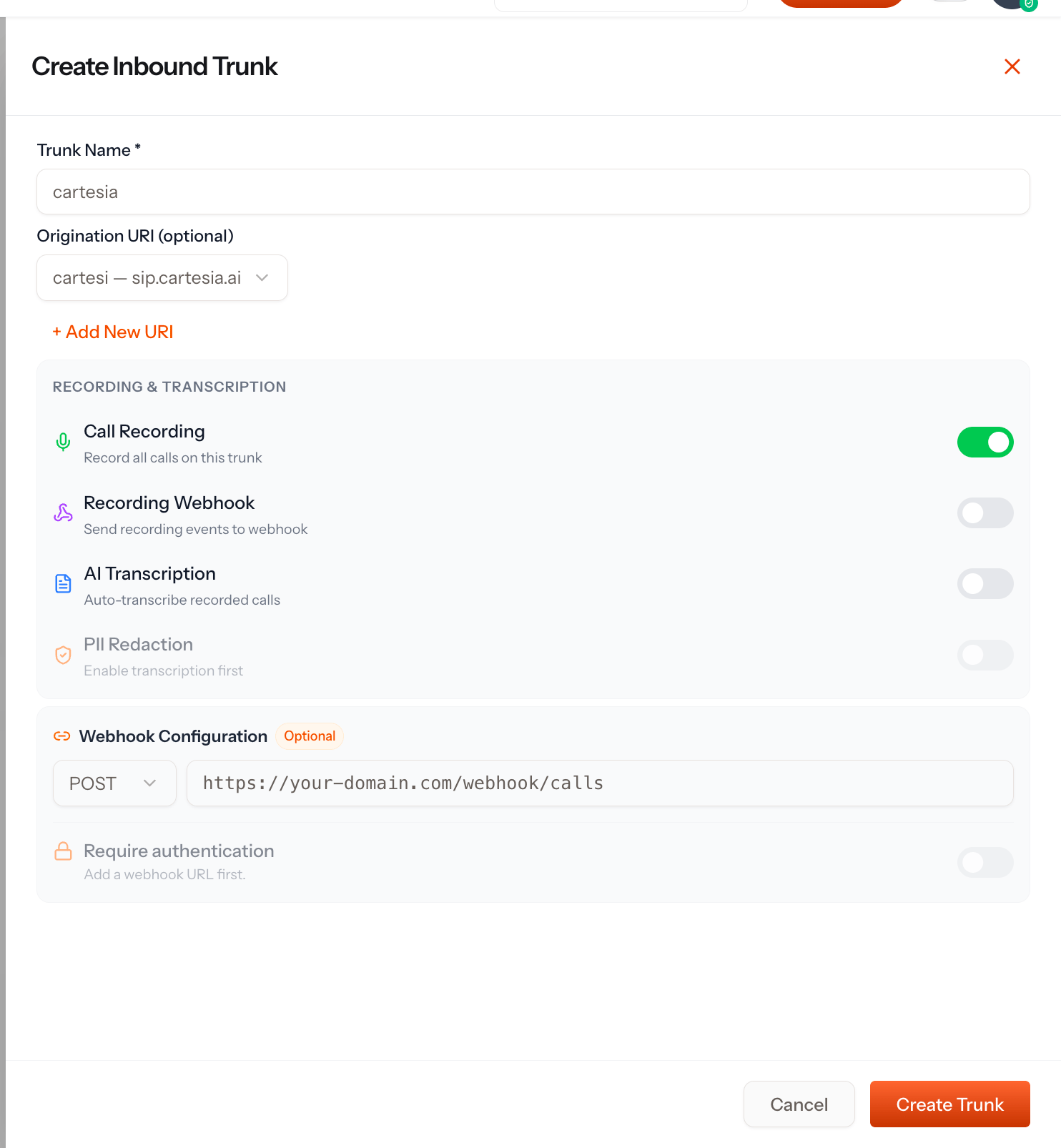
Cartesia accepts SIP over TCP or TLS, not UDP.Select the URI and click Create Trunk.
3
Link your number
In Link trunk with Phone Numbers, select the Vobiz number from Step 2 and click Link 1 Selected Number.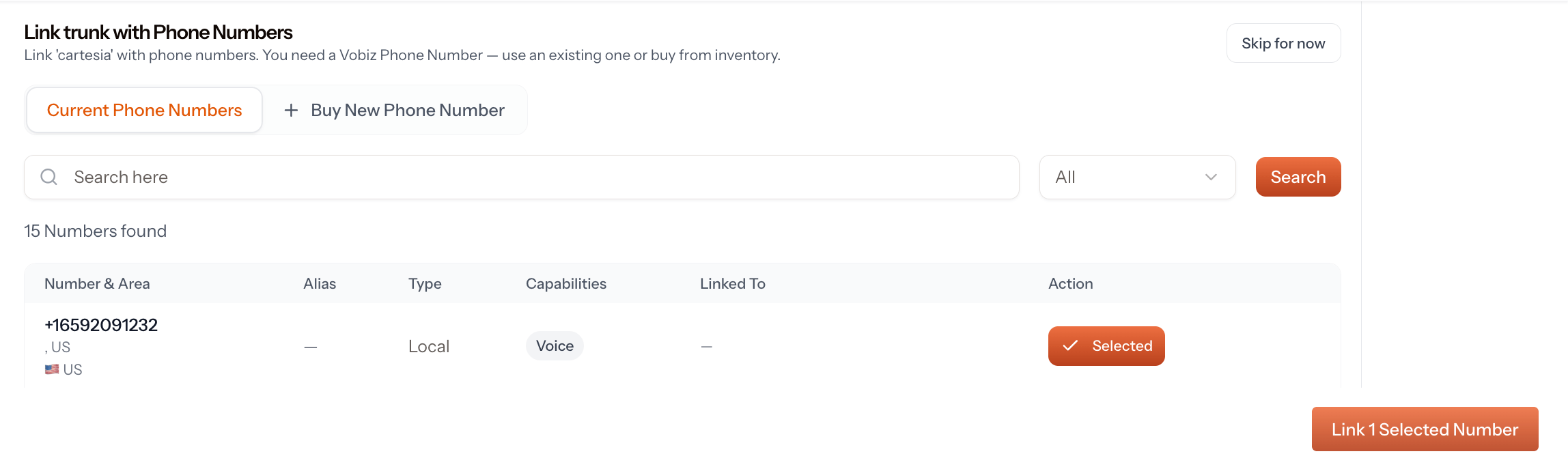
4
Check the trunk
The trunk shows Linked Numbers (1) with your number.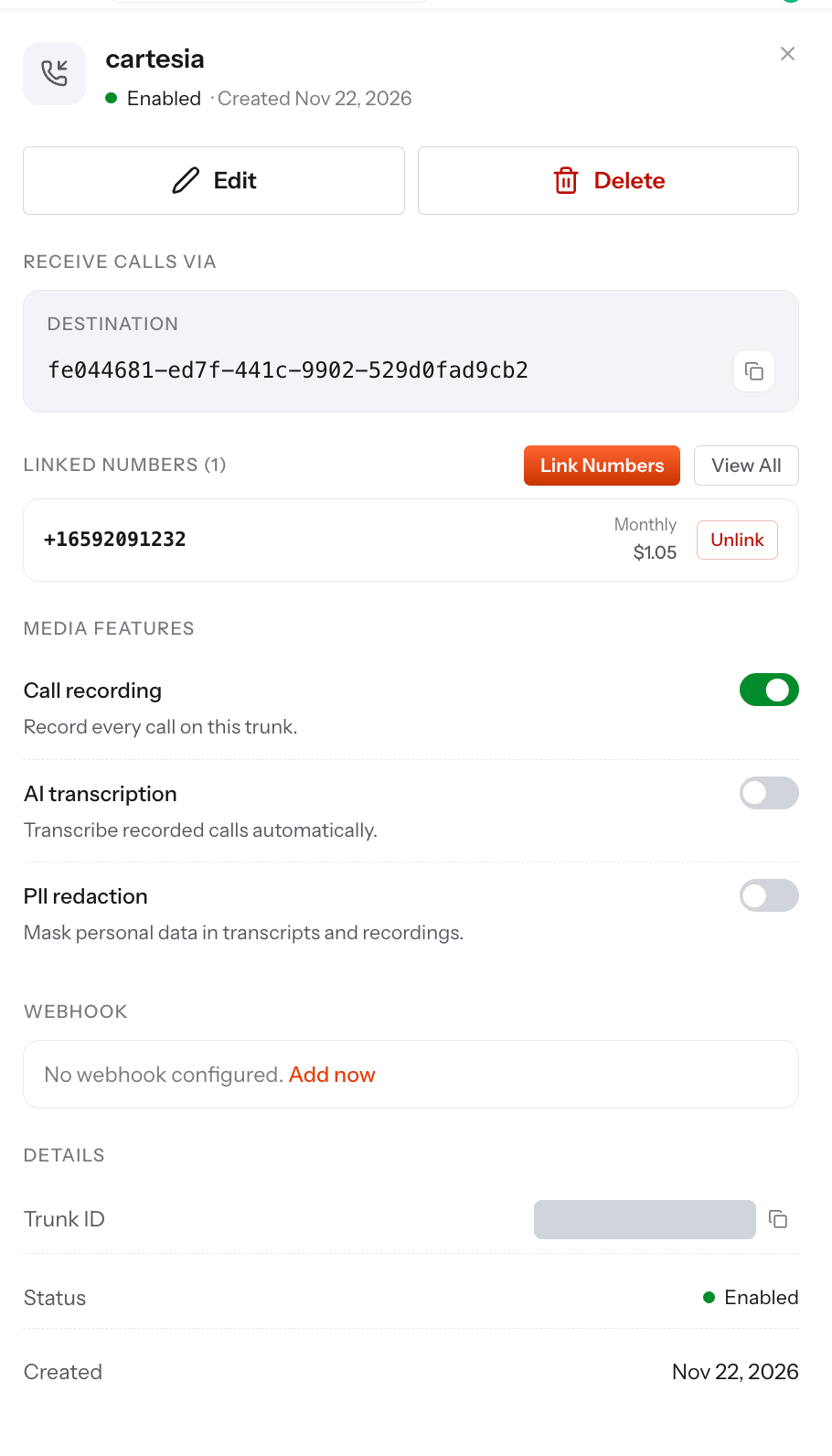
Step 5: Import the number into Cartesia
1
Import from SIP Trunk
In Cartesia, open Phone Numbers, click Create Number, and choose Import from SIP Trunk.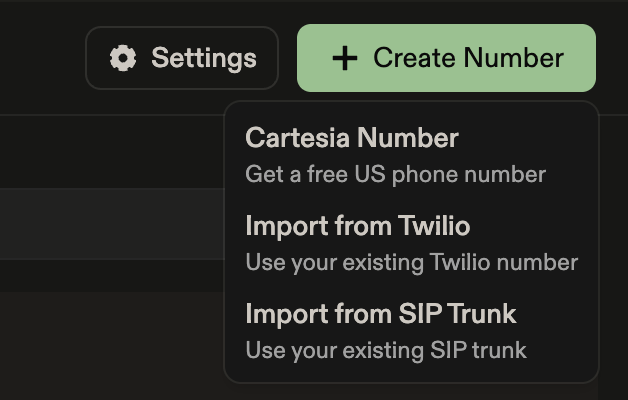
+14155550100), a name, and vobiz as the provider name.2
Fill in the outbound configuration
Under Outbound Configuration, enter: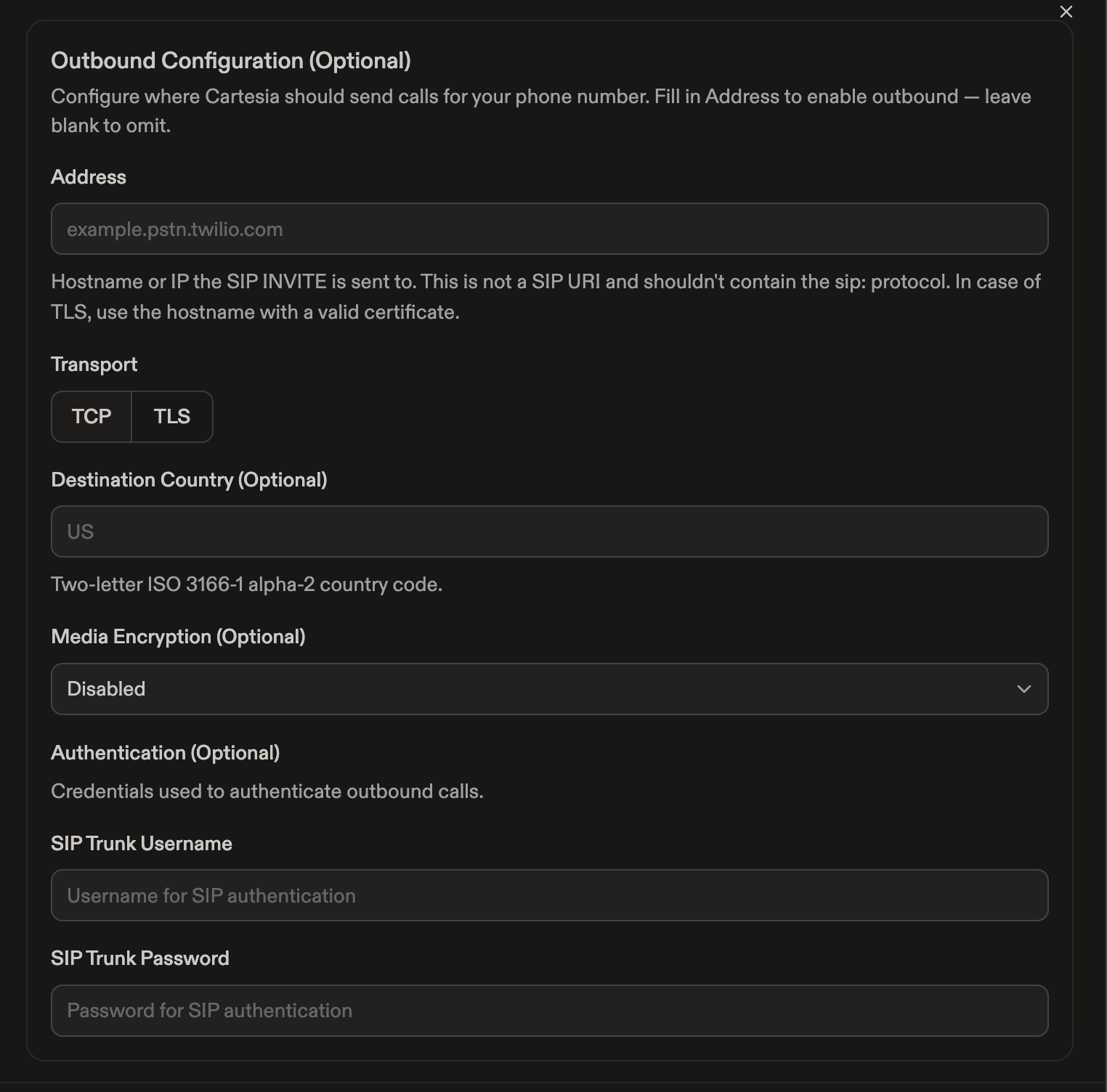
3
Assign the inbound agent
Open the number. Under Inbound Agent, choose the agent from Step 1. Check that Outbound shows your Vobiz SIP domain and TCP.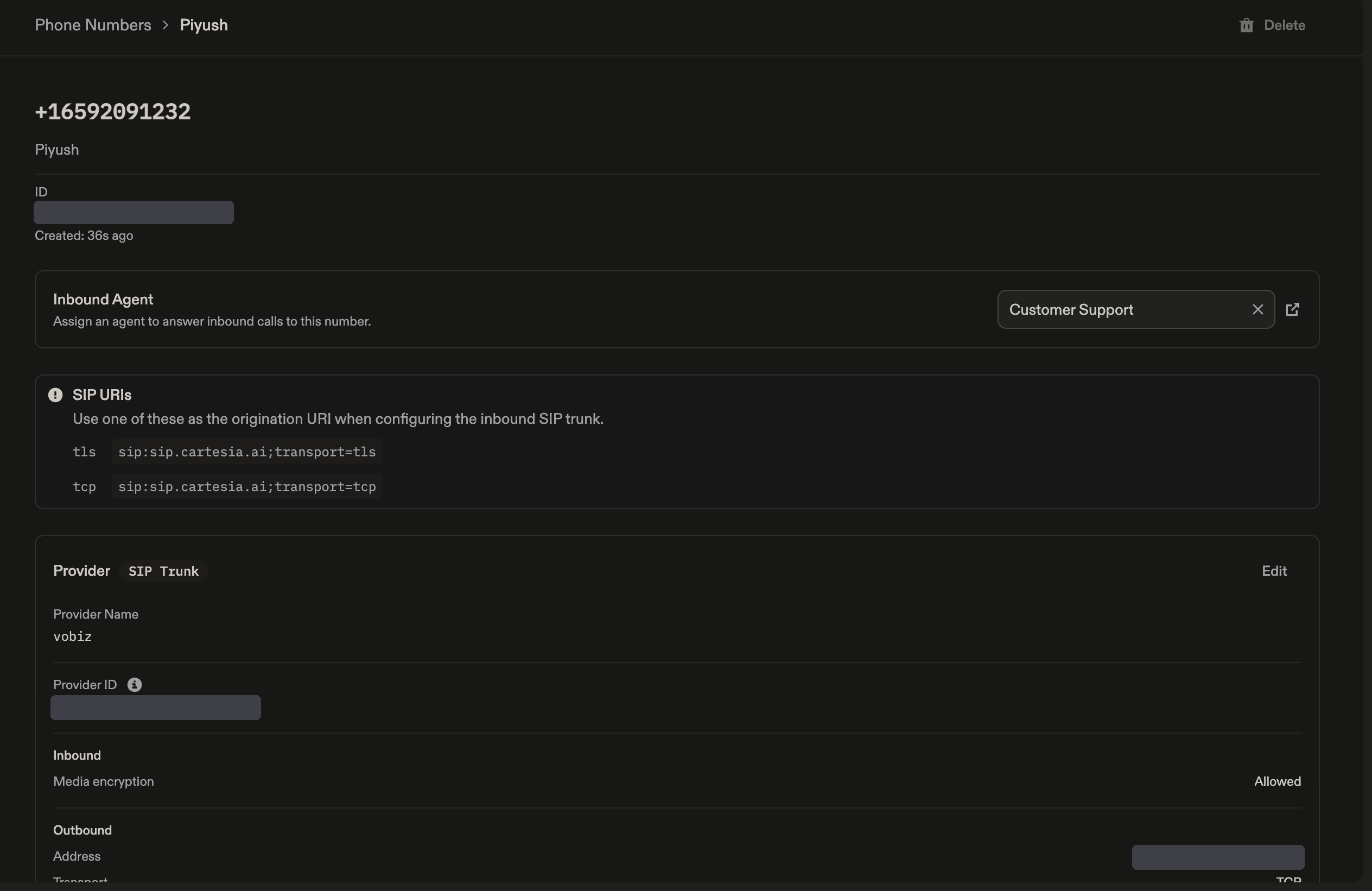
Step 6: Test calls
1
Place an outbound call
Open your agent in Cartesia and click the phone number at the top. Under Outbound calls, enter a number you own in To and click Place call. Your phone rings with the Vobiz number as caller ID.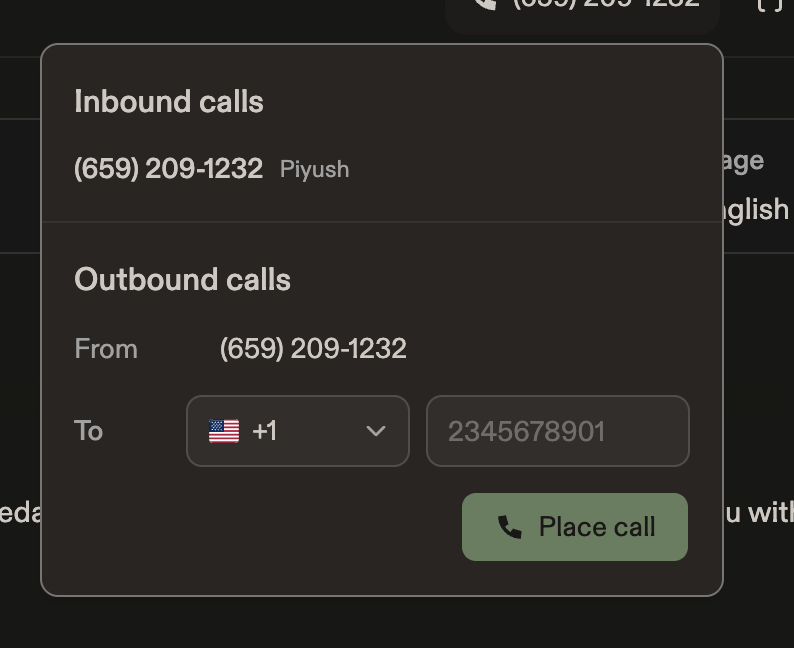
2
Make an inbound call
From any phone, call your Vobiz number. The Cartesia agent answers.
Your Cartesia agent is live on Vobiz. It places calls through your outbound trunk and answers calls to your number through the inbound trunk.
Troubleshooting
Outbound calls fail to connect
- Check that Address in Cartesia is the outbound trunk’s SIP domain, with no
sip:prefix. - Check that the username and password in Cartesia match the Vobiz credential, and that the credential is Active.
- Check that the outbound trunk is Enabled and your Vobiz balance is positive.
Inbound calls don’t reach the agent
- Check that the number is linked to the inbound trunk (Linked Numbers (1)).
- Check that the origination URI is
sip.cartesia.aiwith TCP transport. - Check that an Inbound Agent is assigned to the number in Cartesia.