

What you’ll build
A no-code setup in two halves, both on the same Vobiz number:
Inbound is pure trunk-based routing. No Vobiz application or answer webhook is involved.
Prerequisites
- Retell AI account → Sign up
- Vobiz account with active balance → Create account
- Retell AI agent created → Create in dashboard
- Phone number from Vobiz - the caller ID for outbound, and the number callers dial for inbound
Part 1: Outbound calls
1
Open the phone numbers section
Log in to the Retell Dashboard, navigate to Phone Numbers in the sidebar, and click the + button to add a new number.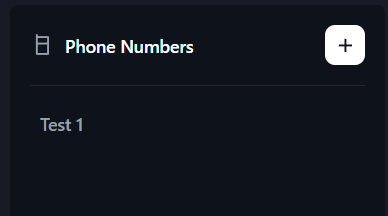
2
Select SIP trunking
Choose Connect to your number via SIP trunking. This option lets you use your own Vobiz phone number and SIP infrastructure instead of buying a number from Retell.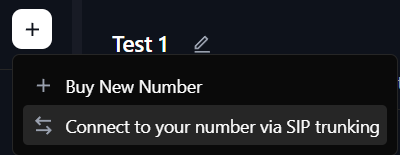
3
Configure the SIP trunk
Fill in the required fields: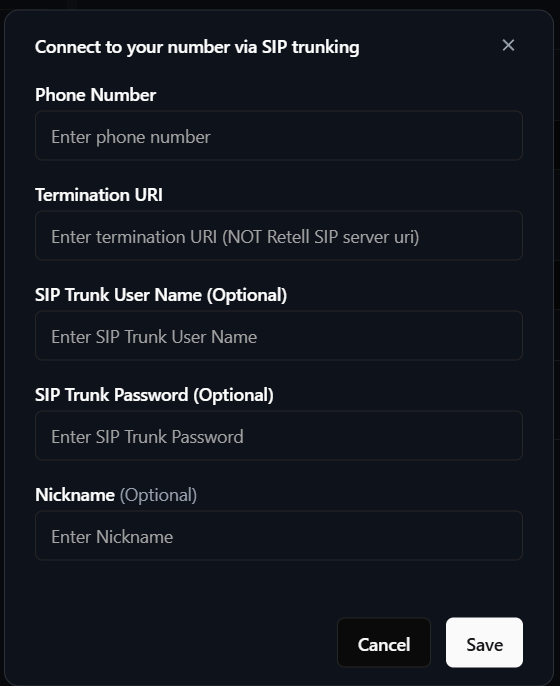
Click Save to complete the configuration.
4
Make a batch call
Click on your configured phone number and select Create a batch call. Fill in: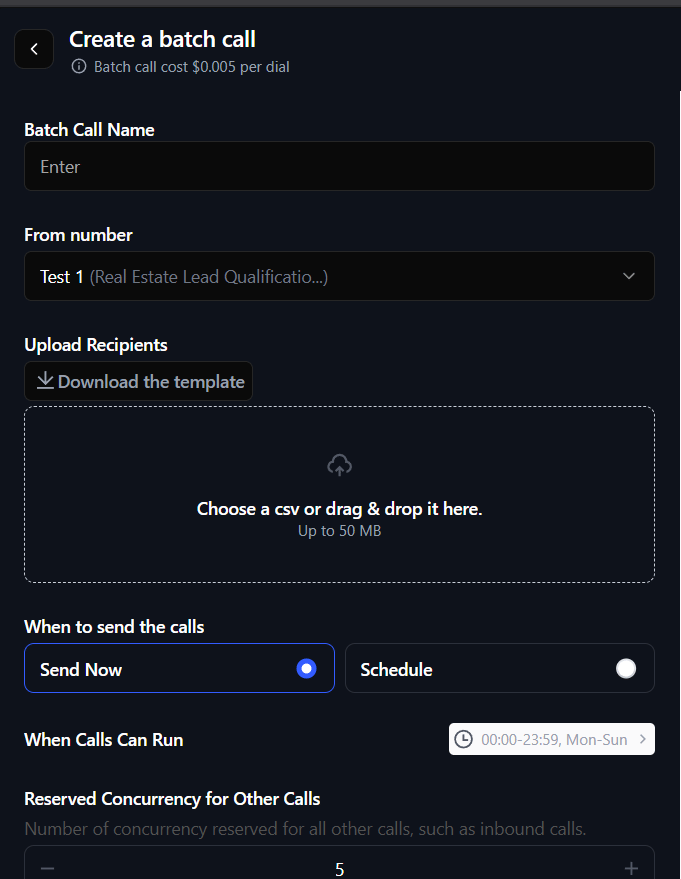
- Batch Call Name - campaign name (for example,
Customer Outreach) - From number - your configured Vobiz number
- Upload Recipients - CSV file with phone numbers
- When to send -
Send NoworSchedule
Outbound is live. Your Retell AI agent can now place calls through Vobiz SIP trunking.
Part 2: Inbound calls
Outbound uses an outbound trunk that Retell authenticates into. Inbound needs a second, separate trunk that points the other way — at Retell’s SIP address — with your number linked to it.1
Create the inbound trunk
In the Vobiz Console, go to SIP Trunk → Inbound Trunks → Trunks and click Create New Trunk.Give it a name, for example
retell-inbound. Recording and transcription are on this screen and are optional — see Callbacks for the webhook payloads.2
Add Retell's origination URI
In the same dialog, click Add New URI:
Click Create URI, then select
sip.retellai.com as the trunk’s Primary URI and click Create Trunk.3
Link your Vobiz number to the trunk
Open the trunk you just created. It starts with Linked Numbers (0).Click Link Numbers, select the same Vobiz number you configured for outbound, and confirm. The count updates to Linked Numbers (1) and inbound routing is live.
4
Assign the inbound agent in Retell
In the Retell Dashboard, go to Phone Numbers and select the number.Find the Inbound Call Agent section and pick your agent from the Call Agent dropdown. Retell confirms with “Your agent has been updated successfully.”
Inbound and outbound agents are set separately on the same number. The Inbound Call Agent section is distinct from Outbound Call Agent, so one number can answer with one agent and dial out with another.
Inbound is live. Call your Vobiz number from any phone — the Retell agent should answer.
Where to find your Vobiz credentials
- Console: Vobiz Console → Trunks → your trunk
- API: see the SIP trunks documentation
Troubleshooting
”Phone number not found”
Phone number not configured in Retell.- Verify the number is in E.164 format (
+countrycode + number). - Re-configure the phone number using the steps above.
- Check that the number exists in the Vobiz Console.
Call fails immediately
SIP authentication or configuration issue.- Verify your Vobiz username and password in the Vobiz Console.
- Use the exact Vobiz domain (for example,
abc123.sip.vobiz.ai). - Do not include a
sip:prefix. - Try a different transport type (TCP vs UDP) in the trunk config.
Inbound calls ring but never reach the agent
The call is arriving at Vobiz but not reaching Retell, or Retell has no agent for it.- Confirm the number shows under Linked Numbers on the inbound trunk, not only on the outbound one — they are separate trunks.
- Confirm the trunk’s Primary URI is set to
sip.retellai.com. A trunk created without a primary URI selected has nowhere to send the call. - Check the Inbound Call Agent is assigned on the number in Retell. The outbound agent does not cover inbound.
- Try TCP instead of UDP on the origination URI if your network path drops UDP.
Inbound calls are rejected immediately
- Re-check the URI value. It must be the bare host
sip.retellai.com— asip:prefix or a trailing slash will not route. - Confirm the number is in E.164 format in Retell and matches the linked Vobiz number exactly.
Agent doesn’t speak
Agent not configured or not published.- Ensure the agent is published in Retell Dashboard → Agents.
- Check the agent has a voice configured.
- Verify the agent ID matches the phone number config.
Next steps
- Customize your agent - configure voice, personality, and prompts in Retell Dashboard → Agents.
- View call analytics - monitor call logs and transcripts in Retell Dashboard → Calls.
- Automate with API - trigger calls programmatically using the Retell AI API setup guide.
- Monitor usage - track your Vobiz balance and call records, or read the CDR for per-call detail.
- Read the trunk reference - SIP trunking concepts and the Trunks API.