

URL
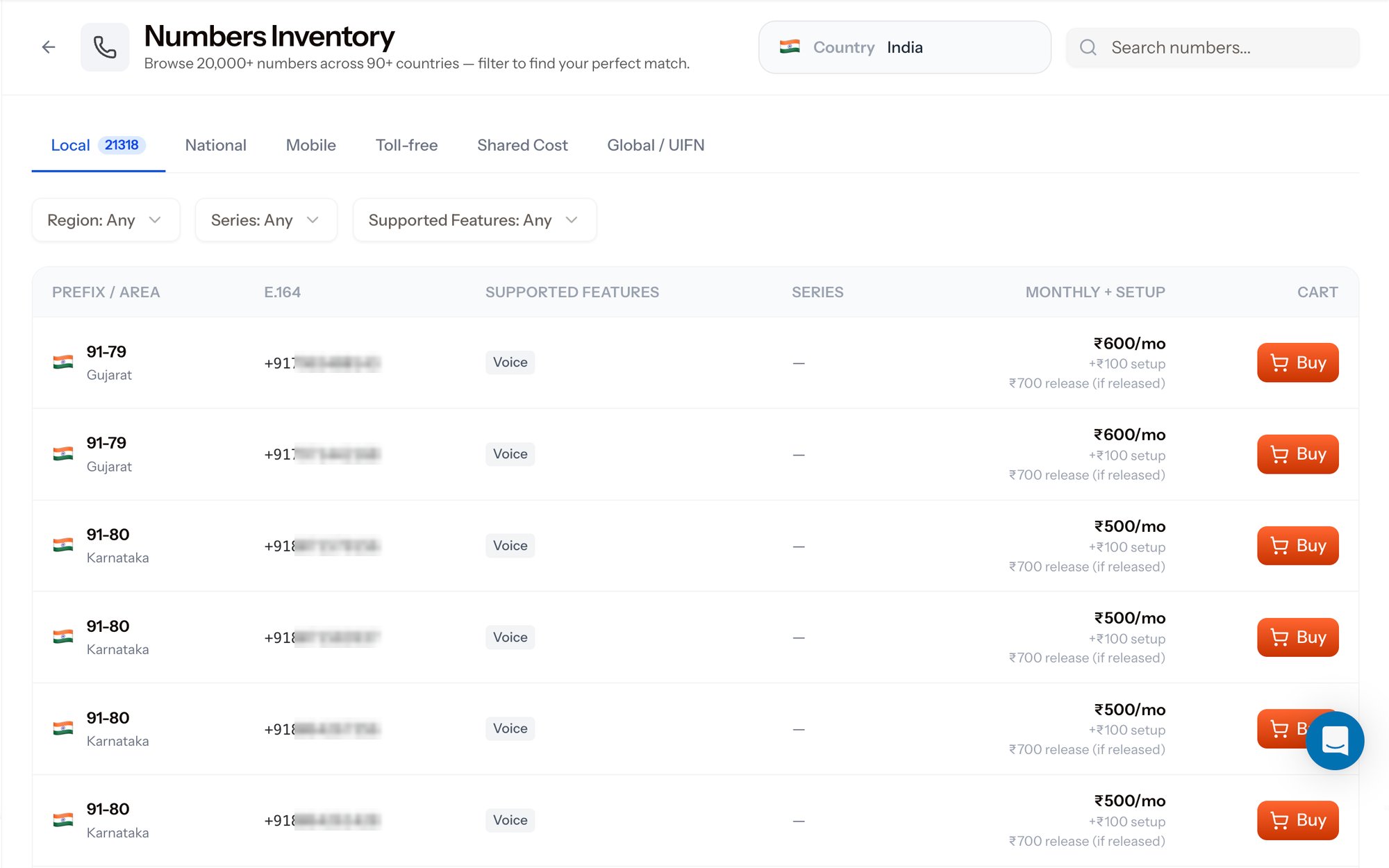
Numbers Inventory - browse and filter available numbers
1. Pick a country
The Country selector at the top drives everything below it. Switch country and the tab counts, region list, series list, and prices all refresh for that country’s inventory. Use Search numbers… to hunt for a specific pattern - a memorable ending, a repeated digit, or a known prefix - instead of paging through the table.2. Pick a number type
Each tab is a different class of number, with its own economics and use case. The badge on the active tab is the count of numbers currently available in that country.3. Narrow with the filters
Three dropdowns sit under the tabs:4. Read the results table
Prices are per country and per number type, and the rate you see is the one assigned to your account’s pricing tier. The screenshots on this page show one account’s Indian local inventory - your own rates appear in the table.
5. Confirm the purchase
Clicking Buy opens Step 1 of 2 - Confirm Purchase.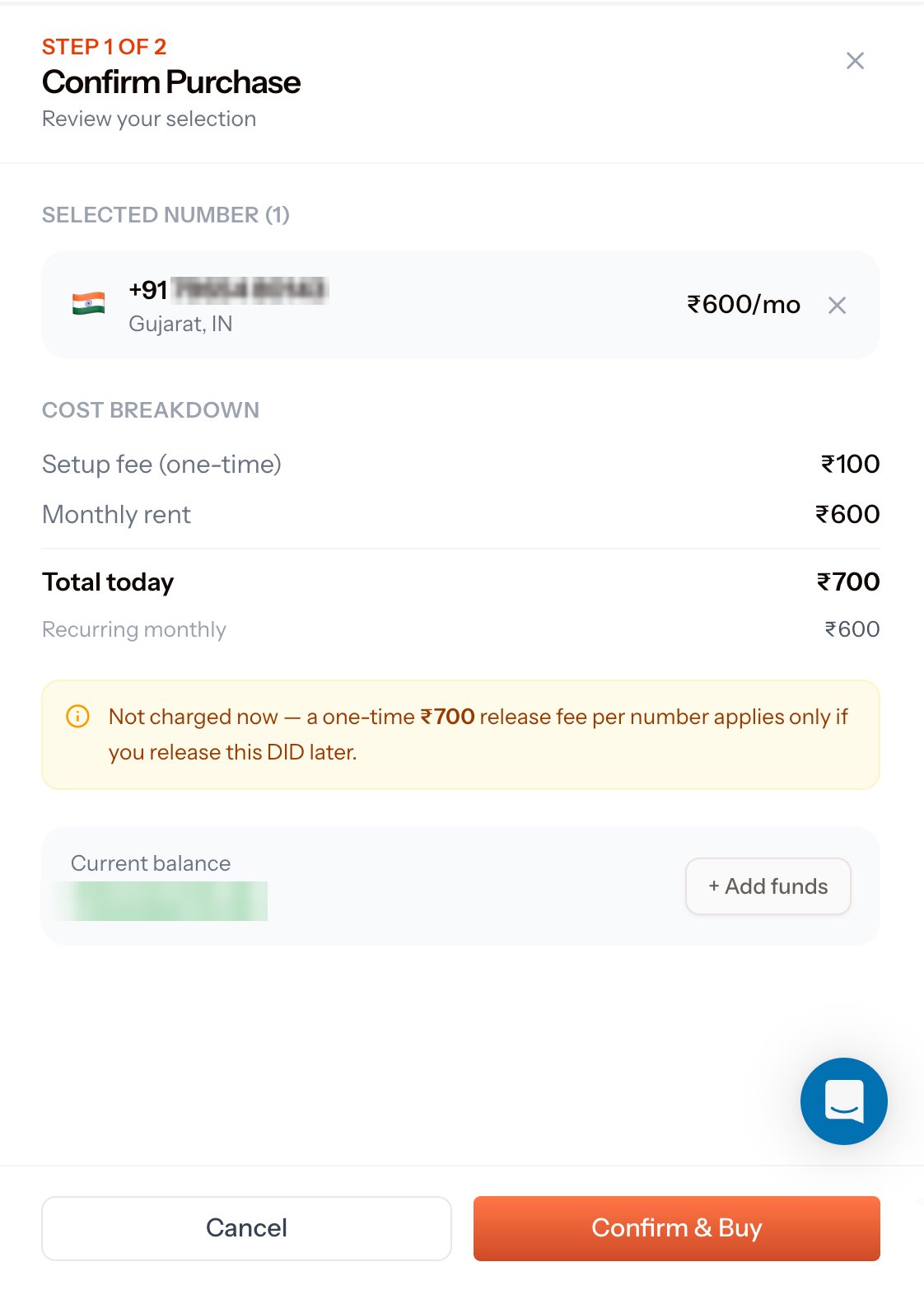
Step 1 of 2 - Confirm Purchase
Current balance is shown at the bottom with an + Add funds shortcut - top up first if the balance does not cover Total today. See Balance and Transactions.
Click Confirm & Buy to complete the purchase, or Cancel to go back to the inventory with your selection intact.
6. Link it to a voice application
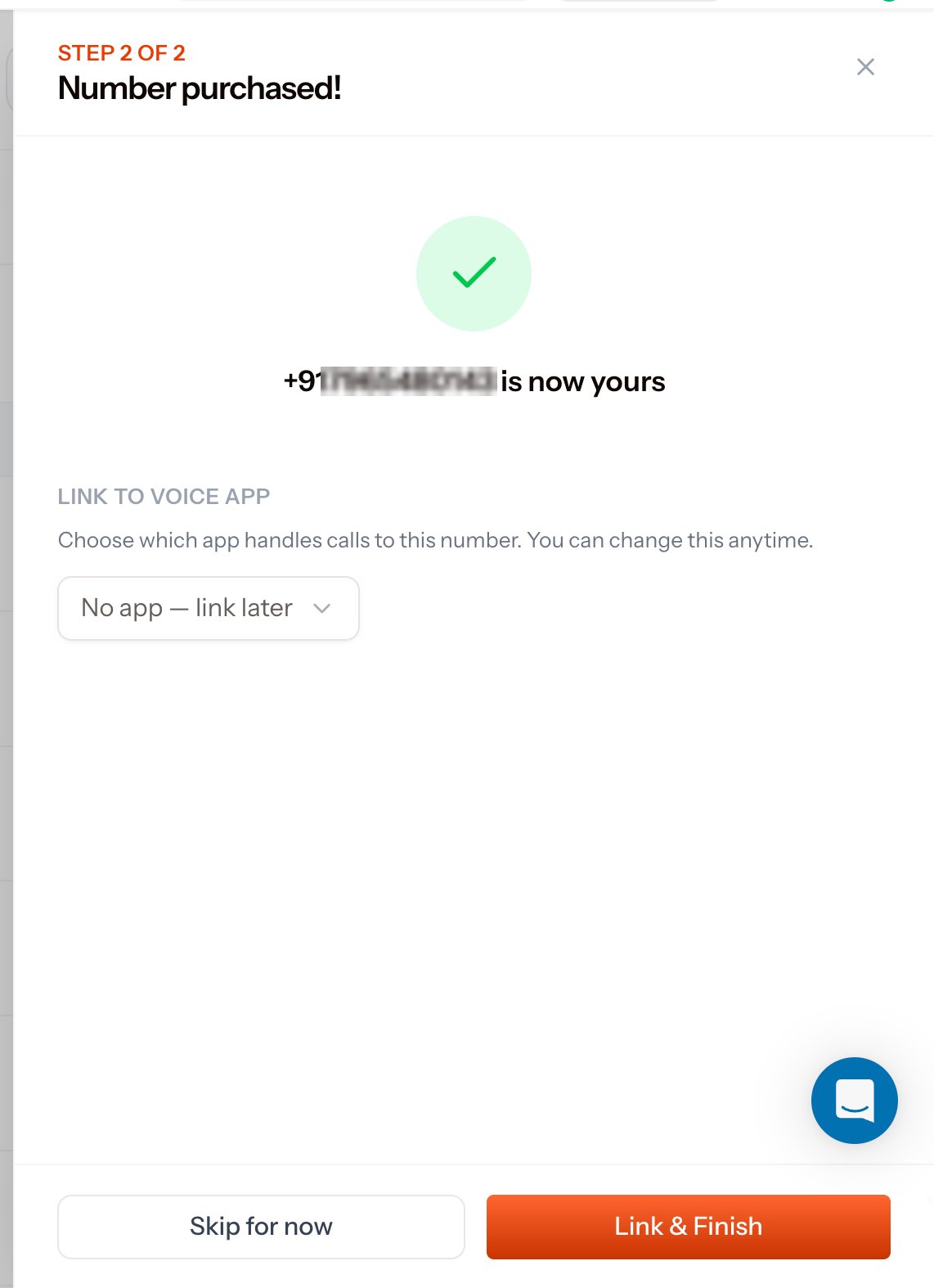
Step 2 of 2 - Number purchased
- Pick an application from the Link to Voice App dropdown and click Link & Finish. Inbound calls to the number will hit that application’s Answer URL from the next call onward.
- Or choose No app — link later and click Skip for now. The number shows as Not linked in My Numbers until you attach it.
Newly purchased numbers take about 2 minutes to register. Wait a couple of minutes before using the number as the caller ID on an outbound call. Calling from it sooner returns
From number not owned by account - see the FAQ.Do the same over the API
Every step above has an API equivalent, which is what you want for bulk purchases or automated provisioning:List inventory numbers
Browse available numbers by country, type, prefix, and capability.
Purchase from inventory
Buy a number and attach it to an application in one call.