

URL
The Inbound Trunks list
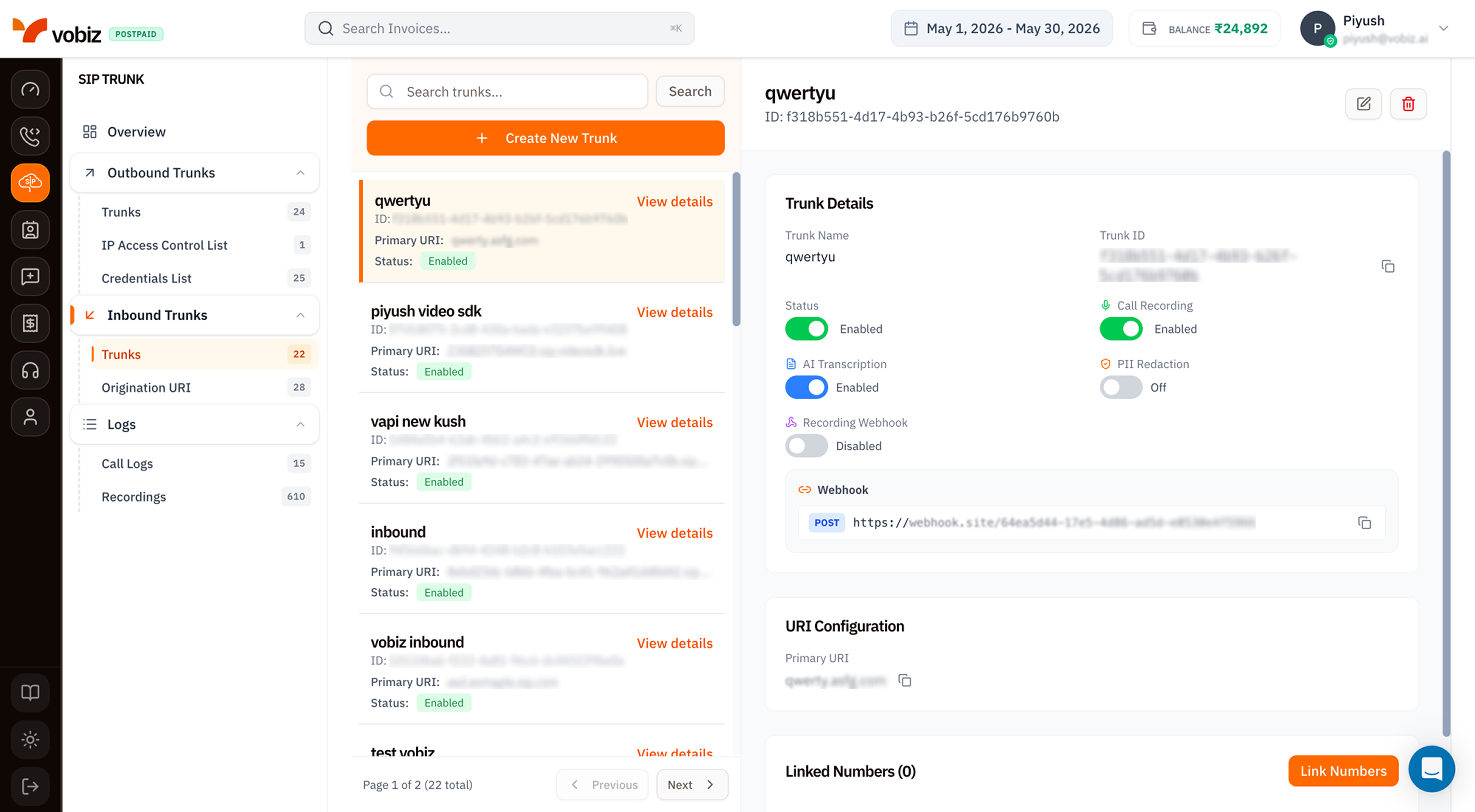
Inbound Trunks - list, details, and toggles
The trunk details panel
Recording & Transcription toggles
Identical to outbound trunks: Call Recording, AI Transcription, PII Redaction, Recording Webhook. Each obeys the same prerequisite chain - transcription needs recording, redaction needs transcription.Webhook
A general‑purpose webhook URL Vobiz POSTs inbound‑call events to (incoming.ringing, incoming.answered, incoming.ended). Use it to track who’s calling, drive a live CRM update, or log to your data warehouse.
URI Configuration
Click the copy icon (⧉) next to the URI to copy it to your clipboard.
Linked Numbers
Below the URI Configuration card, the Linked Numbers (N) section lists every DID currently routing to this trunk. Click Link Numbers in the top‑right of the section to attach more numbers or detach existing ones.Create an Inbound Trunk
Click + Create New Trunk to open the side panel.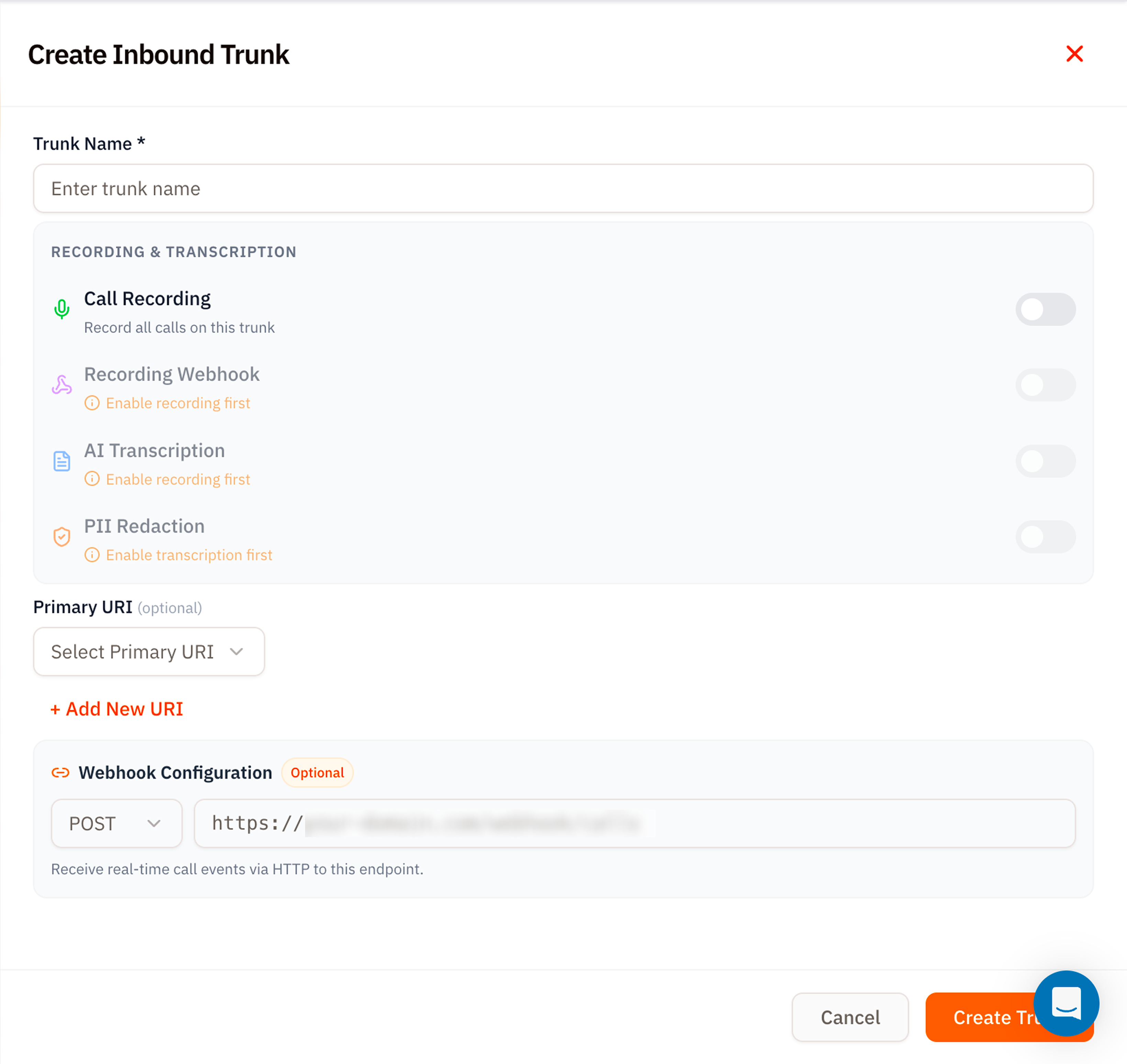
Create Inbound Trunk form
Click Create Trunk.
Linking numbers
After the trunk exists:- Open the trunk details.
- Scroll to Linked Numbers and click Link Numbers.
- Pick existing numbers from your account or buy new ones inline - same flow as the Voice Applications attach‑number modal.
Tips
- Use Origination URIs as named destinations. Even if you only have one PBX, give the URI a name like
primary-pbx-mumbai- it’s clearer than a raw1.2.3.4:5060. - Webhook before recording. If you only want call state for analytics, the webhook is enough - no need to enable recording.
- Status toggle for maintenance windows. Disable the trunk to fail‑fast on inbound (carrier returns “all circuits busy”) instead of timing out on a dead PBX.
What’s next
Origination URI
Add or edit the SIP destinations Vobiz forwards to.
Phone Numbers
Buy or port the DIDs that ring this trunk.