Smallest AI Integration
Connect a Smallest AI voice agent to Vobiz SIP trunking - import a Vobiz number over SIP for outbound calls and route inbound calls to your agent, including India and 130+ countries.
Smallest AI builds real-time voice agents. Its SIP Trunking option lets you import a phone number you already own, so you can run a Smallest AI agent on a Vobiz number anywhere Vobiz operates.
What you'll build
A two-way setup on a single Vobiz number:
- Outbound - the Smallest AI agent places calls through your Vobiz outbound trunk.
- Inbound - calls to your Vobiz number route through an inbound trunk to the Smallest AI agent.
Each direction uses its own trunk, so configure both.
Architecture
textOutbound Smallest AI agent → Vobiz outbound trunk (SIP digest auth) → PSTN Inbound Caller → Vobiz number → Vobiz inbound trunk → Smallest AI origination URL
Prerequisites
- Smallest AI account → Smallest AI dashboard
- Vobiz account → Vobiz Console
- A Vobiz phone number → see Buy a phone number
Part 1: Outbound calls
Step 1: Create a SIP credential in Vobiz
Smallest AI is cloud-hosted and calls out from addresses you cannot pin down in advance, so authenticate the trunk with a username and password rather than an IP allow-list.
Go to Credentials List and click + Add Credential. Note the username and password - Vobiz stores the password hashed and does not display it again after creation.
See Credentials List for the full walkthrough.
Step 2: Create the outbound trunk
Go to Outbound Trunks and click + Create New Trunk. Attach the credential from Step 1 under Credentials.
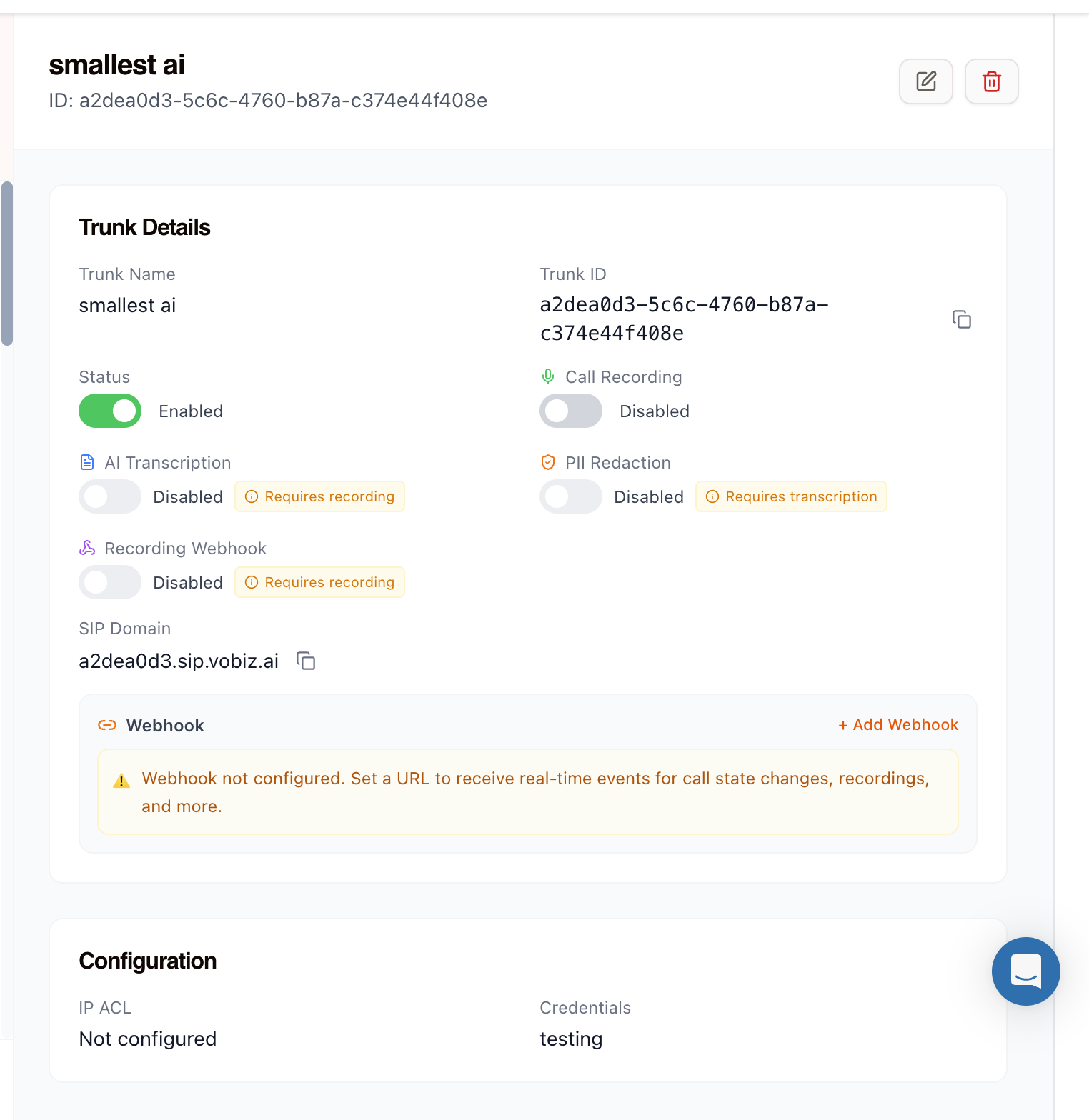
⚠️ Warning: Attach the credential to the trunk. Without either a credential or an IP ACL, the trunk has no way to authenticate traffic from Smallest AI.
Step 3: Copy the SIP domain
The trunk details panel shows a SIP Domain in the form .sip.vobiz.ai. Copy it - this is the SIP termination URL that Smallest AI sends outbound calls to. Each trunk gets its own domain and it is never shared.
Step 4: Import the number in Smallest AI
In the Smallest AI dashboard, open Phone Numbers, choose Add phone number, and select the SIP Trunking method rather than Rent a number.
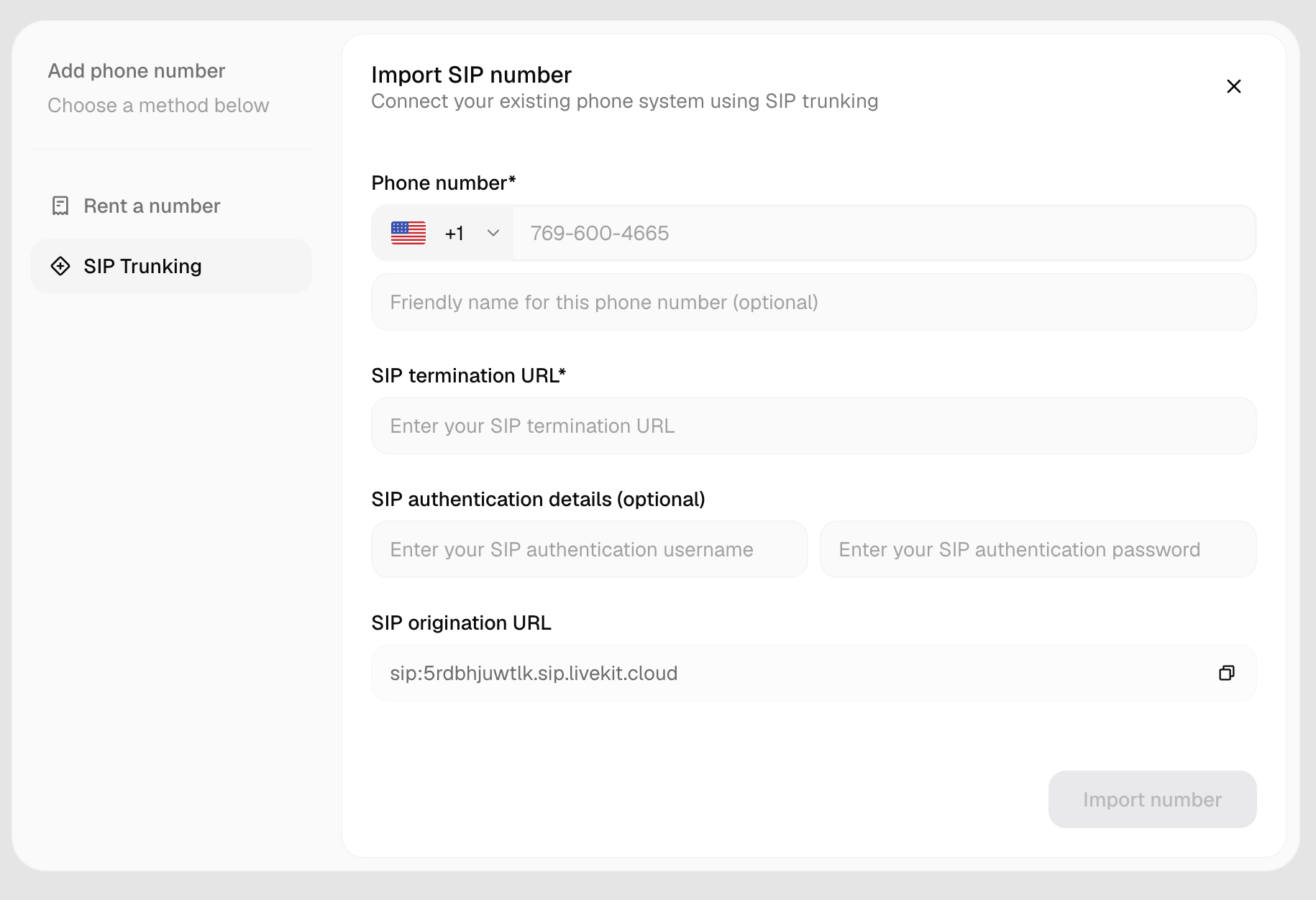
| Field | Value |
|---|---|
| Phone number | Your Vobiz number, with the country code selected |
| Friendly name | Optional label |
| SIP termination URL | The Vobiz SIP Domain from Step 3, for example a2dea0d3.sip.vobiz.ai |
| SIP authentication username | The credential username from Step 1 |
| SIP authentication password | The credential password from Step 1 |
Although Smallest AI marks the authentication fields optional, this setup needs them - they are what the Vobiz trunk checks.
Click Import number. Outbound is now wired.
Part 2: Inbound calls
Step 5: Copy the SIP origination URL
The same Smallest AI dialog shows a read-only SIP origination URL, for example sip:5rdbhjuwtlk.sip.livekit.cloud. Copy it with the icon on the right.
Step 6: Create the origination URI in Vobiz
Go to Origination URIs and create a URI pointing at the Smallest AI address.
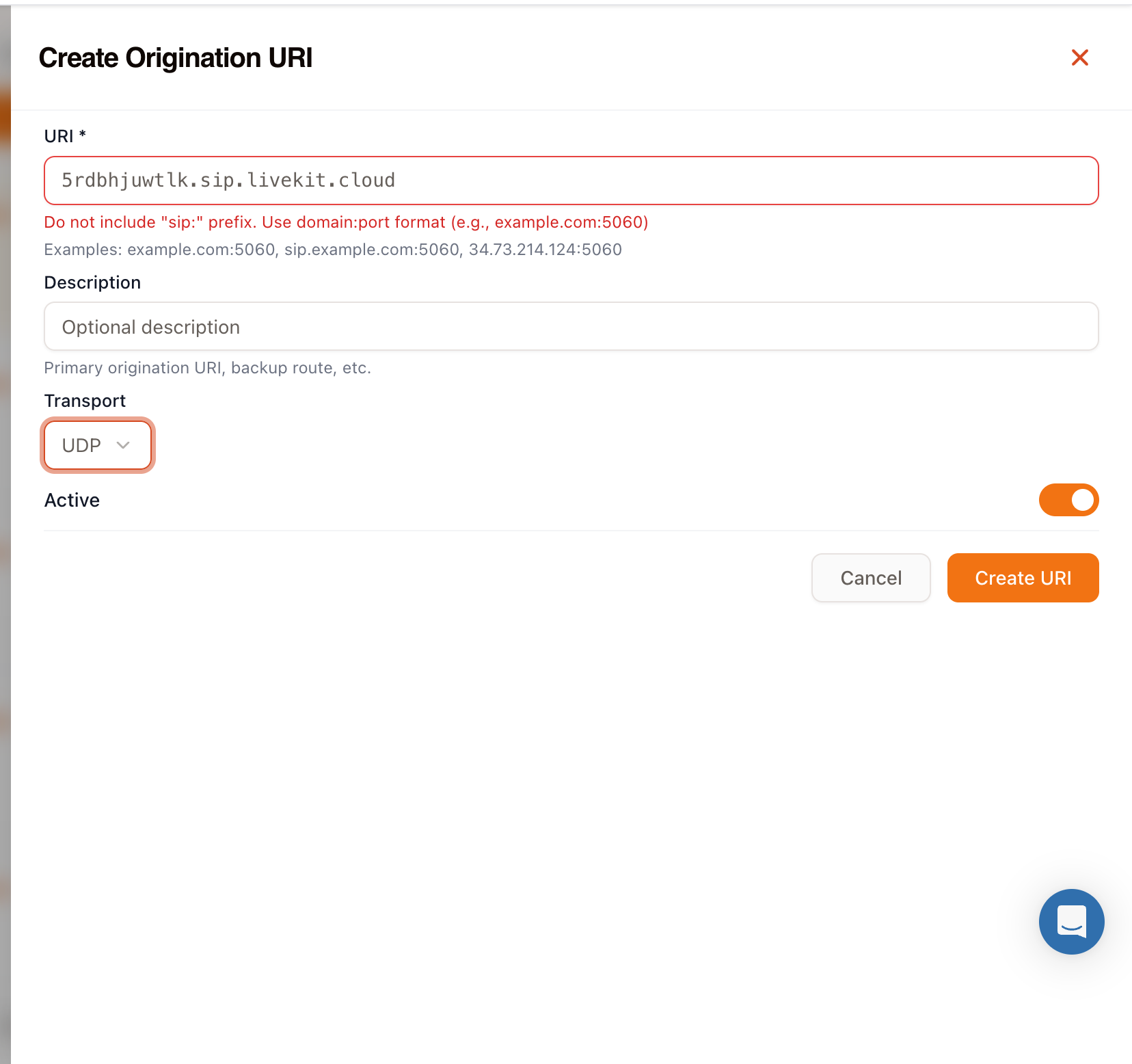
⚠️ Warning: Remove the
sip:prefix. Smallest AI presents the value assip:5rdbhjuwtlk.sip.livekit.cloud, and the Vobiz URI field takesdomainordomain:port. Paste5rdbhjuwtlk.sip.livekit.cloudinstead.
| Field | Value |
|---|---|
| URI | The origination URL with sip: removed |
| Description | Optional, for example Smallest AI agent |
| Transport | UDP |
| Active | On |
Step 7: Create the inbound trunk
Go to Inbound Trunks and create a trunk with the origination URI from Step 6 as its Primary URI.
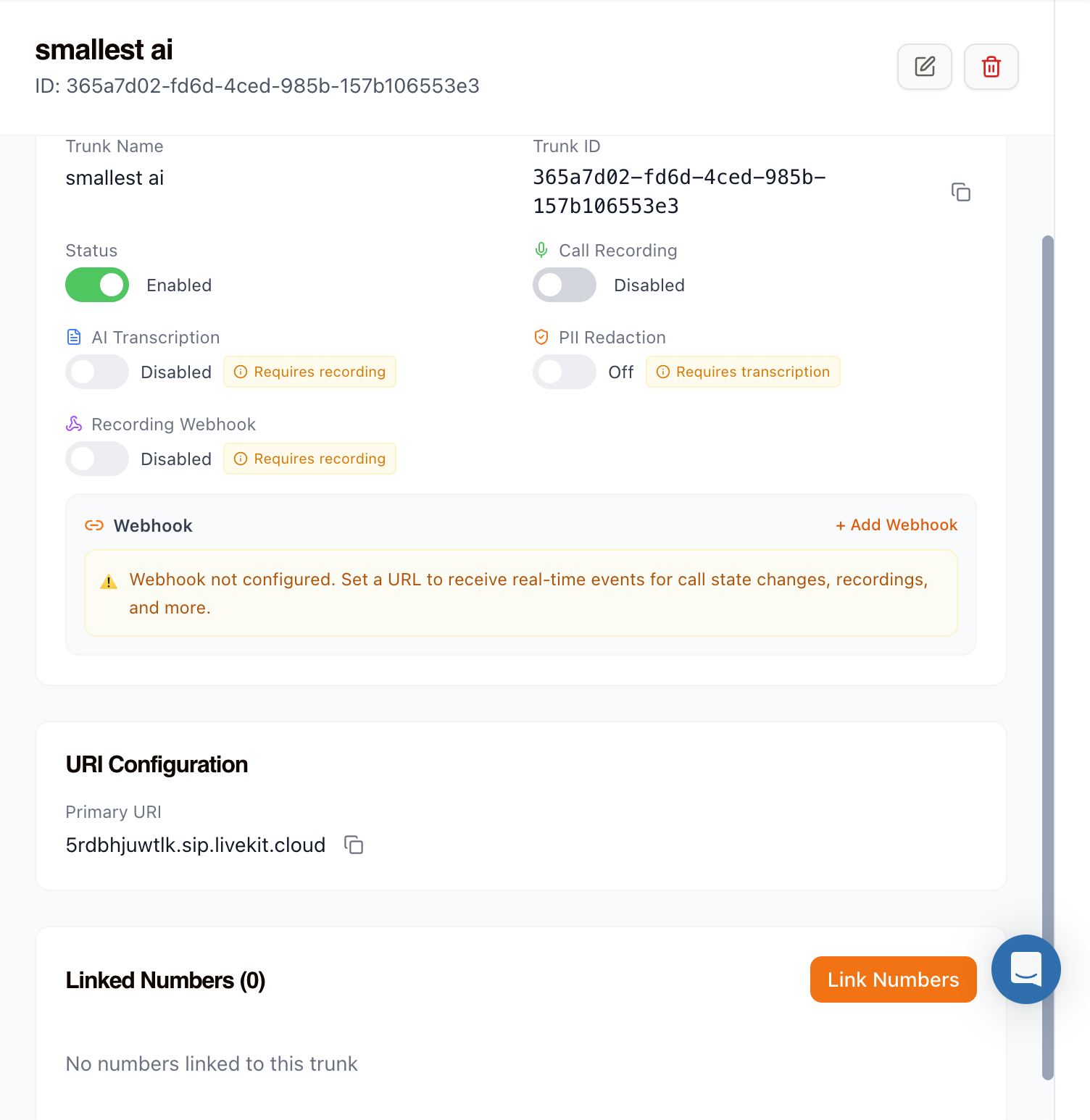
Recording, transcription, and webhooks are available on this screen and are all optional. See Callbacks for the webhook payloads.
Step 8: Link the number to the trunk
A new trunk starts with Linked Numbers (0). Click Link Numbers, select your Vobiz number, and confirm.
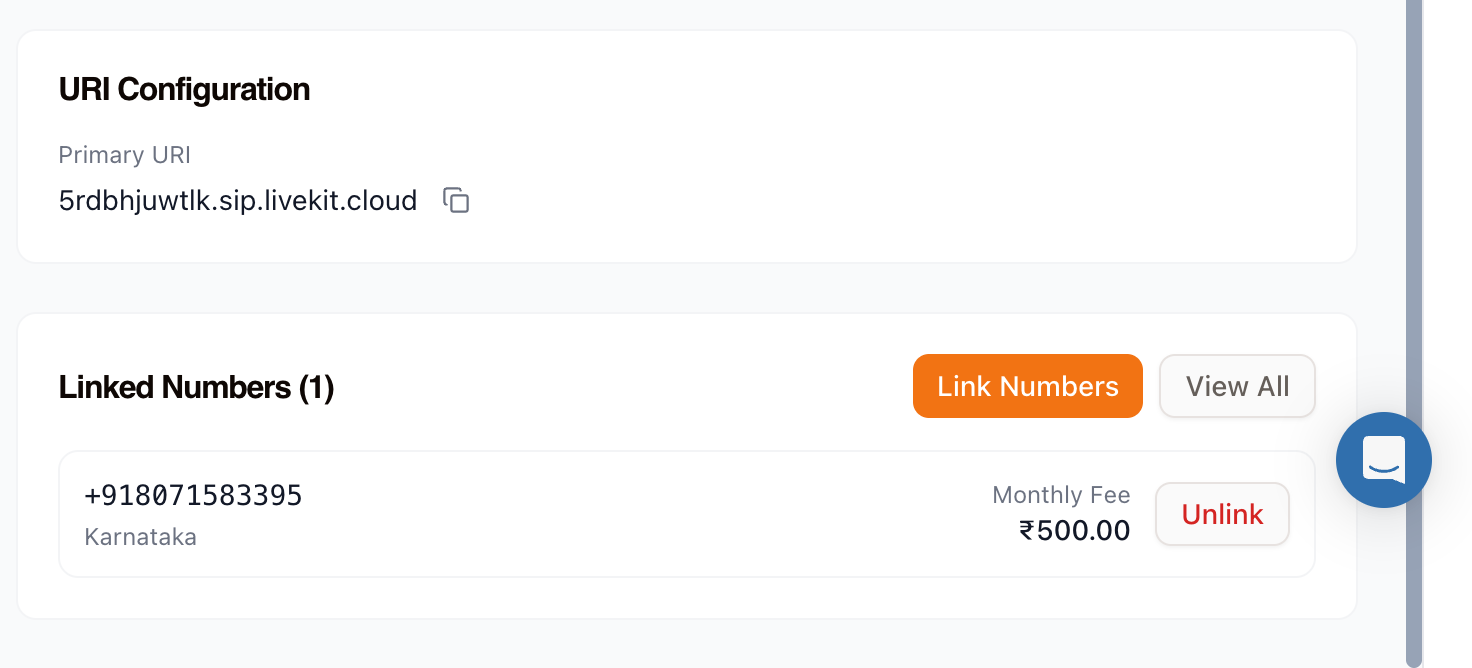
The count updates to Linked Numbers (1) and inbound routing is live.
Test the integration
- Inbound - call your Vobiz number. The Smallest AI agent should answer.
- Outbound - trigger a call from Smallest AI to your own phone.
Check Call Logs in the Vobiz Console to see both legs.
Troubleshooting
Outbound calls are rejected with a 401 or 403
The trunk is not accepting the credentials. Confirm the username and password in Smallest AI match the Vobiz credential exactly, and that the credential is attached to the outbound trunk and set to Active.
Outbound calls do not reach Vobiz
Check the SIP termination URL is the trunk's own SIP domain, in the form .sip.vobiz.ai. Each trunk has a distinct domain.
The origination URI is rejected when saving
Remove the sip: prefix. The field takes domain or domain:port.
Inbound calls ring but never reach the agent
Open the inbound trunk and confirm the number appears under Linked Numbers and the trunk Status is Enabled.
Next steps
-
Outbound Trunks: Trunk settings, recording, and webhooks
-
Credentials List: Create and rotate SIP credentials
-
Inbound Trunks: Route inbound calls to your agent
-
IP Whitelisting: Vobiz SIP signaling and RTP ranges
Explore More Integrations
3CX integration
Connect 3CX PBX to Vobiz SIP trunking for inbound and outbound calling across 130+ countries - configure a generic SIP trunk in minutes.
Agora Integration
Connect an Agora Conversational AI agent to Vobiz SIP trunking - add a Vobiz number to Agora for outbound campaigns and route inbound calls to your agent, including India and 130+ countries.
Bolna integration
Bolna ships Vobiz as a built-in telephony provider. Paste two credentials into the Providers screen and your agents place and answer calls on numbers in 130+ countries, reaching 190, with audio streaming rather than a SIP trunk.
We use cookies to run this site and, with your permission, to understand how it's used. Read our Cookie Policy.