> ## Documentation Index
> Fetch the complete documentation index at: https://www.vobiz.ai/docs/llms.txt
> Use this file to discover all available pages before exploring further.
# Buy a Number - Numbers Inventory
> Buy a phone number in the Vobiz Console - browse the inventory by country, number type, region and series, read the monthly + setup + release pricing, confirm the purchase, and link the number to a voice application.
**Numbers Inventory** is the buying screen - browse live inventory across 90+ countries, filter down to the exact prefix and capability you need, and check out in two steps. A number bought here lands in [My Numbers](/docs/platform/numbers/my-numbers) immediately and can take calls as soon as it is linked to an application or trunk.
```text URL theme={null}
https://console.vobiz.ai/app/numbers
```
Open it from **Setup → Numbers** in the left sidebar, then click **+ Buy New Number**.
 ## 1. Pick a country
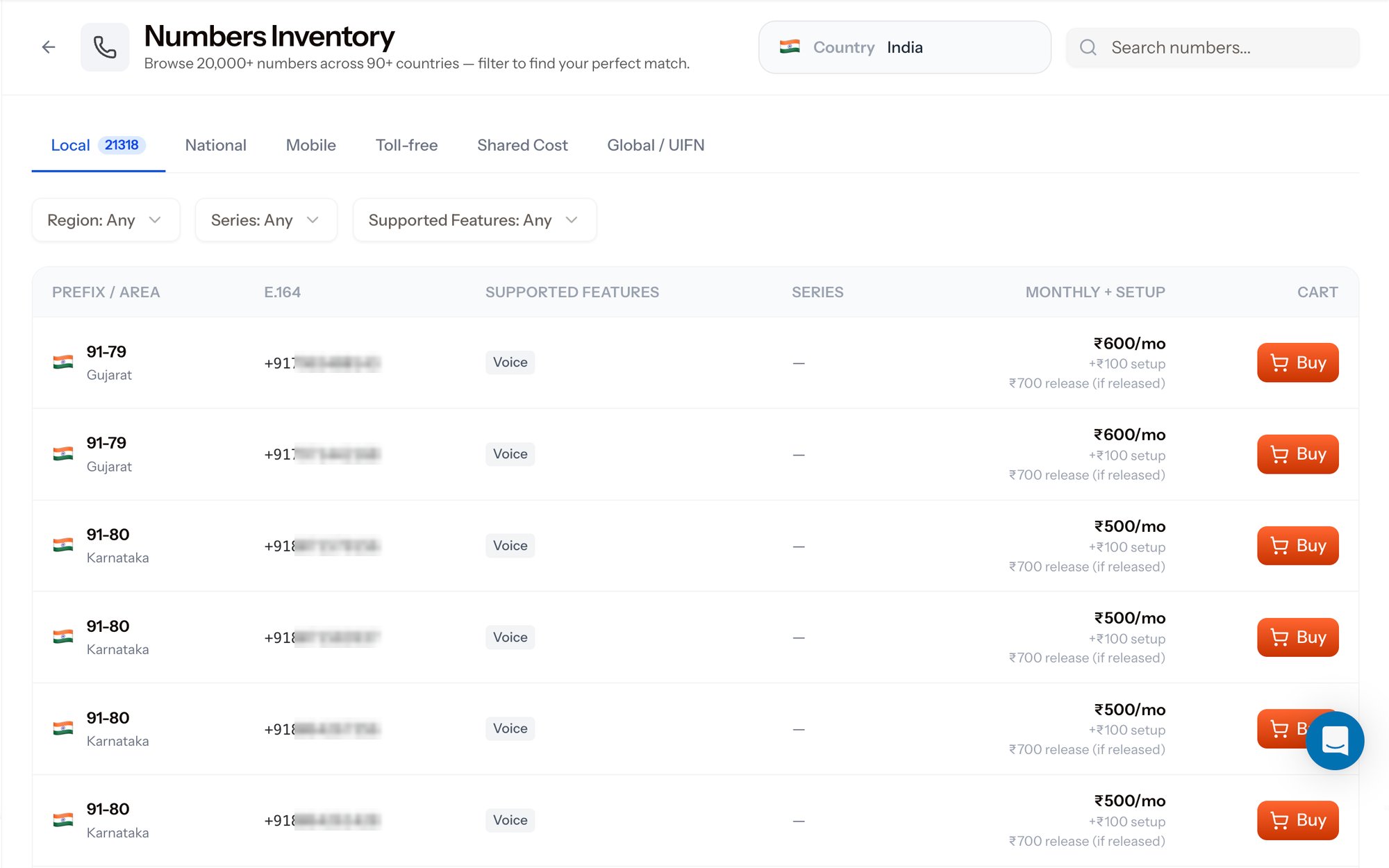
The **Country** selector at the top drives everything below it. Switch country and the tab counts, region list, series list, and prices all refresh for that country's inventory.
Use **Search numbers…** to hunt for a specific pattern - a memorable ending, a repeated digit, or a known prefix - instead of paging through the table.
## 2. Pick a number type
Each tab is a different class of number, with its own economics and use case. The badge on the active tab is the count of numbers currently available in that country.
| Tab | What it is | Typical use |
| ----------------- | ---------------------------------------------------------------------------------------------------- | -------------------------------------------------------------------------- |
| **Local** | Geographic numbers tied to a city or circle prefix (for example `91-79` Gujarat, `91-80` Karnataka). | Local presence for a city or region; best answer rates for local outbound. |
| **National** | Non-geographic national numbers. | One number for the whole country, no city association. |
| **Mobile** | Mobile-range numbers. | Better deliverability where mobile-to-mobile is expected. |
| **Toll-free** | Caller pays nothing; you pay the inbound minutes. | Support lines and customer helplines. |
| **Shared Cost** | Call cost split between caller and number owner. | High-volume service lines where cost is shared. |
| **Global / UIFN** | Universal International Freephone Numbers - one number that works across multiple countries. | Multi-country support desks on a single published number. |
## 3. Narrow with the filters
Three dropdowns sit under the tabs:
| Filter | What it does |
| ---------------------- | ------------------------------------------------------------------------------------------------------------------------------------------------------------------------------- |
| **Region** | Restricts results to one state or circle - Gujarat, Karnataka, Maharashtra, and so on. |
| **Series** | Restricts to a special numbering series where the country has one. In India that covers the [140, 160 and 92 series](/docs/buy-a-phone-number) used for outbound commercial calling. |
| **Supported Features** | Restricts to numbers that carry the capability you need, such as **Voice**. |
## 4. Read the results table
| Column | What it tells you |
| ---------------------- | -------------------------------------------------------------------------------------------------------------------------------------- |
| **Prefix / Area** | The dialling prefix plus the region it belongs to, with the country flag. |
| **E.164** | The full number in [E.164 format](/docs/concepts/sip-trunking) - exactly the string you pass to the API as `to` or `from`. |
| **Supported Features** | Capability pills carried by the number, such as **Voice**. |
| **Series** | The special series the number belongs to, or `—` for a standard number. |
| **Monthly + Setup** | Three figures: the recurring monthly rent, the one-time setup fee, and the release fee that applies if you later hand the number back. |
| **Cart** | The **Buy** button for that row. |
Prices are per country and per number type, and the rate you see is the one assigned to your account's pricing tier. The screenshots on this page show one account's Indian local inventory - your own rates appear in the table.
## 5. Confirm the purchase
Clicking **Buy** opens **Step 1 of 2 - Confirm Purchase**.
## 1. Pick a country
The **Country** selector at the top drives everything below it. Switch country and the tab counts, region list, series list, and prices all refresh for that country's inventory.
Use **Search numbers…** to hunt for a specific pattern - a memorable ending, a repeated digit, or a known prefix - instead of paging through the table.
## 2. Pick a number type
Each tab is a different class of number, with its own economics and use case. The badge on the active tab is the count of numbers currently available in that country.
| Tab | What it is | Typical use |
| ----------------- | ---------------------------------------------------------------------------------------------------- | -------------------------------------------------------------------------- |
| **Local** | Geographic numbers tied to a city or circle prefix (for example `91-79` Gujarat, `91-80` Karnataka). | Local presence for a city or region; best answer rates for local outbound. |
| **National** | Non-geographic national numbers. | One number for the whole country, no city association. |
| **Mobile** | Mobile-range numbers. | Better deliverability where mobile-to-mobile is expected. |
| **Toll-free** | Caller pays nothing; you pay the inbound minutes. | Support lines and customer helplines. |
| **Shared Cost** | Call cost split between caller and number owner. | High-volume service lines where cost is shared. |
| **Global / UIFN** | Universal International Freephone Numbers - one number that works across multiple countries. | Multi-country support desks on a single published number. |
## 3. Narrow with the filters
Three dropdowns sit under the tabs:
| Filter | What it does |
| ---------------------- | ------------------------------------------------------------------------------------------------------------------------------------------------------------------------------- |
| **Region** | Restricts results to one state or circle - Gujarat, Karnataka, Maharashtra, and so on. |
| **Series** | Restricts to a special numbering series where the country has one. In India that covers the [140, 160 and 92 series](/docs/buy-a-phone-number) used for outbound commercial calling. |
| **Supported Features** | Restricts to numbers that carry the capability you need, such as **Voice**. |
## 4. Read the results table
| Column | What it tells you |
| ---------------------- | -------------------------------------------------------------------------------------------------------------------------------------- |
| **Prefix / Area** | The dialling prefix plus the region it belongs to, with the country flag. |
| **E.164** | The full number in [E.164 format](/docs/concepts/sip-trunking) - exactly the string you pass to the API as `to` or `from`. |
| **Supported Features** | Capability pills carried by the number, such as **Voice**. |
| **Series** | The special series the number belongs to, or `—` for a standard number. |
| **Monthly + Setup** | Three figures: the recurring monthly rent, the one-time setup fee, and the release fee that applies if you later hand the number back. |
| **Cart** | The **Buy** button for that row. |
Prices are per country and per number type, and the rate you see is the one assigned to your account's pricing tier. The screenshots on this page show one account's Indian local inventory - your own rates appear in the table.
## 5. Confirm the purchase
Clicking **Buy** opens **Step 1 of 2 - Confirm Purchase**.
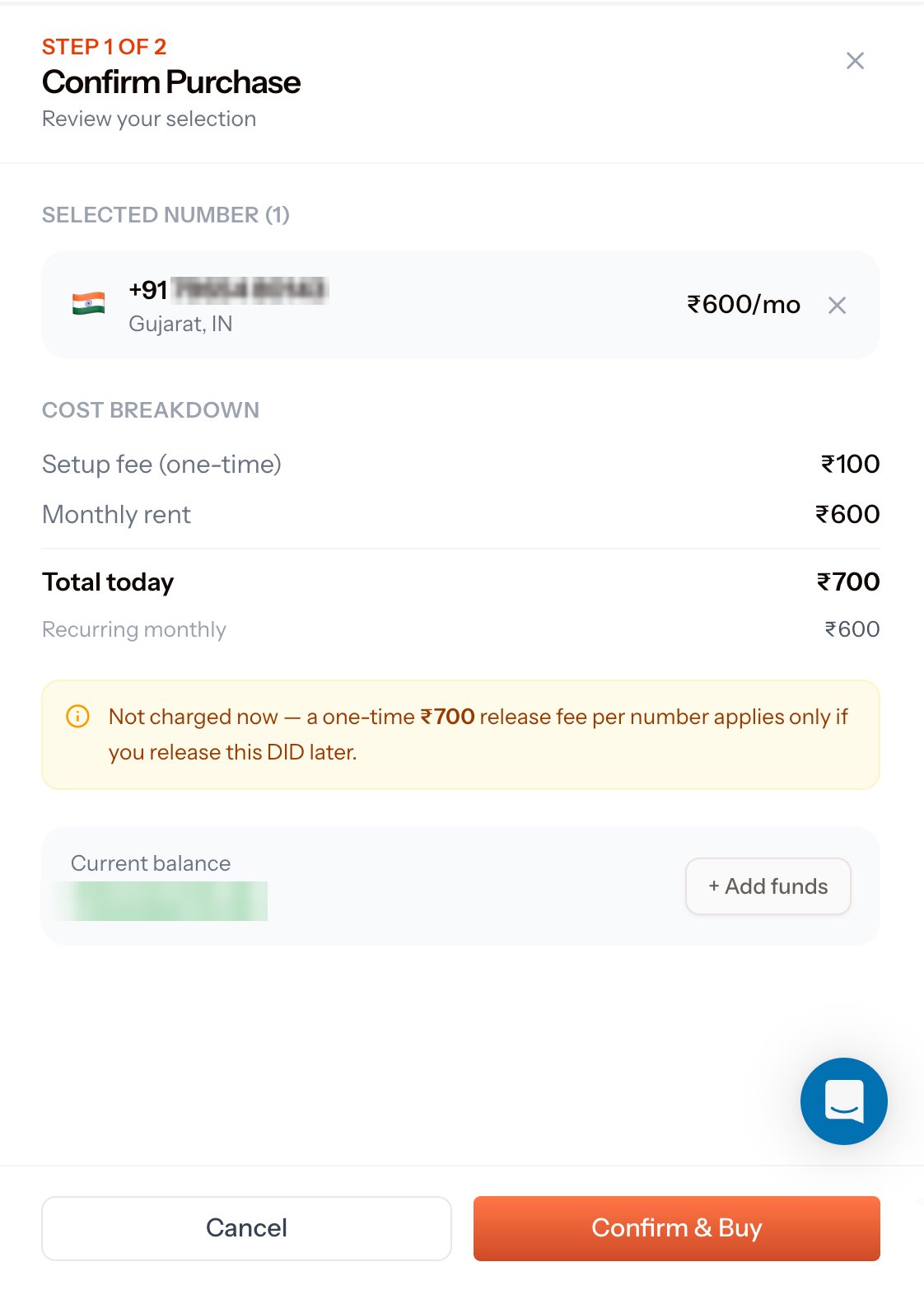 The dialog lists every number in your selection, then breaks the charge down:
| Line | What it means |
| ------------------------ | ---------------------------------------------------------------------------------------------- |
| **Setup fee (one-time)** | Charged once, on purchase. |
| **Monthly rent** | Charged now for the first month, then on each renewal. |
| **Total today** | Setup fee + first month's rent. This is what leaves your balance when you confirm. |
| **Recurring monthly** | What you pay every month from the next renewal onward. |
| **Release fee** | **Not charged now.** A one-time fee per number that applies only if you release the DID later. |
**Current balance** is shown at the bottom with an **+ Add funds** shortcut - top up first if the balance does not cover **Total today**. See [Balance](/docs/account/balance) and [Transactions](/docs/account/transactions).
Click **Confirm & Buy** to complete the purchase, or **Cancel** to go back to the inventory with your selection intact.
## 6. Link it to a voice application
The dialog lists every number in your selection, then breaks the charge down:
| Line | What it means |
| ------------------------ | ---------------------------------------------------------------------------------------------- |
| **Setup fee (one-time)** | Charged once, on purchase. |
| **Monthly rent** | Charged now for the first month, then on each renewal. |
| **Total today** | Setup fee + first month's rent. This is what leaves your balance when you confirm. |
| **Recurring monthly** | What you pay every month from the next renewal onward. |
| **Release fee** | **Not charged now.** A one-time fee per number that applies only if you release the DID later. |
**Current balance** is shown at the bottom with an **+ Add funds** shortcut - top up first if the balance does not cover **Total today**. See [Balance](/docs/account/balance) and [Transactions](/docs/account/transactions).
Click **Confirm & Buy** to complete the purchase, or **Cancel** to go back to the inventory with your selection intact.
## 6. Link it to a voice application
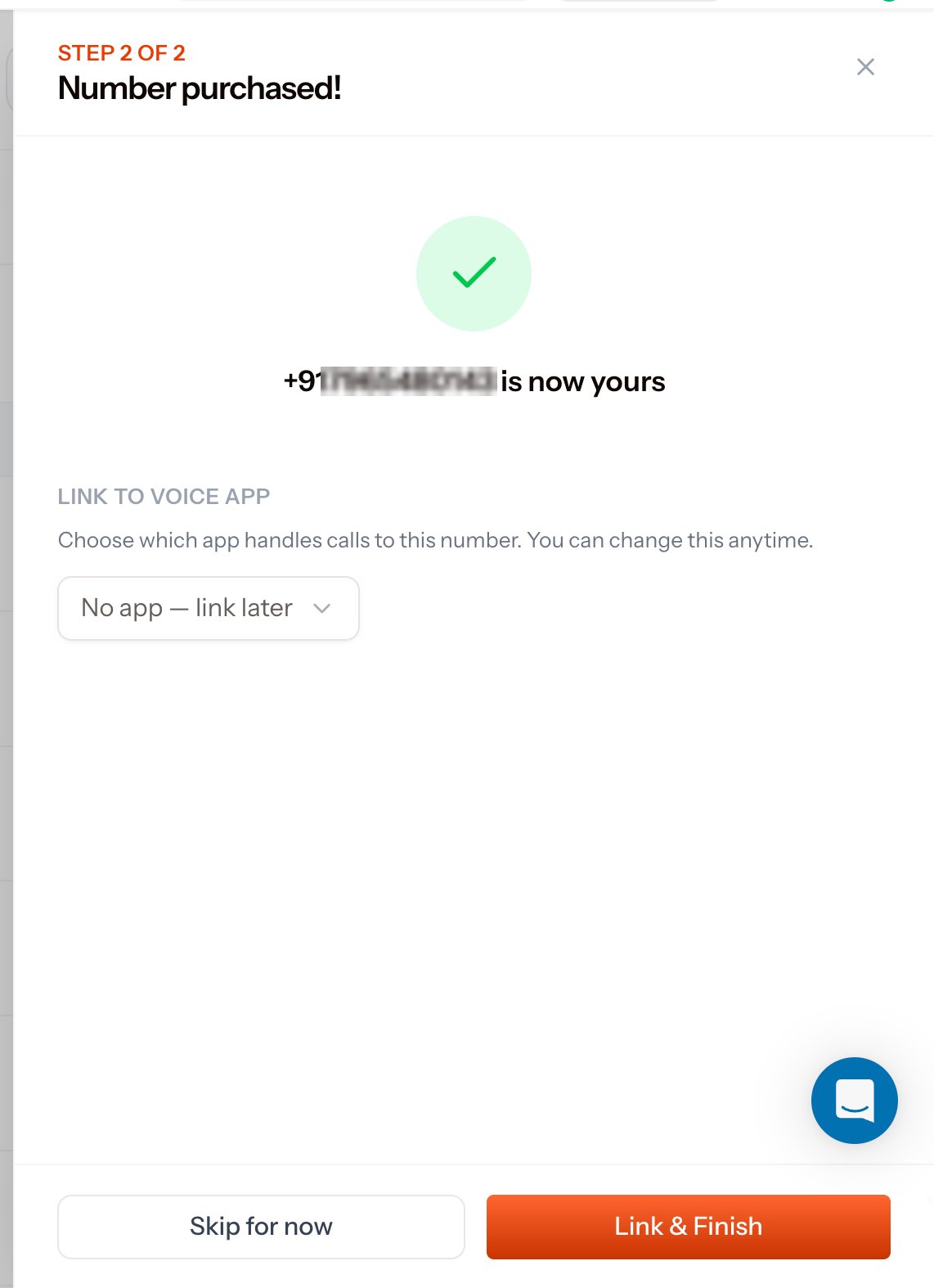 **Step 2 of 2** confirms the number is yours and offers to route it straight away:
* Pick an application from the **Link to Voice App** dropdown and click **Link & Finish**. Inbound calls to the number will hit that application's [Answer URL](/docs/platform/voice/applications) from the next call onward.
* Or choose **No app — link later** and click **Skip for now**. The number shows as **Not linked** in [My Numbers](/docs/platform/numbers/my-numbers) until you attach it.
Create the [XML application](/docs/platform/voice/applications) before you buy, and the dropdown is already populated at checkout - one fewer round trip before your first inbound call. Walk the whole path end to end in [Receive an inbound call](/docs/guides/receive-inbound-call).
## Do the same over the API
Every step above has an API equivalent, which is what you want for bulk purchases or automated provisioning:
Browse available numbers by country, type, prefix, and capability.
Buy a number and attach it to an application in one call.
The full console-and-API walkthrough, including India's number-series rules, lives in [Buy a Phone Number](/docs/buy-a-phone-number).
**Step 2 of 2** confirms the number is yours and offers to route it straight away:
* Pick an application from the **Link to Voice App** dropdown and click **Link & Finish**. Inbound calls to the number will hit that application's [Answer URL](/docs/platform/voice/applications) from the next call onward.
* Or choose **No app — link later** and click **Skip for now**. The number shows as **Not linked** in [My Numbers](/docs/platform/numbers/my-numbers) until you attach it.
Create the [XML application](/docs/platform/voice/applications) before you buy, and the dropdown is already populated at checkout - one fewer round trip before your first inbound call. Walk the whole path end to end in [Receive an inbound call](/docs/guides/receive-inbound-call).
## Do the same over the API
Every step above has an API equivalent, which is what you want for bulk purchases or automated provisioning:
Browse available numbers by country, type, prefix, and capability.
Buy a number and attach it to an application in one call.
The full console-and-API walkthrough, including India's number-series rules, lives in [Buy a Phone Number](/docs/buy-a-phone-number).