> ## Documentation Index
> Fetch the complete documentation index at: https://www.vobiz.ai/docs/llms.txt
> Use this file to discover all available pages before exploring further.
# Concurrency - Buy Simultaneous Call Capacity
> Buy concurrent-call capacity in the Vobiz Console - what concurrency controls, the busy-signal symptom of hitting the ceiling, how the blocks-of-ten pricing works, and how to preview the monthly cost before you purchase.
**Concurrency** is the maximum number of live calls your account can hold at the same time. Every active conversation - inbound or outbound - occupies exactly one channel. It caps how many calls run at once, not how fast new ones start; that second limit is [CPS](/docs/platform/capacity/cps).
Open it from **Capacity → Concurrency** in the left sidebar.
 ## When to raise concurrency
Once you hit the concurrency ceiling, new callers receive a busy signal. Scale it to match contact-centre headcount or campaign volume - one channel per agent or per simultaneous outbound leg, plus headroom for peaks.
Inbound traffic is the case to watch: a busy signal is invisible in your own logs but very visible to the customer who got it. Check live utilisation against the ceiling with the [Concurrency API](/docs/account/concurrency), which returns `concurrent_calls`, `max_concurrent`, and `utilization_pct`.
## Buying capacity
| Control | What it does |
| -------------------------- | ----------------------------------------------------------------------------------------------------------------- |
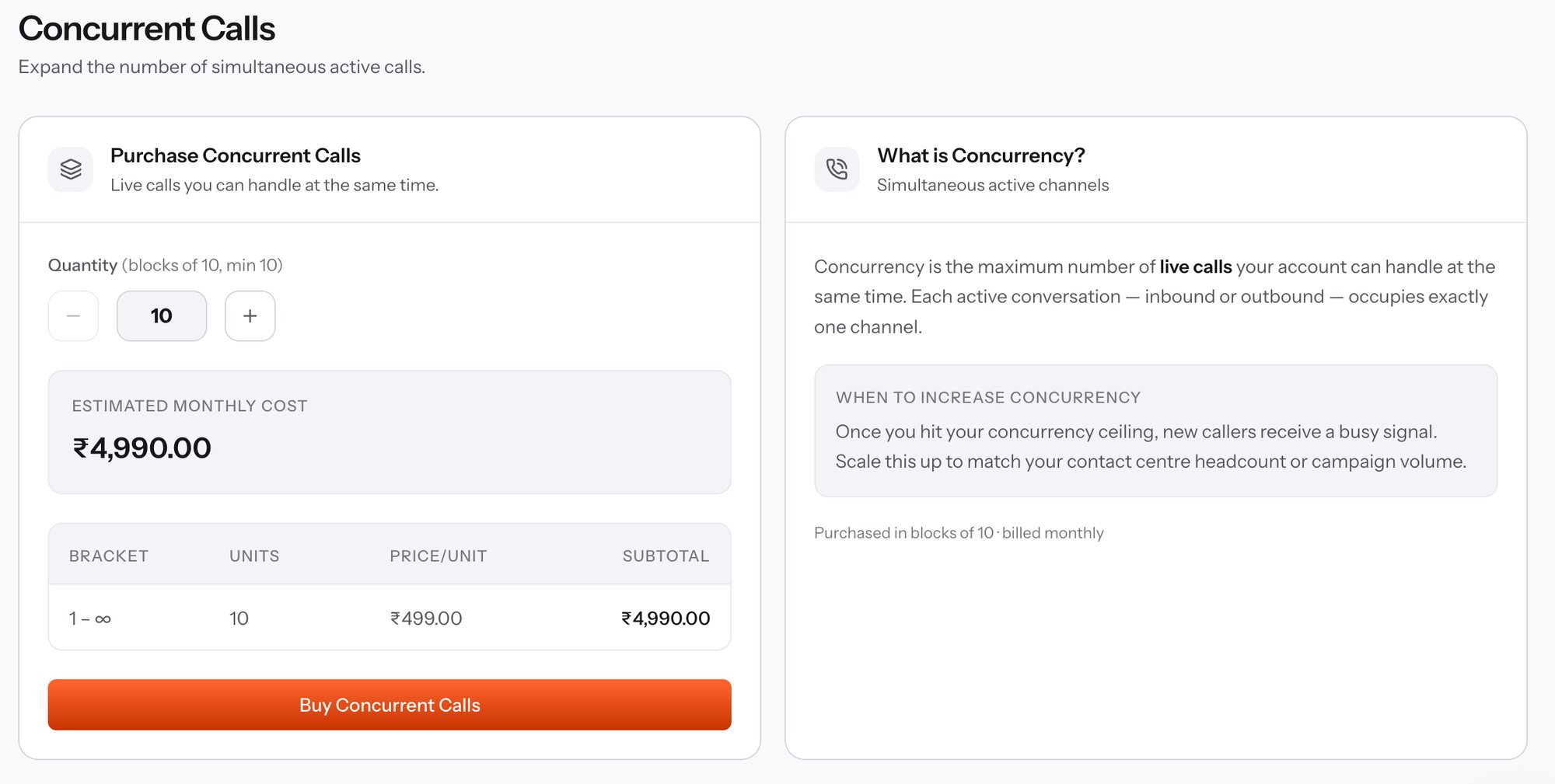
| **Quantity** | Stepper in **blocks of 10**, minimum 10. The − and + buttons move a full block at a time. |
| **Estimated monthly cost** | Recalculates as you step the quantity, before you commit to anything. |
| **Bracket table** | The pricing tier applied to your selection - the bracket, the units bought, the price per unit, and the subtotal. |
| **Buy Concurrent Calls** | Purchases the capacity and starts a monthly subscription. |
Capacity is **purchased in blocks of 10 and billed monthly**. The first month is charged on purchase, and the subscription then renews on its own cycle until you cancel it from [My Subscriptions](/docs/platform/capacity/subscriptions).
The prices in the screenshot belong to one account's pricing tier. Your own rate appears in the bracket table as you change the quantity, and [Preview capacity pricing](/docs/account/channel-pricing-preview) returns the same figure over the API without charging anything.
## Buy it over the API
Calculate the monthly price for a concurrency quantity without creating a subscription.
Create the subscription with `resource_type: "concurrent_calls"` and a quantity.
Read current channel usage and headroom in real time.
## When to raise concurrency
Once you hit the concurrency ceiling, new callers receive a busy signal. Scale it to match contact-centre headcount or campaign volume - one channel per agent or per simultaneous outbound leg, plus headroom for peaks.
Inbound traffic is the case to watch: a busy signal is invisible in your own logs but very visible to the customer who got it. Check live utilisation against the ceiling with the [Concurrency API](/docs/account/concurrency), which returns `concurrent_calls`, `max_concurrent`, and `utilization_pct`.
## Buying capacity
| Control | What it does |
| -------------------------- | ----------------------------------------------------------------------------------------------------------------- |
| **Quantity** | Stepper in **blocks of 10**, minimum 10. The − and + buttons move a full block at a time. |
| **Estimated monthly cost** | Recalculates as you step the quantity, before you commit to anything. |
| **Bracket table** | The pricing tier applied to your selection - the bracket, the units bought, the price per unit, and the subtotal. |
| **Buy Concurrent Calls** | Purchases the capacity and starts a monthly subscription. |
Capacity is **purchased in blocks of 10 and billed monthly**. The first month is charged on purchase, and the subscription then renews on its own cycle until you cancel it from [My Subscriptions](/docs/platform/capacity/subscriptions).
The prices in the screenshot belong to one account's pricing tier. Your own rate appears in the bracket table as you change the quantity, and [Preview capacity pricing](/docs/account/channel-pricing-preview) returns the same figure over the API without charging anything.
## Buy it over the API
Calculate the monthly price for a concurrency quantity without creating a subscription.
Create the subscription with `resource_type: "concurrent_calls"` and a quantity.
Read current channel usage and headroom in real time.