> ## Documentation Index
> Fetch the complete documentation index at: https://vobiz.ai/docs/llms.txt
> Use this file to discover all available pages before exploring further.
# xAI Grok Voice Integration
> Connect a Vobiz phone number to an xAI Grok voice agent over Direct SIP with TLS - bring your own number in regions where xAI does not provision numbers, including India.
[xAI](https://x.ai) voice agents answer calls over SIP. Its **Direct SIP** option lets you attach a phone number you already own, so you can put a Grok agent on a Vobiz number in any region Vobiz serves - including India, where xAI does not provision numbers itself.
## What you'll build
An inbound calling setup where someone dials your Vobiz number, Vobiz routes the call over TLS to xAI's SIP endpoint, and the Grok agent handles the conversation.
## Architecture
```text theme={null}
Caller → Vobiz number → Vobiz inbound trunk → sip.voice.x.ai (TLS) → xAI Grok agent
```
## Prerequisites
* **xAI account** with a voice agent → [xAI console](https://console.x.ai)
* **Vobiz account** → [Vobiz Console](https://console.vobiz.ai)
* **A Vobiz phone number** you want the agent to answer on
## Step 1: Add the number in xAI
In the xAI console, open your agent and add a new phone number. Select the **Direct SIP** tab rather than Twilio.
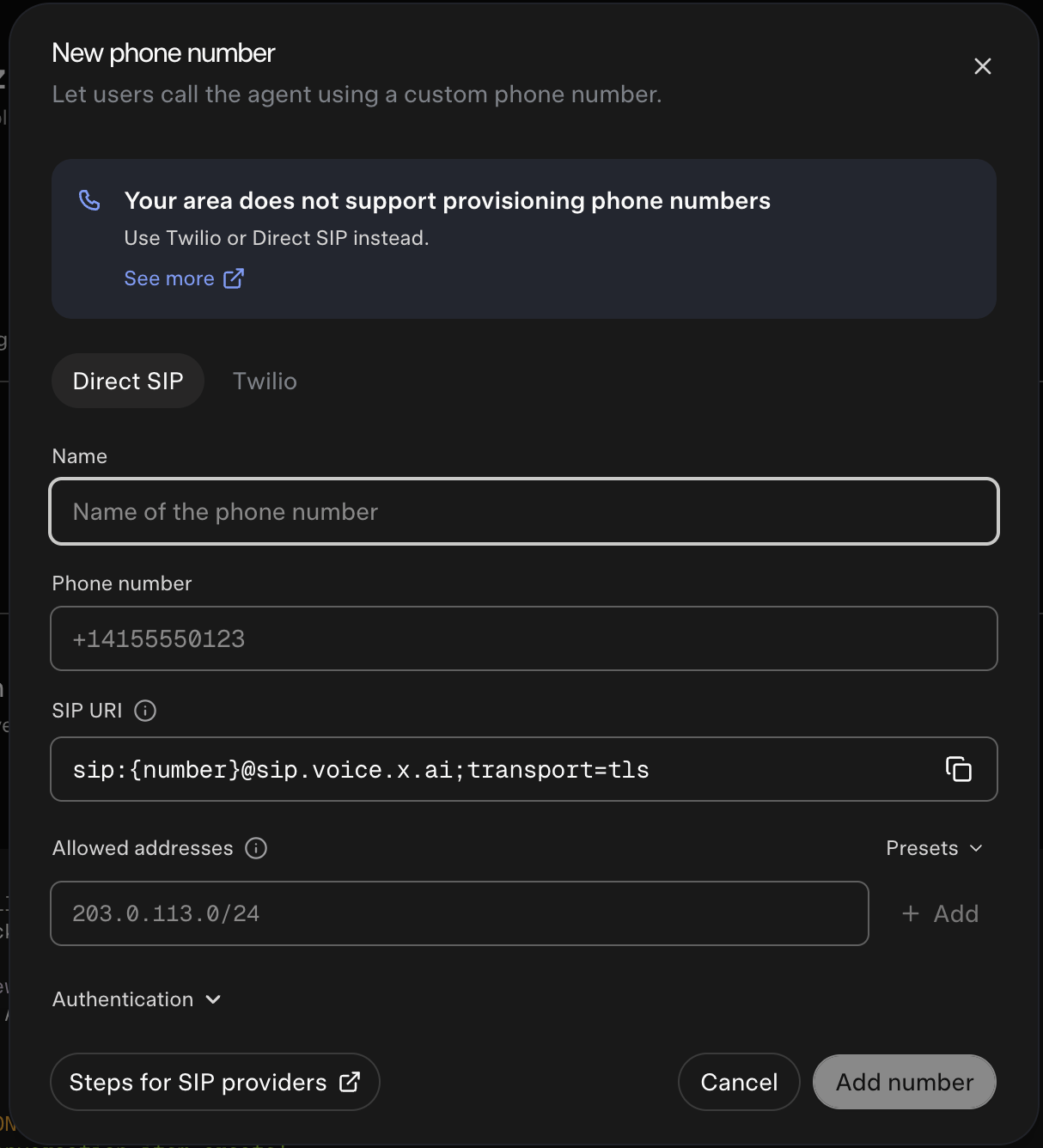 Fill in the fields:
| Field | Value |
| ----------------- | -------------------------------------------------------------- |
| Name | Any label that identifies this number |
| Phone number | Your Vobiz number in E.164 format, for example `+91XXXXXXXXXX` |
| SIP URI | `sip:{number}@sip.voice.x.ai;transport=tls` |
| Allowed addresses | The Vobiz SIP signaling IPs - see below |
The SIP URI field shows `{number}` as a template. xAI resolves it to the number you entered, so the address Vobiz sends to becomes `+91XXXXXXXXXX@sip.voice.x.ai`.
Keep `transport=tls` in the SIP URI. The origination URI you create in Step 2 must use the same transport, or the call will not connect.
### Allowed addresses
**Allowed addresses** controls which hosts xAI accepts SIP traffic from. Add the Vobiz SIP signaling IPs so calls from your trunk are accepted:
```text theme={null}
13.203.7.132
65.2.100.211
13.126.98.234
13.235.11.131
13.233.44.61
3.111.255.163
3.111.128.110
43.204.64.203
15.207.232.91
35.154.133.28
```
These are the India signaling IPs. For the full list including RTP media ranges, and for other regions, see [IP Whitelisting](/docs/concepts/ip-whitelisting).
## Step 2: Create the origination URI in Vobiz
An origination URI is the SIP destination Vobiz routes inbound calls to. Navigate to [Origination URIs](https://console.vobiz.ai/app/sip/in/uri) and create one pointing at xAI.
Fill in the fields:
| Field | Value |
| ----------------- | -------------------------------------------------------------- |
| Name | Any label that identifies this number |
| Phone number | Your Vobiz number in E.164 format, for example `+91XXXXXXXXXX` |
| SIP URI | `sip:{number}@sip.voice.x.ai;transport=tls` |
| Allowed addresses | The Vobiz SIP signaling IPs - see below |
The SIP URI field shows `{number}` as a template. xAI resolves it to the number you entered, so the address Vobiz sends to becomes `+91XXXXXXXXXX@sip.voice.x.ai`.
Keep `transport=tls` in the SIP URI. The origination URI you create in Step 2 must use the same transport, or the call will not connect.
### Allowed addresses
**Allowed addresses** controls which hosts xAI accepts SIP traffic from. Add the Vobiz SIP signaling IPs so calls from your trunk are accepted:
```text theme={null}
13.203.7.132
65.2.100.211
13.126.98.234
13.235.11.131
13.233.44.61
3.111.255.163
3.111.128.110
43.204.64.203
15.207.232.91
35.154.133.28
```
These are the India signaling IPs. For the full list including RTP media ranges, and for other regions, see [IP Whitelisting](/docs/concepts/ip-whitelisting).
## Step 2: Create the origination URI in Vobiz
An origination URI is the SIP destination Vobiz routes inbound calls to. Navigate to [Origination URIs](https://console.vobiz.ai/app/sip/in/uri) and create one pointing at xAI.
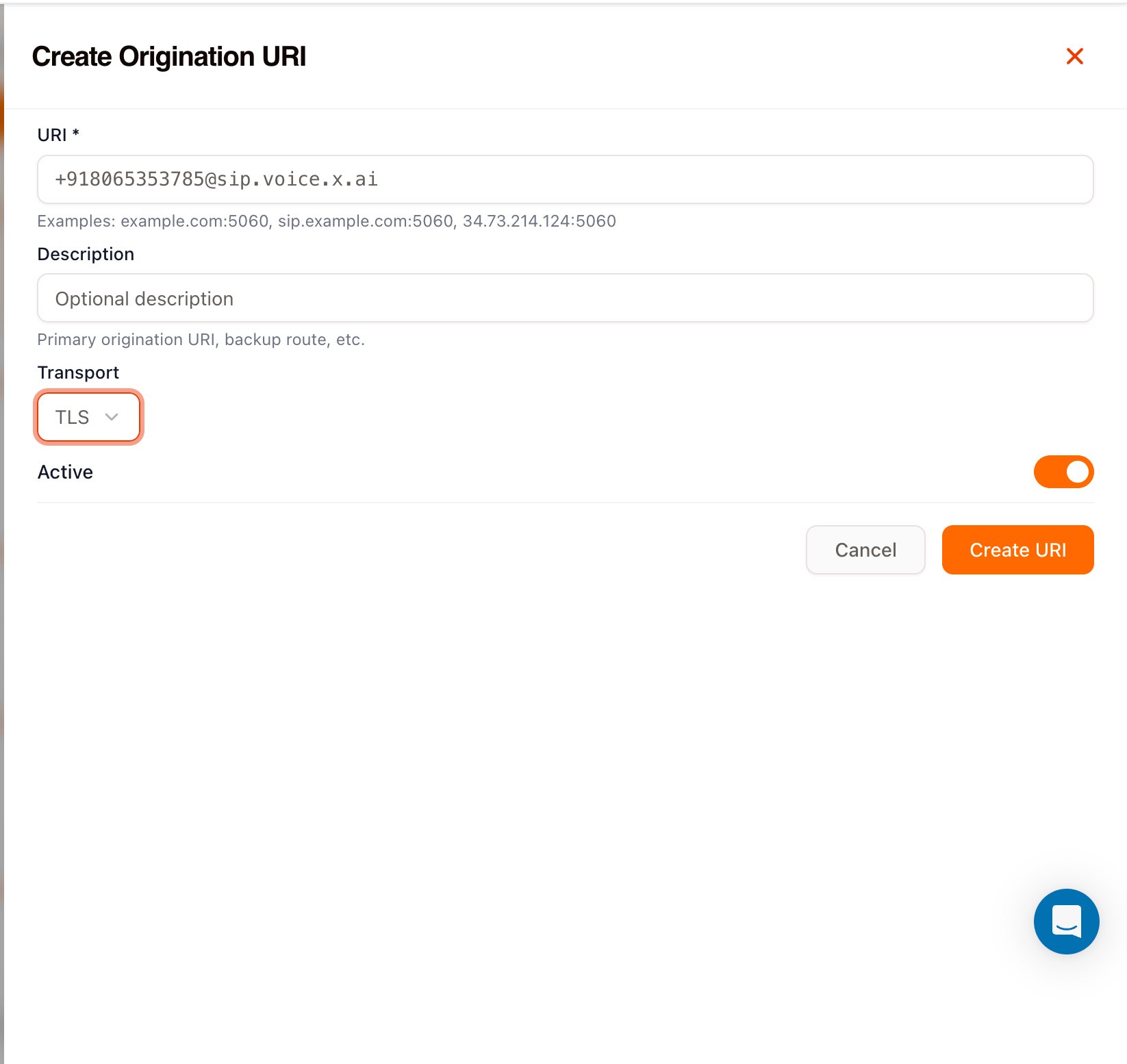 | Field | Value |
| ----------- | --------------------------------------------------------------------- |
| URI | `+91XXXXXXXXXX@sip.voice.x.ai` - your number, then the xAI SIP domain |
| Description | Optional, for example `xAI Grok agent` |
| Transport | **TLS** |
| Active | On |
Use the same number here that you entered in xAI. The URI is what xAI matches the incoming call against.
## Step 3: Create the inbound trunk
Navigate to [Inbound Trunks](https://console.vobiz.ai/app/sip/in/trunks) and create a trunk that uses the origination URI from Step 2.
| Field | Value |
| ----------- | --------------------------------------------------------------------- |
| URI | `+91XXXXXXXXXX@sip.voice.x.ai` - your number, then the xAI SIP domain |
| Description | Optional, for example `xAI Grok agent` |
| Transport | **TLS** |
| Active | On |
Use the same number here that you entered in xAI. The URI is what xAI matches the incoming call against.
## Step 3: Create the inbound trunk
Navigate to [Inbound Trunks](https://console.vobiz.ai/app/sip/in/trunks) and create a trunk that uses the origination URI from Step 2.
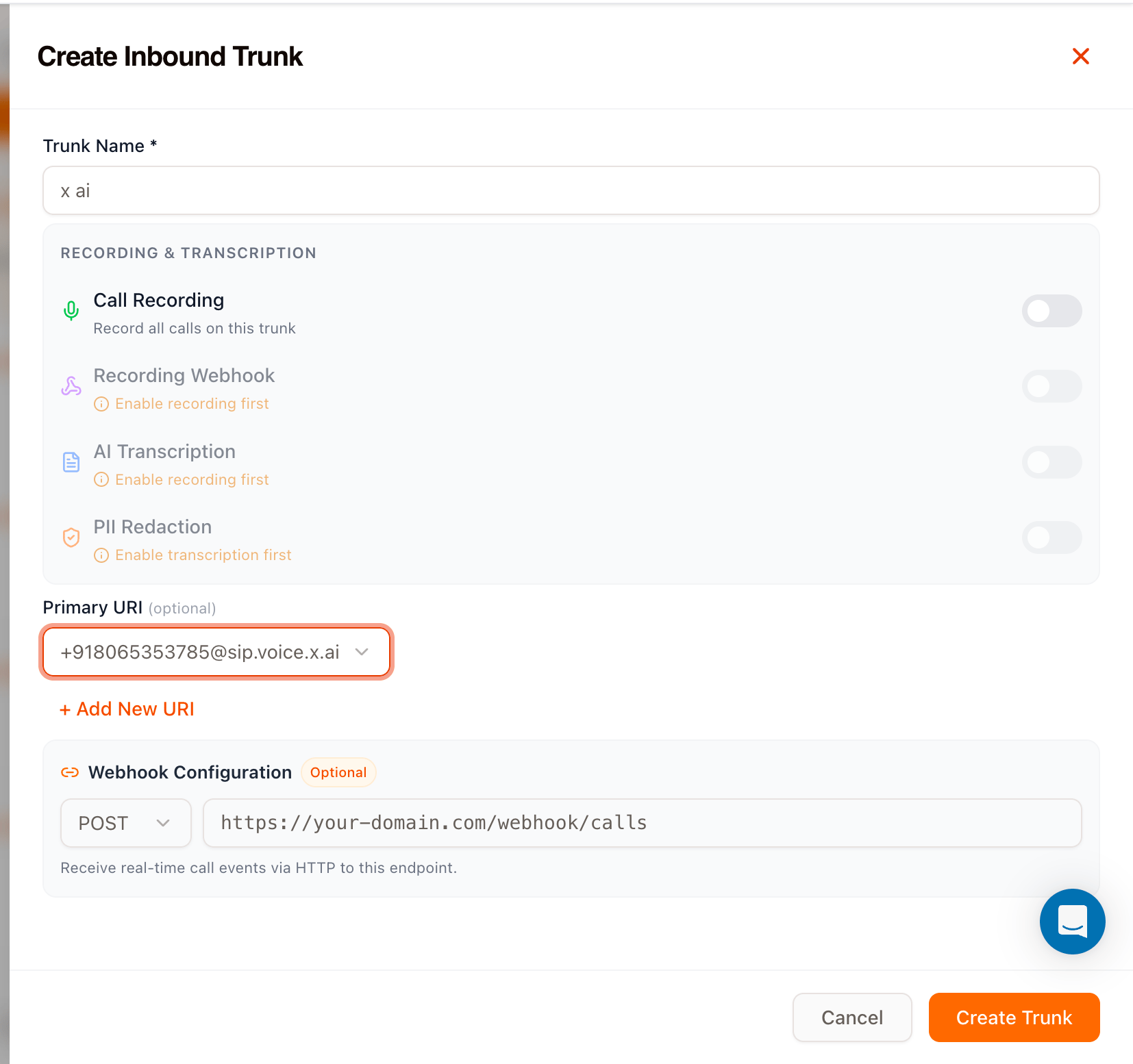 | Field | Value |
| ----------- | ------------------------------------------------ |
| Trunk Name | Any label, for example `xAI` |
| Primary URI | Select the origination URI you created in Step 2 |
Two optional sections are available on the same screen:
* **Recording & transcription** - turn on call recording for this trunk, then optionally add a recording webhook, AI transcription, and PII redaction. Each depends on the one above it.
* **Webhook configuration** - set a URL to receive real-time call events over HTTP. See [Callbacks](/docs/concepts/callbacks) for the event payloads.
## Step 4: Link the number to the trunk
Open the trunk you just created and link your Vobiz number to it under **Linked Numbers**.
| Field | Value |
| ----------- | ------------------------------------------------ |
| Trunk Name | Any label, for example `xAI` |
| Primary URI | Select the origination URI you created in Step 2 |
Two optional sections are available on the same screen:
* **Recording & transcription** - turn on call recording for this trunk, then optionally add a recording webhook, AI transcription, and PII redaction. Each depends on the one above it.
* **Webhook configuration** - set a URL to receive real-time call events over HTTP. See [Callbacks](/docs/concepts/callbacks) for the event payloads.
## Step 4: Link the number to the trunk
Open the trunk you just created and link your Vobiz number to it under **Linked Numbers**.
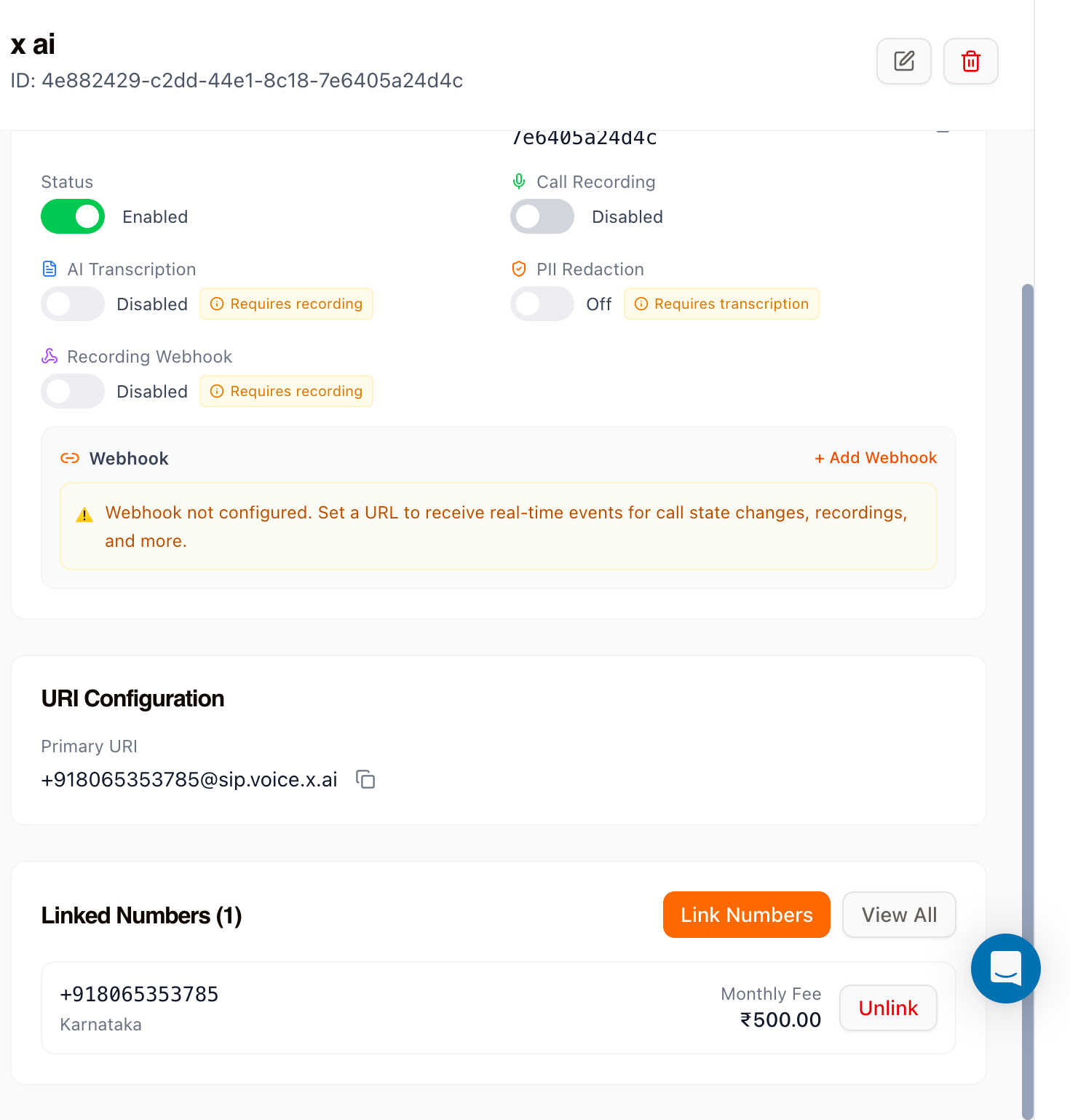 Click **Link Numbers**, select your number, and confirm. The trunk detail view then shows the number under **Linked Numbers (1)**, and the trunk status reads **Enabled**.
At this point the route is complete: the number is linked to the trunk, the trunk points at the origination URI, and the origination URI points at xAI.
## Step 5: Test the integration
Call your Vobiz number from any phone. The Grok agent should answer and begin the conversation.
## Troubleshooting
### The call rings but the agent never answers
Check that the number in the Vobiz origination URI exactly matches the number configured in xAI, including the `+` and country code.
### The call fails immediately
Confirm the transport is TLS in both places - `transport=tls` in the xAI SIP URI and **TLS** on the Vobiz origination URI.
### Calls are rejected by xAI
Verify the Vobiz SIP signaling IPs are present in the **Allowed addresses** list on the xAI number. See [IP Whitelisting](/docs/concepts/ip-whitelisting) for the current list.
### The number is not reachable at all
Open the trunk and confirm **Status** is Enabled and the number appears under **Linked Numbers**.
## Next steps
Full SIP signaling and RTP media IP ranges
Receive call events on your own endpoint
Record, retrieve, and download calls on this trunk
How Vobiz trunks route calls
Click **Link Numbers**, select your number, and confirm. The trunk detail view then shows the number under **Linked Numbers (1)**, and the trunk status reads **Enabled**.
At this point the route is complete: the number is linked to the trunk, the trunk points at the origination URI, and the origination URI points at xAI.
## Step 5: Test the integration
Call your Vobiz number from any phone. The Grok agent should answer and begin the conversation.
## Troubleshooting
### The call rings but the agent never answers
Check that the number in the Vobiz origination URI exactly matches the number configured in xAI, including the `+` and country code.
### The call fails immediately
Confirm the transport is TLS in both places - `transport=tls` in the xAI SIP URI and **TLS** on the Vobiz origination URI.
### Calls are rejected by xAI
Verify the Vobiz SIP signaling IPs are present in the **Allowed addresses** list on the xAI number. See [IP Whitelisting](/docs/concepts/ip-whitelisting) for the current list.
### The number is not reachable at all
Open the trunk and confirm **Status** is Enabled and the number appears under **Linked Numbers**.
## Next steps
Full SIP signaling and RTP media IP ranges
Receive call events on your own endpoint
Record, retrieve, and download calls on this trunk
How Vobiz trunks route calls