> ## Documentation Index
> Fetch the complete documentation index at: https://www.vobiz.ai/docs/llms.txt
> Use this file to discover all available pages before exploring further.
# ServiceNow integration
> A Vobiz WebRTC softphone inside ServiceNow - agents call from a record or the OpenFrame panel, talk in the browser, and every call is written back to the interaction table with a signed recording link.
A WebRTC softphone inside ServiceNow. Agents call from a record or from the **OpenFrame** panel, talk in the browser, and the call is written back to the ServiceNow `interaction` table with a playable recording link.
**Source code:** [vobiz-ai/Vobiz-ServiceNow-Calling](https://github.com/vobiz-ai/Vobiz-ServiceNow-Calling) — the softphone, the OpenFrame mount, the **Call via Vobiz** UI Action, and the Node backend that answers Vobiz webhooks and writes to ServiceNow.
**Scope:** inbound and outbound, with browser audio over WebRTC. The backend, the answer XML and the whole HTTP surface are covered by `npm test` — 46 assertions, including a security-regression group. A live call has not been run since the 2.1.0 security rewrite, so verify both directions on your own account before rolling it out to agents.
## What you get
| | |
| ----------------------- | --------------------------------------------------------------------------------------- |
| **Click-to-call** | The **Call via Vobiz** UI Action on `sys_user`, `incident` or `sn_customerservice_case` |
| **OpenFrame panel** | The softphone mounted in the Next Experience header |
| **Interaction records** | Every call written to `interaction` through the ServiceNow Table API |
| **Caller display** | Inbound calls raise an in-panel prompt with the calling number |
| **Recordings** | A signed, short-expiry playback link embedded in the interaction work notes |
| **Browser audio** | Calls run over WebRTC in the tab — no desk phone, no desktop app |
## How it works
The one thing to understand first: **the browser is the A leg.** The softphone sends the SIP INVITE itself, and the backend answers `` to reach the customer.
```text theme={null}
softphone ──SIP INVITE──▶ Vobiz ──answer_url──▶ backend /answer
│
──▶ customer
```
**Build it this way round.** Originating to the customer over the REST API first and then bridging the agent in with `` does not work for a registered WebRTC endpoint — the customer answers, hears ringback, and then *"the agent could not be reached"*.
Inbound is the exception: `` is the only way to reach a registered endpoint, and it works today.
| Path | Role |
| -------------------------------- | ----------------------------------------------------------------------------------------------------------------- |
| `agent-phone/` | The softphone ServiceNow iframes — JsSIP stack, dialpad, incoming-call popup, call history |
| `backend/server.js` | Answers Vobiz webhooks, serves the softphone, holds credentials, brokers the Vobiz REST API, writes to ServiceNow |
| `backend/tunnel.js` | Starts a Cloudflare quick tunnel and records its hostname |
| `servicenow-app/openframe/` | How to mount the softphone in the Next Experience header |
| `servicenow-app/ui-actions/` | The **Call via Vobiz** form button — server-side, uses `sn_ws.RESTMessageV2` |
| `servicenow-app/sys_properties/` | The properties the UI Action reads, instead of hardcoded URLs |
**The backend writes the interaction record itself**, over the Table API, using the instance credentials in `.env`. That is the opposite of the [HubSpot](/docs/integrations/hubspot) build, where the CRM creates the engagement from the widget's own session — so here the ServiceNow user in `.env` needs write access to `interaction`.
## Requirements
| Requirement | Detail |
| ------------------- | ----------------------------------------------------------------------------------------------------- |
| Vobiz account | `AUTH_ID`, `AUTH_TOKEN`, a number, and balance — [console.vobiz.ai](https://console.vobiz.ai) |
| ServiceNow instance | With the **OpenFrame** plugin (`com.sn_openframe`) active |
| ServiceNow user | Credentials with write access to the `interaction` table |
| Public HTTPS URL | `cloudflared` or another tunnel. Vobiz must reach `/answer`, `/dial-status` and `/recording-callback` |
| Runtime | Node 18+ |
## Step 1: Prove the Vobiz account
Place a call with [rtc-demo.vobiz.ai](https://rtc-demo.vobiz.ai/). If that fails, nothing here will work and you will debug the wrong layer for a day.
## Step 2: Create the SIP endpoint
```bash theme={null}
curl -X POST "https://api.vobiz.ai/api/v1/Account/$AUTH_ID/Endpoint/" \
-H "X-Auth-ID: $AUTH_ID" -H "X-Auth-Token: $AUTH_TOKEN" \
-H "Content-Type: application/json" \
-d '{"username":"snagent","password":"","alias":"ServiceNow Agent"}'
```
**Vobiz rewrites the username you submit.** Send `snagent` and the stored username comes back as something like `snagent1187694299145202883643`. Read the stored `username` out of the response — that is what registers, and what `VOBIZ_SIP_USER` must contain.
## Step 3: Run the backend
```bash theme={null}
cp backend/.env.example backend/.env # then fill it in
npm start # backend on :8092
npm run tunnel # public HTTPS, writes backend/tunnel-url.txt
```
`cloudflared` must be on your PATH (`brew install cloudflared`, or `winget install --id Cloudflare.cloudflared -e`). The binary is deliberately not committed.
The `.env` values that matter:
| Variable | Purpose |
| ------------------------------------------------------------------- | ----------------------------------------------------------------------------- |
| `VOBIZ_AUTH_ID`, `VOBIZ_AUTH_TOKEN` | Account credentials from the console |
| `VOBIZ_FROM_NUMBER` | Caller ID — must be a number the account owns |
| `VOBIZ_SIP_USER`, `VOBIZ_SIP_PASSWORD` | The endpoint from step 2. `VOBIZ_REGISTRAR` stays `registrar.vobiz.ai` |
| `SERVICENOW_INSTANCE_URL`, `SERVICENOW_USER`, `SERVICENOW_PASSWORD` | Where interaction records are written |
| `VOBIZ_SHARED_SECRET` | Authenticates **Call via Vobiz**. Required for that button to work |
| `SIGNING_SECRET` | Signs recording playback links. **Set it explicitly** — see the warning below |
| `TUNNEL_URL` | Overrides the auto-detected tunnel hostname |
**Set `SIGNING_SECRET` in production.** Left unset it defaults to a per-process random value, so every restart invalidates every playback link already written into a ServiceNow work note.
Then **verify before touching ServiceNow**:
```bash theme={null}
BASE=$(cat backend/tunnel-url.txt)
curl -s "$BASE/health"
curl -s -X POST "$BASE/answer" \
-d "From=sip:x@registrar.vobiz.ai&To=91XXXXXXXXXX&RouteType=sip"
```
The second must return `` containing ``. Anything else — a tunnel error page, an ngrok interstitial — and every call dies silently.
## Step 4: Point Vobiz at the backend
Create an application whose `answer_url` is `$TUNNEL_URL/answer`, bind the SIP endpoint to it, and attach a DID for inbound. `POST /setup` on the backend does this for you with an active session, or do it by hand:
```bash theme={null}
# create the application
curl -X POST ".../Account/$AUTH_ID/Application/" -d '{
"app_name":"ServiceNow Calling","answer_url":"'"$TUNNEL_URL"'/answer",
"answer_method":"POST","hangup_url":"'"$TUNNEL_URL"'/answer","hangup_method":"POST"}'
# bind the endpoint — the field is app_id, NOT the documented `application`,
# which is silently ignored and still returns 202 "changed"
curl -X POST ".../Account/$AUTH_ID/Endpoint/$ENDPOINT_ID/" -d '{"app_id":"'"$APP_ID"'"}'
# attach a DID for inbound. Lowercase /numbers, + encoded as %2B.
curl -X POST ".../Account/$AUTH_ID/numbers/%2B91XXXXXXXXXX/application" \
-d '{"application_id":"'"$APP_ID"'"}' # 204 on success
```
## Step 5: Set the ServiceNow properties
In **System Properties → All Properties** (`sys_properties.list`), create:
| Property | Type | Value |
| ----------------------------- | ----------- | ---------------------------------------------- |
| `vobiz.calling.tunnel_url` | `string` | Your public backend URL, **no trailing slash** |
| `vobiz.calling.shared_secret` | `password2` | Must match `VOBIZ_SHARED_SECRET` in `.env` |
| `vobiz.calling.default_table` | `string` | `interaction` |
**`vobiz.calling.shared_secret` must be type `password2`, not `string`.** Any user who can list `sys_properties` can read a string property, and this value authorises outbound calls billed to your Vobiz account. Generate it with `openssl rand -hex 32`.
If it is empty, the UI Action sends no `X-Vobiz-Secret` header and `/start-call` answers `401 unauthorized` — that endpoint originates a billed call and is deliberately not open.
## Step 6: Mount the OpenFrame panel
In the Filter Navigator go to **OpenFrame → Configurations → New**:
| Field | Value |
| -------------- | ------------------------------------------------------------ |
| **Name** | `Vobiz Softphone` |
| **Title** | `Vobiz Calling` |
| **URL** | `https:///agent-phone.html` |
| **Width** | `380` |
| **Height** | `560` |
| **User group** | `All`, or a specific role such as `sn_customerservice_agent` |
| **Active** | `true` |
The panel then appears in the top-right of the Next Experience header and loads the softphone inside the ServiceNow frame.
## Step 7: Sign in and call
Open the OpenFrame panel. Before credentials are entered the badge reads **CONNECTING** and the three steps below are inert.
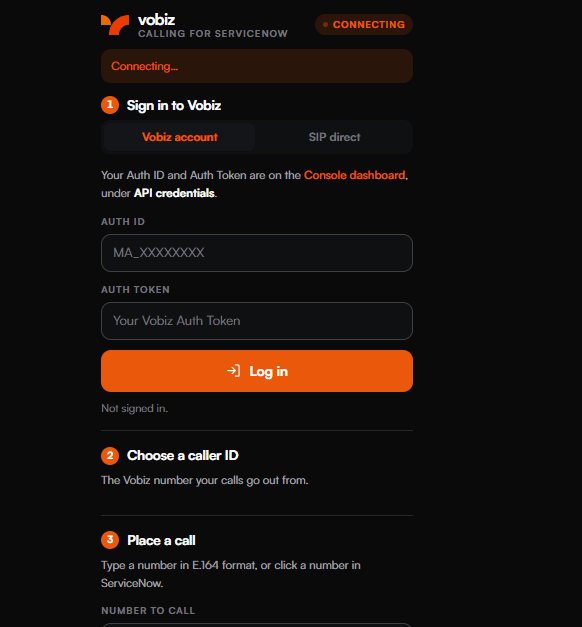 Sign in with the **Auth ID and Auth Token** from the [console](https://console.vobiz.ai) under **API credentials** — or switch to **SIP direct** for an endpoint username, password and caller ID. Allow the microphone. The badge turns green when JsSIP has registered.
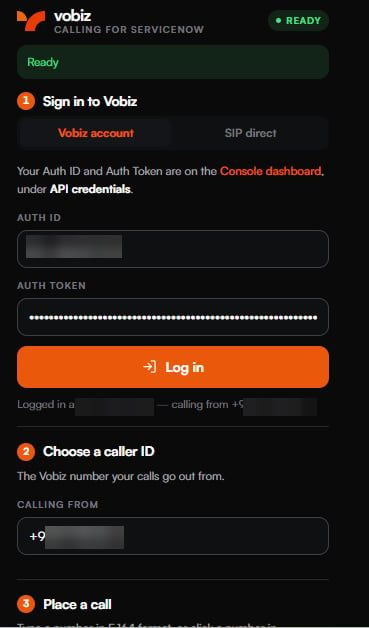 **Wait for the status to read Ready before dialling.** That is the SIP registration landing; dialling before it rings the customer into silence.
### Choose a caller ID
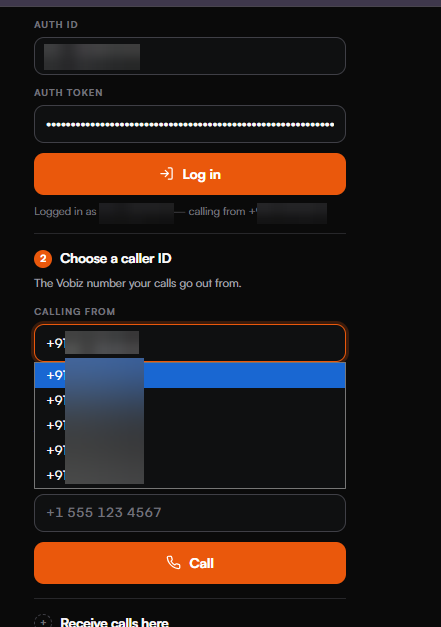
**Calling from** lists the numbers on the account. Carriers require a real number here to bridge a call to a mobile or landline.
**Wait for the status to read Ready before dialling.** That is the SIP registration landing; dialling before it rings the customer into silence.
### Choose a caller ID
**Calling from** lists the numbers on the account. Carriers require a real number here to bridge a call to a mobile or landline.
 ### Place the call
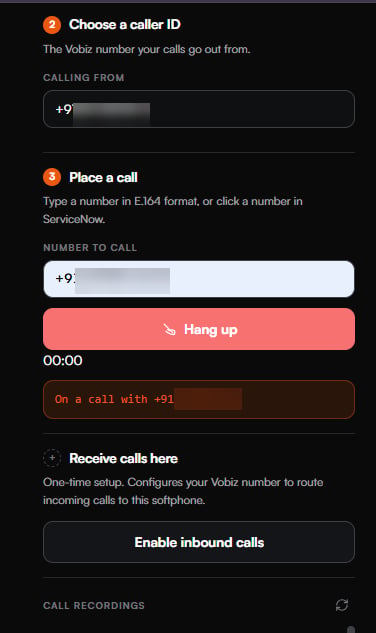
Type a number in E.164 format, or click a number in ServiceNow and the panel picks it up. Recently used numbers are suggested as you type, in both their `+91…` and bare forms.
Once connected the panel switches to **Hang up**, starts the timer, and confirms who is on the call.
### Place the call
Type a number in E.164 format, or click a number in ServiceNow and the panel picks it up. Recently used numbers are suggested as you type, in both their `+91…` and bare forms.
Once connected the panel switches to **Hang up**, starts the timer, and confirms who is on the call.
 **From a record.** The **Call via Vobiz** UI Action posts to `/start-call` with the shared secret from step 5.
## Inbound calls
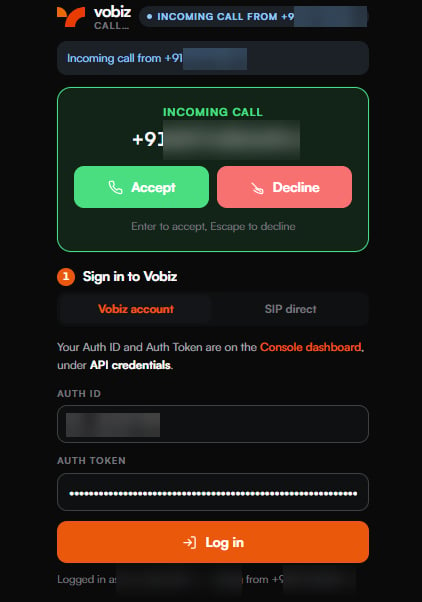
**Receive calls here** is the one-time setup that points your Vobiz number at this panel. After that, a call to the attached DID raises an in-panel prompt — **Enter** accepts, **Escape** declines.
**From a record.** The **Call via Vobiz** UI Action posts to `/start-call` with the shared secret from step 5.
## Inbound calls
**Receive calls here** is the one-time setup that points your Vobiz number at this panel. After that, a call to the attached DID raises an in-panel prompt — **Enter** accepts, **Escape** declines.
 ## Recordings
Completed calls appear under **Call recordings** with their timestamp, each with an inline player.
## Recordings
Completed calls appear under **Call recordings** with their timestamp, each with an inline player.
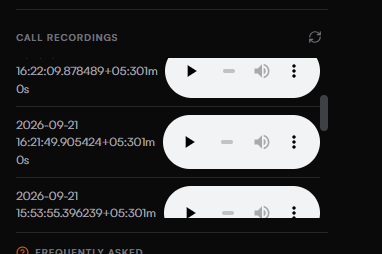 The same link is written into the interaction work notes, signed and short-lived.
## What lands in ServiceNow
One record per call in the `interaction` table:
| Field | Value |
| ------------------------ | ----------------------------------------------------- |
| `type` | `phone` |
| `state` | `closed_complete` |
| `short_description` | `Vobiz Call: ` |
| `opened_at`, `closed_at` | Derived from the call duration |
| `recording_url` | The signed playback link |
| `work_notes` | Direction, from, to, duration, and the recording link |
| `assigned_to` | The matched `sys_user`, when the agent resolves |
## Reading the logs
The backend log is the honest account of what happened:
```text theme={null}
WEBHOOK /answer received: {"From":"sip:…","To":"91…","RouteType":"sip"}
-> Browser is A-leg: dialing out to 91… as callerId=+91…
DIAL RESULT status=completed ring=true cause=NORMAL_CLEARING bleg=abc-123 dur=42
RECORDING READY call=… id=…
```
**`DialBLegUUID` is the single most useful field in this stack.** Present means the call connected. Empty means no B leg was ever created, whatever the UI said.
## Backend routes
| Route | Role |
| ------------------------------------------------------ | ----------------------------------------------------------------------- |
| `POST /answer`, `/inbound-answer` | The XML Vobiz executes. Branches on direction |
| `POST /dial-status` | The `action` target of `` |
| `POST /recording-ready`, `/recording-callback` | Fires when the recording is downloadable |
| `POST /hangup-callback` | Call teardown |
| `POST /login`, `/login-sip`, `/logout`, `GET /session` | Session handling |
| `POST /select-number`, `GET /agent` | Caller IDs and SIP identity |
| `GET /recordings`, `/play-recording`, `/call-record` | Recording access |
| `POST /sync-call` | Write an interaction record |
| `POST /setup`, `/setup-inbound` | Provision the Vobiz application and bindings |
| `POST /start-call` | The **Call via Vobiz** target — requires the shared secret or a session |
| `GET /health` | Whether things are configured, never what they are |
## Troubleshooting
| Problem | What to check |
| --------------------------------------------------------------- | ------------------------------------------------------------------------------------------------------------------------------------------------------------------------------------------------------------------------------------------------------------------ |
| **It worked yesterday, now nothing rings** | The quick tunnel hostname changed. Three things go stale together: `TUNNEL_URL` in `.env`, the Vobiz application's `answer_url` (re-run `POST /setup`), and `vobiz.calling.tunnel_url` plus the OpenFrame URL in ServiceNow. This is the single most common cause. |
| **`Call via Vobiz` returns 401** | `vobiz.calling.shared_secret` is empty or does not match `VOBIZ_SHARED_SECRET`. |
| **The customer answers, then "the agent could not be reached"** | The call was originated the wrong way round — see the architecture warning above. |
| **Playback links in old work notes are dead** | `SIGNING_SECRET` was unset, so a restart rotated it. Set it explicitly. |
| **Two agents fight over the same call** | The backend is single-account: everyone signing in account-mode shares one SIP endpoint. Real multi-agent use needs an endpoint per agent. |
| **The panel is blank in ServiceNow** | Confirm the OpenFrame URL is HTTPS and reachable from the browser, and that `com.sn_openframe` is active. |
## Testing
```bash theme={null}
npm test
```
Starts a backend against a mock Vobiz API, drives both call directions through `/answer`, checks the CDR ledger, and asserts the security regressions — that unsigned playback is refused, that `/agent` and `/start-call` demand authentication, that `/health` leaks nothing, and that an unknown origin is not echoed back as allowed. It exits non-zero when any of that stops being true.
## Next steps
* [Pipedrive integration →](/docs/integrations/pipedrive) - the same softphone architecture against a sales CRM.
* [ClickUp integration →](/docs/integrations/clickup) - calls logged as tasks.
* [SIP Endpoints →](/docs/platform/voice/endpoints) - create and manage the endpoint the softphone registers as.
* [Voice Applications →](/docs/platform/voice/applications) - answer URLs, hangup URLs, and attaching numbers.
The same link is written into the interaction work notes, signed and short-lived.
## What lands in ServiceNow
One record per call in the `interaction` table:
| Field | Value |
| ------------------------ | ----------------------------------------------------- |
| `type` | `phone` |
| `state` | `closed_complete` |
| `short_description` | `Vobiz Call: ` |
| `opened_at`, `closed_at` | Derived from the call duration |
| `recording_url` | The signed playback link |
| `work_notes` | Direction, from, to, duration, and the recording link |
| `assigned_to` | The matched `sys_user`, when the agent resolves |
## Reading the logs
The backend log is the honest account of what happened:
```text theme={null}
WEBHOOK /answer received: {"From":"sip:…","To":"91…","RouteType":"sip"}
-> Browser is A-leg: dialing out to 91… as callerId=+91…
DIAL RESULT status=completed ring=true cause=NORMAL_CLEARING bleg=abc-123 dur=42
RECORDING READY call=… id=…
```
**`DialBLegUUID` is the single most useful field in this stack.** Present means the call connected. Empty means no B leg was ever created, whatever the UI said.
## Backend routes
| Route | Role |
| ------------------------------------------------------ | ----------------------------------------------------------------------- |
| `POST /answer`, `/inbound-answer` | The XML Vobiz executes. Branches on direction |
| `POST /dial-status` | The `action` target of `` |
| `POST /recording-ready`, `/recording-callback` | Fires when the recording is downloadable |
| `POST /hangup-callback` | Call teardown |
| `POST /login`, `/login-sip`, `/logout`, `GET /session` | Session handling |
| `POST /select-number`, `GET /agent` | Caller IDs and SIP identity |
| `GET /recordings`, `/play-recording`, `/call-record` | Recording access |
| `POST /sync-call` | Write an interaction record |
| `POST /setup`, `/setup-inbound` | Provision the Vobiz application and bindings |
| `POST /start-call` | The **Call via Vobiz** target — requires the shared secret or a session |
| `GET /health` | Whether things are configured, never what they are |
## Troubleshooting
| Problem | What to check |
| --------------------------------------------------------------- | ------------------------------------------------------------------------------------------------------------------------------------------------------------------------------------------------------------------------------------------------------------------ |
| **It worked yesterday, now nothing rings** | The quick tunnel hostname changed. Three things go stale together: `TUNNEL_URL` in `.env`, the Vobiz application's `answer_url` (re-run `POST /setup`), and `vobiz.calling.tunnel_url` plus the OpenFrame URL in ServiceNow. This is the single most common cause. |
| **`Call via Vobiz` returns 401** | `vobiz.calling.shared_secret` is empty or does not match `VOBIZ_SHARED_SECRET`. |
| **The customer answers, then "the agent could not be reached"** | The call was originated the wrong way round — see the architecture warning above. |
| **Playback links in old work notes are dead** | `SIGNING_SECRET` was unset, so a restart rotated it. Set it explicitly. |
| **Two agents fight over the same call** | The backend is single-account: everyone signing in account-mode shares one SIP endpoint. Real multi-agent use needs an endpoint per agent. |
| **The panel is blank in ServiceNow** | Confirm the OpenFrame URL is HTTPS and reachable from the browser, and that `com.sn_openframe` is active. |
## Testing
```bash theme={null}
npm test
```
Starts a backend against a mock Vobiz API, drives both call directions through `/answer`, checks the CDR ledger, and asserts the security regressions — that unsigned playback is refused, that `/agent` and `/start-call` demand authentication, that `/health` leaks nothing, and that an unknown origin is not echoed back as allowed. It exits non-zero when any of that stops being true.
## Next steps
* [Pipedrive integration →](/docs/integrations/pipedrive) - the same softphone architecture against a sales CRM.
* [ClickUp integration →](/docs/integrations/clickup) - calls logged as tasks.
* [SIP Endpoints →](/docs/platform/voice/endpoints) - create and manage the endpoint the softphone registers as.
* [Voice Applications →](/docs/platform/voice/applications) - answer URLs, hangup URLs, and attaching numbers.