> ## Documentation Index
> Fetch the complete documentation index at: https://www.vobiz.ai/docs/llms.txt
> Use this file to discover all available pages before exploring further.
# Salesforce integration
> A Vobiz softphone inside Salesforce Lightning over Open CTI - dial from any phone number in the CRM, talk in the browser, and every call is logged as a completed Task against the matched record.
A softphone that puts Vobiz telephony inside **Salesforce Lightning**. Agents place and receive real phone calls from the browser, phone numbers across the CRM become click-to-dial, the matching record pops on every call, and each finished call is logged as a Task.
**Source code:** [vobiz-ai/Vobiz-Salesforce-Calling](https://github.com/vobiz-ai/Vobiz-Salesforce-Calling) — the panel, the Open CTI host adapter, the Call Center definition, and the backend contract your service must implement.
Built on **Open CTI**, so there is nothing to package and no AppExchange review to wait for. You host a page; Salesforce frames it.
## What you get
| | |
| ----------------------- | ------------------------------------------------------------------ |
| **Outbound calling** | Dial from the panel, with two-way audio in the browser |
| **Click-to-dial** | Every phone number across Salesforce becomes clickable |
| **Inbound calling** | Calls to your Vobiz number ring the panel, with Accept and Decline |
| **Screen-pop** | The matching record opens while the call is still connecting |
| **Call logging** | Each finished call is written as a completed **Task** |
| **Recording** | Tick a box before dialling; play back in the Vobiz Console |
| **Two ways to sign in** | Account credentials, or a single SIP endpoint |
## How it works
**This app holds no Vobiz credentials and cannot place a call by itself.** It talks to a small service you run, which holds your Auth Token and drives the Vobiz REST API. That service is **not** in the repository — its complete contract is in [`docs/backend-contract.md`](https://github.com/vobiz-ai/Vobiz-Salesforce-Calling/blob/main/docs/backend-contract.md). Read it before you start: the obvious implementation of the recording endpoint is unsafe, and the document explains why.
The Vobiz REST API is authenticated with your account Auth Token. Putting that in a browser would hand every agent full control of the account — numbers, billing, other people's calls. So the browser never sees it:
```text theme={null}
┌──────────────┐ HTTPS ┌─────────────────┐ REST API ┌────────┐
│ the panel │ ───────────────▶ │ your backend │ ──────────────▶ │ Vobiz │
│ (in browser) │ ◀─────────────── │ (your server) │ ◀────────────── │ │
└──────┬───────┘ └─────────────────┘ answer webhook └───┬────┘
│ │
└────────────── SIP over WebSocket + audio ────────────────────────┘
```
Audio never touches your backend — it runs directly between the browser and Vobiz.
### Both directions use a conference
The agent and the other party are put into a **conference room** rather than bridged directly.
**Inbound has to.** A call cannot be delivered into a browser's registered SIP endpoint, so there is no way to simply ring the panel. The caller waits in the room, and the panel joins it.
**Outbound does the same** because it is the more reliable path for browser audio: the agent waits in the room and the destination is dialled into it, each leg established the way that leg works best.
**Two CDRs per call**, one per leg, with matching durations. They are the two halves of one conversation — worth knowing when you read call records or reconcile billing.
The consequence agents never see: **the browser always places the call, never receives one.** Even on an incoming call, the panel dials out to join the caller. Vobiz's routing service rejects a non-numeric destination, so the browser dials the caller's number and the backend substitutes the conference join before that number is ever rung. **The caller is never called back.**
### What Salesforce gets back
| | |
| ----------------- | --------------------------------------------------------------------- |
| **Click-to-dial** | The app turns this on; nothing in Salesforce does it by itself |
| **Screen-pop** | One match pops automatically; several leave the agent to choose |
| **A call Task** | Direction, talk time and a description, related to the matched record |
Tasks are what Salesforce's own call logging produces, so these appear in Activity History next to every other logged call.
**Talk time, not ring time.** A call that rang for 30 seconds and talked for 10 is logged as 10 seconds. An unanswered call is logged as zero. And a CRM failure never breaks a call — if the lookup or write fails, the panel returns to Ready rather than showing a telephony error for a CRM problem.
## Requirements
| Requirement | Detail |
| --------------------------- | ------------------------------------------------------------------------------------------------------------------------------------- |
| Salesforce | **Lightning Experience** with admin access. Developer Edition is fine for evaluation |
| My Domain host | The `https://.my.salesforce.com` address from Setup → **My Domain** — **not** the `lightning.force.com` address you browse |
| Vobiz account | An **Auth ID**, **Auth Token**, and at least one phone number — [console.vobiz.ai](https://console.vobiz.ai) |
| A calling backend | Implementing the backend contract, reachable over HTTPS from both Vobiz and the browser |
| Somewhere to host the panel | Four static files and a vendored library, on any HTTPS host |
## Setting it up
Implement the [backend contract](https://github.com/vobiz-ai/Vobiz-Salesforce-Calling/blob/main/docs/backend-contract.md), reachable over HTTPS from Vobiz (for webhooks) and from the agent's browser (with CORS configured for the panel's origin).
Setup → **Trusted URLs** → **New**, with **`frame-src`** ticked.
Without this, Salesforce refuses to frame the panel and shows a blank box with no error.
Copy `app/` to any HTTPS host. **Serving it from the calling backend is strongly recommended** — Salesforce stores only a URL, so every extra hostname is another thing that goes stale independently, and same-origin means the panel's calls to the backend involve no CORS preflight at all.
Setup → **Call Centers** → **Import** the `call-center/call-center-definition.xml` from the repository, then edit the record and set your own adapter URL with its parameters.
**Manage Call Center Users** → add yourself. Then Setup → **App Manager** → edit your Lightning app → **Utility Items** → add **Open CTI Softphone**.
Press Ctrl+Shift+R, then click **Phone** in the utility bar. Salesforce caches the adapter URL, and a normal refresh keeps the old one.
## Configuration
Salesforce provides no settings UI, so every setting travels on the adapter URL's query string:
```text theme={null}
https://calling.example.com/salesforce/softphone.html?org=https://your-org.my.salesforce.com&agentId=agent-one
```
| Parameter | Required | Default | What it is |
| -------------- | -------- | ---------------------------------- | -------------------------------------------------------------------------------------------------------------------------- |
| `org` | **yes** | derived from the framing page | Your My Domain host. Open CTI is served per-org with no CDN copy, so the panel must be told where to load the toolkit from |
| `agentId` | **yes** | — | Which identity this call centre registers as |
| `backendUrl` | no | wherever the panel was served from | Only needed when the panel is hosted away from the backend |
| `registrarUrl` | no | `wss://registrar.vobiz.ai:5063/` | Leave alone unless Vobiz support says otherwise |
| `apiVersion` | no | `64.0` | Open CTI API version |
**Every agent needs a different `agentId`,** or calls ring the wrong person. For several agents, create one Call Center definition per agent and assign the right users to each.
## Signing in
The panel opens in the Salesforce utility bar and offers two tabs. They differ only in how the agent is identified — **once signed in, calling is identical.**
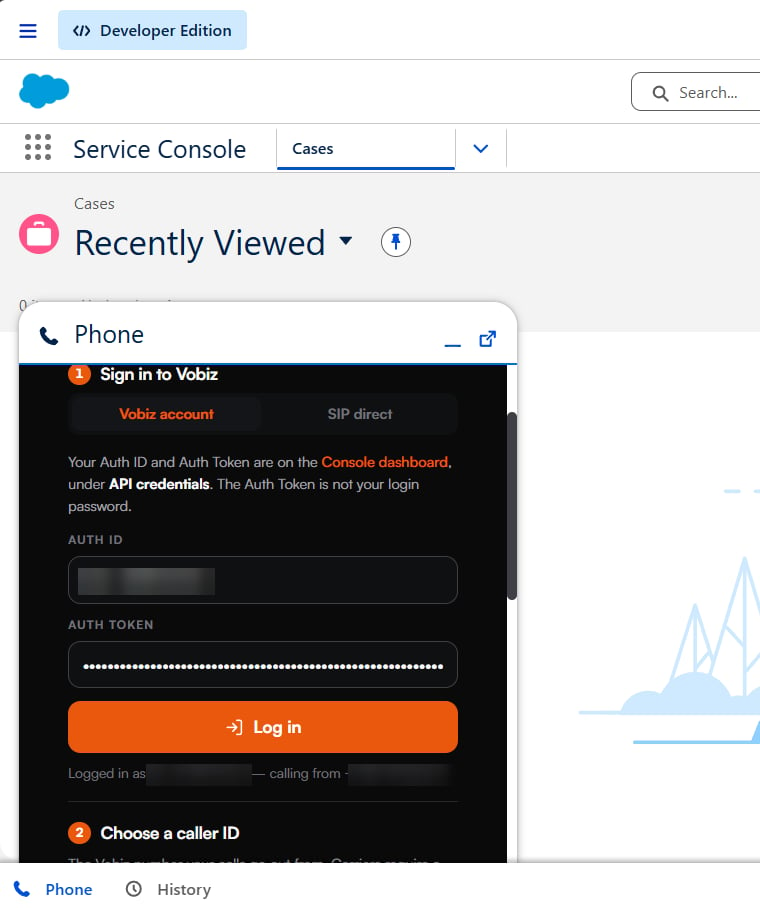 | | **Vobiz account** tab | **SIP direct** tab |
| ------------------- | ----------------------------------------------- | ----------------------------------------- |
| Agent enters | **Auth ID** and **Auth Token** | The endpoint's SIP username and password |
| What it proves | Which Vobiz *account* pays for the call | Which *phone line* the browser is |
| Caller ID | Chosen from a dropdown of the account's numbers | Typed into **Calling from** |
| Backend involvement | Validates, returns the SIP identity | **None** — the browser registers directly |
**What SIP direct cannot do.** Two features need account credentials: **Enable inbound calls** (changing number routing is account-level — inbound still *works* on a number already routed, you just cannot set it up here) and **listing recordings** (calls still record; the list is account-scoped). Everything else is identical.
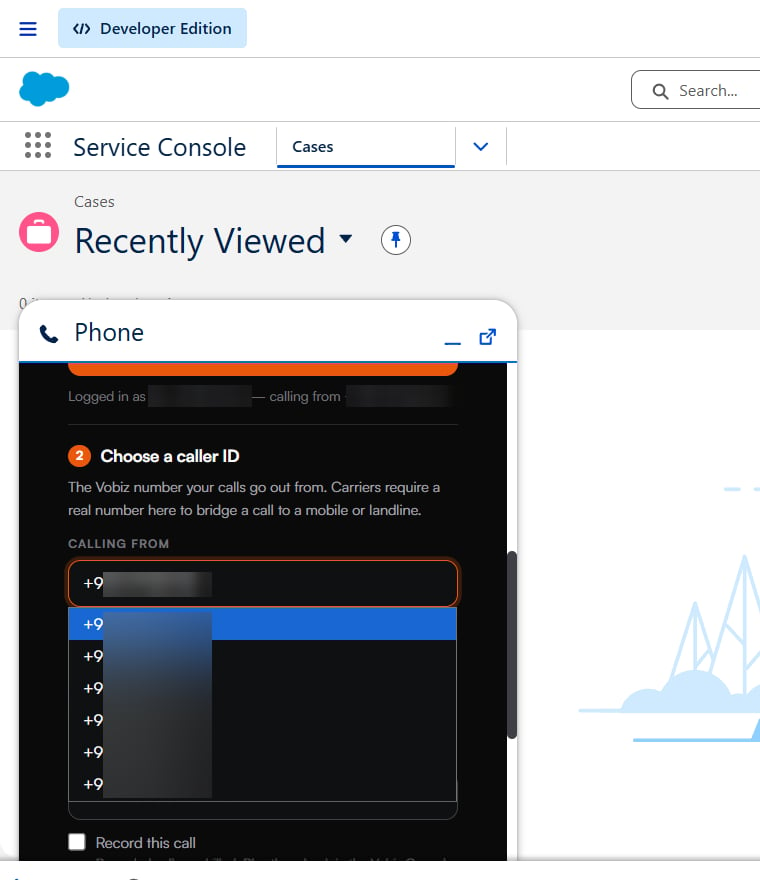
### Choose a caller ID
**Calling from** lists the numbers on the account. Carriers reject a call that presents no caller ID.
| | **Vobiz account** tab | **SIP direct** tab |
| ------------------- | ----------------------------------------------- | ----------------------------------------- |
| Agent enters | **Auth ID** and **Auth Token** | The endpoint's SIP username and password |
| What it proves | Which Vobiz *account* pays for the call | Which *phone line* the browser is |
| Caller ID | Chosen from a dropdown of the account's numbers | Typed into **Calling from** |
| Backend involvement | Validates, returns the SIP identity | **None** — the browser registers directly |
**What SIP direct cannot do.** Two features need account credentials: **Enable inbound calls** (changing number routing is account-level — inbound still *works* on a number already routed, you just cannot set it up here) and **listing recordings** (calls still record; the list is account-scoped). Everything else is identical.
### Choose a caller ID
**Calling from** lists the numbers on the account. Carriers reject a call that presents no caller ID.
 ## Making a call
Type a number in E.164 format, or click any phone number in Salesforce and the panel dials it for you.
## Making a call
Type a number in E.164 format, or click any phone number in Salesforce and the panel dials it for you.
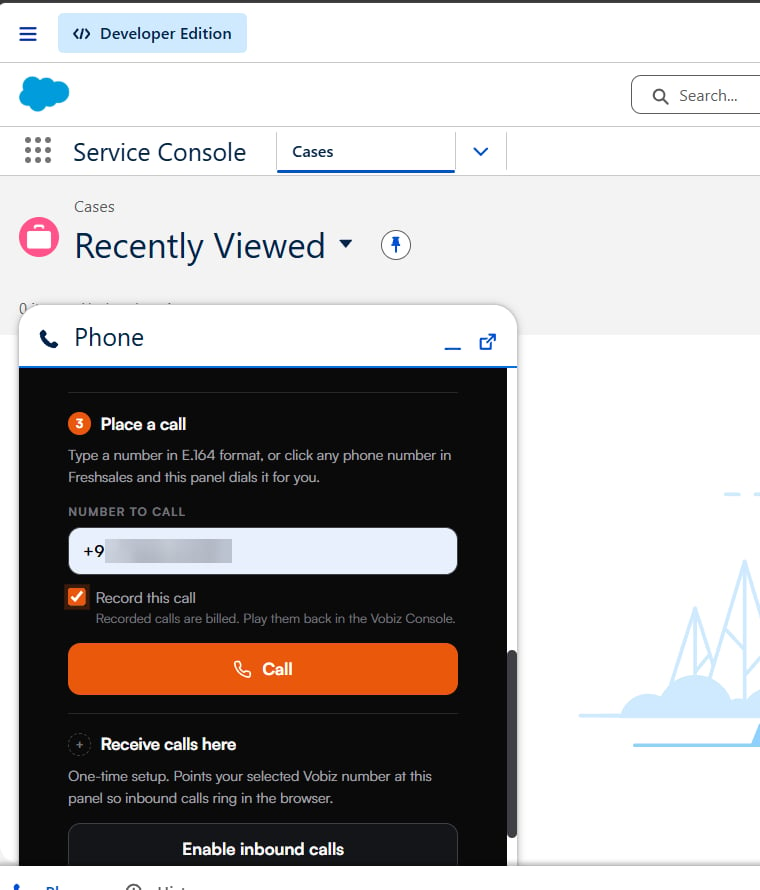 **Wait for the status badge to turn green before dialling.** The Call button stays disabled until the SIP endpoint registers, deliberately — dialling with SIP down rings the customer into silence.
**Record a call** by ticking **Record this call** before dialling. It applies to inbound too: recording starts when you accept, so the caller's time on hold is not in the file. Play recordings back in **Vobiz Console → Voice → Recordings**.
The panel deliberately does not serve recordings, because doing so would mean the calling backend could hand call audio to anyone able to reach it.
## Inbound calls
Click **Enable inbound calls** once, on the Vobiz account tab. The panel confirms which number now rings it.
**Wait for the status badge to turn green before dialling.** The Call button stays disabled until the SIP endpoint registers, deliberately — dialling with SIP down rings the customer into silence.
**Record a call** by ticking **Record this call** before dialling. It applies to inbound too: recording starts when you accept, so the caller's time on hold is not in the file. Play recordings back in **Vobiz Console → Voice → Recordings**.
The panel deliberately does not serve recordings, because doing so would mean the calling backend could hand call audio to anyone able to reach it.
## Inbound calls
Click **Enable inbound calls** once, on the Vobiz account tab. The panel confirms which number now rings it.
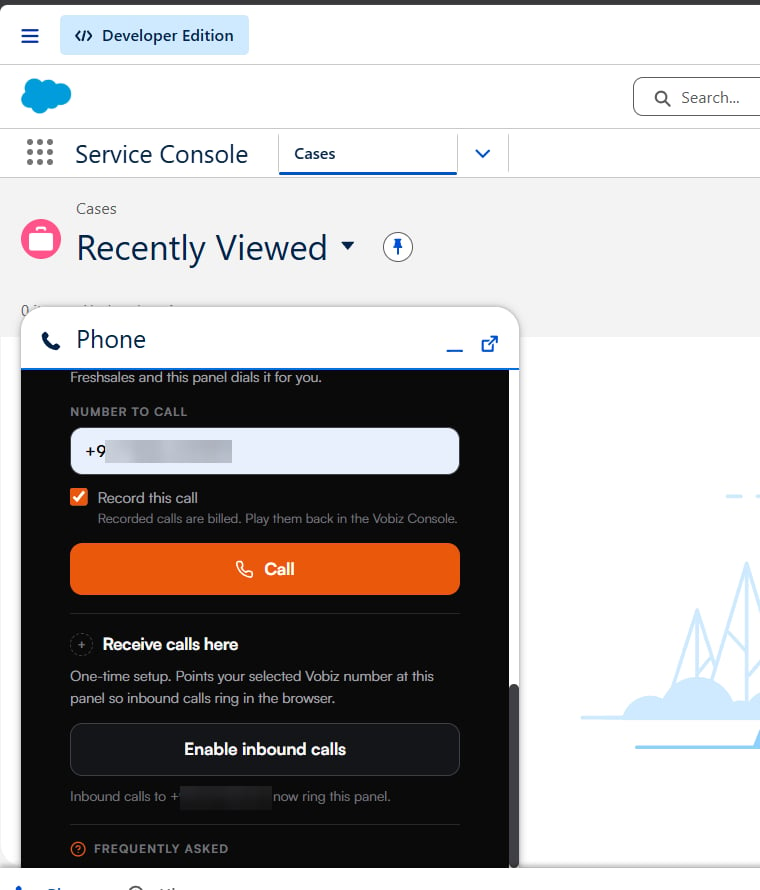 When a call arrives the panel rings and shows the caller's number. **Accept** connects you; **Decline** sends the caller to voicemail. Enter and Esc do the same.
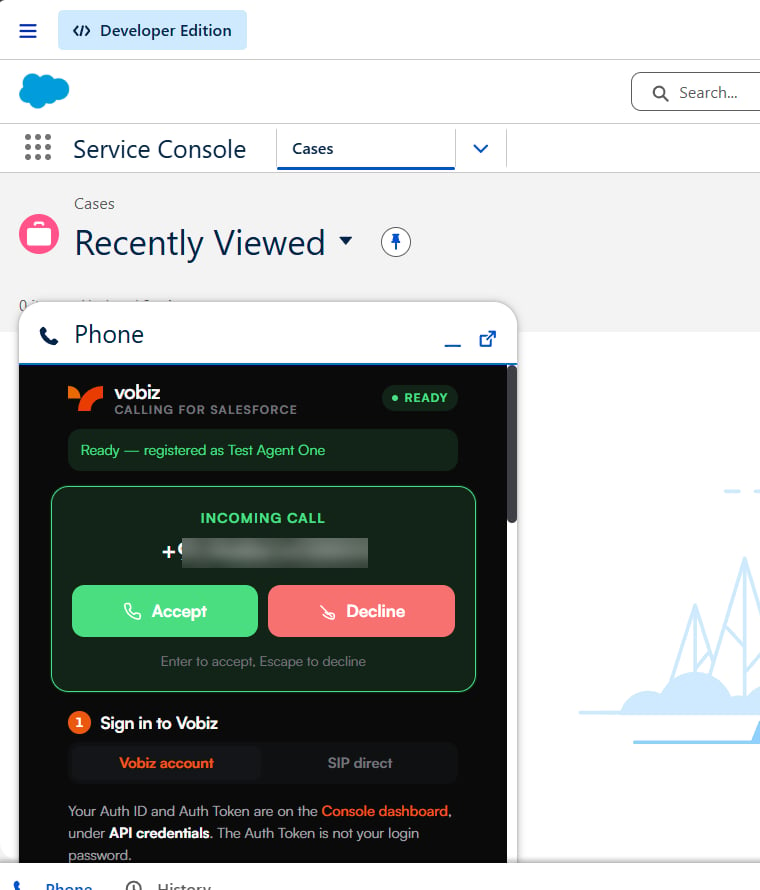 **Keep the Salesforce tab open, and only one tab.** Several tabs register the same SIP identity and evict each other, so a call can ring a tab that is no longer the one Vobiz will reach.
If no panel is listening when a call arrives, the backend sends the caller straight to voicemail rather than holding them for an agent who is not there.
## Call setup speed
The browser has work to do before it can send a call: it takes the microphone, then gathers network candidates. Left alone that can take tens of seconds — and on an inbound call the caller is on hold for all of it.
Two things keep it short. The offer is polled every second and the **microphone is acquired while the banner is still ringing**, so accepting does not stop to ask for one. And candidate gathering is **capped at 2.5 seconds** — the call is sent as soon as one usable candidate exists.
That cap is a correctness fix as much as a speed one: candidates carry short-lived network reservations, and an offer held back for tens of seconds can describe a path that has already lapsed — which connects and bills a call with no audio at all.
If setup is consistently slow, check for **many virtual network adapters** — VPNs, Docker and similar each add interfaces the browser must enumerate.
## Limitations
Worth knowing before you roll it out.
* **Two CDRs per call**, one per leg — the thing to know when reconciling call records.
* **A second caller while one is already ringing goes to voicemail.** One offer per agent at a time; there is no queue.
* **One agent per Call Center definition.** More agents need more definitions.
* **Browser calling only.** No option to route calls to a mobile or desk phone.
* **No hold, mute, transfer or conference** between agents.
* **Calls are logged as Tasks**, not Salesforce Voice Call records — those require Service Cloud Voice.
* **Recordings are not listed in the panel** — play them back in the Vobiz Console.
* **No omnichannel presence.** The panel does not set agent availability.
## Troubleshooting
| Problem | What to check |
| --------------------------------------------- | ------------------------------------------------------------------------------------------------------------------------------------------------------- |
| **The panel is a blank box** | The host is not in **Trusted URLs** with `frame-src` ticked, or the origin is plain HTTP — Salesforce will not frame one. |
| **Changes to the adapter URL do nothing** | Salesforce caches it. Hard-refresh with Ctrl+Shift+R. |
| **Calls ring the wrong agent** | Two Call Center definitions share an `agentId`. Every agent needs a distinct value. |
| **The call connects with no audio** | The microphone was never granted. The first call prompts for permission; if it never prompts, check the browser's site settings for the panel's origin. |
| **A local tunnel shows a blank panel** | The tunnel is showing a browser interstitial, which a frame cannot suppress. ngrok's free tier does; Cloudflare quick tunnels do not. |
| **A quick tunnel breaks setup every restart** | It gets a new URL each time. A wildcard Trusted URL (`https://*.trycloudflare.com`) saves re-doing the trust step. |
## Next steps
* [ServiceNow integration →](/docs/integrations/servicenow) - the same softphone approach inside ITSM.
* [HubSpot](/docs/integrations/hubspot) and [Pipedrive](/docs/integrations/pipedrive) - calls logged as CRM activities.
* [SIP Endpoints →](/docs/platform/voice/endpoints) - create and manage the endpoint the panel registers as.
* [Call Detail Records →](/docs/cdr) - reading the two CDRs each call produces.
**Keep the Salesforce tab open, and only one tab.** Several tabs register the same SIP identity and evict each other, so a call can ring a tab that is no longer the one Vobiz will reach.
If no panel is listening when a call arrives, the backend sends the caller straight to voicemail rather than holding them for an agent who is not there.
## Call setup speed
The browser has work to do before it can send a call: it takes the microphone, then gathers network candidates. Left alone that can take tens of seconds — and on an inbound call the caller is on hold for all of it.
Two things keep it short. The offer is polled every second and the **microphone is acquired while the banner is still ringing**, so accepting does not stop to ask for one. And candidate gathering is **capped at 2.5 seconds** — the call is sent as soon as one usable candidate exists.
That cap is a correctness fix as much as a speed one: candidates carry short-lived network reservations, and an offer held back for tens of seconds can describe a path that has already lapsed — which connects and bills a call with no audio at all.
If setup is consistently slow, check for **many virtual network adapters** — VPNs, Docker and similar each add interfaces the browser must enumerate.
## Limitations
Worth knowing before you roll it out.
* **Two CDRs per call**, one per leg — the thing to know when reconciling call records.
* **A second caller while one is already ringing goes to voicemail.** One offer per agent at a time; there is no queue.
* **One agent per Call Center definition.** More agents need more definitions.
* **Browser calling only.** No option to route calls to a mobile or desk phone.
* **No hold, mute, transfer or conference** between agents.
* **Calls are logged as Tasks**, not Salesforce Voice Call records — those require Service Cloud Voice.
* **Recordings are not listed in the panel** — play them back in the Vobiz Console.
* **No omnichannel presence.** The panel does not set agent availability.
## Troubleshooting
| Problem | What to check |
| --------------------------------------------- | ------------------------------------------------------------------------------------------------------------------------------------------------------- |
| **The panel is a blank box** | The host is not in **Trusted URLs** with `frame-src` ticked, or the origin is plain HTTP — Salesforce will not frame one. |
| **Changes to the adapter URL do nothing** | Salesforce caches it. Hard-refresh with Ctrl+Shift+R. |
| **Calls ring the wrong agent** | Two Call Center definitions share an `agentId`. Every agent needs a distinct value. |
| **The call connects with no audio** | The microphone was never granted. The first call prompts for permission; if it never prompts, check the browser's site settings for the panel's origin. |
| **A local tunnel shows a blank panel** | The tunnel is showing a browser interstitial, which a frame cannot suppress. ngrok's free tier does; Cloudflare quick tunnels do not. |
| **A quick tunnel breaks setup every restart** | It gets a new URL each time. A wildcard Trusted URL (`https://*.trycloudflare.com`) saves re-doing the trust step. |
## Next steps
* [ServiceNow integration →](/docs/integrations/servicenow) - the same softphone approach inside ITSM.
* [HubSpot](/docs/integrations/hubspot) and [Pipedrive](/docs/integrations/pipedrive) - calls logged as CRM activities.
* [SIP Endpoints →](/docs/platform/voice/endpoints) - create and manage the endpoint the panel registers as.
* [Call Detail Records →](/docs/cdr) - reading the two CDRs each call produces.