> ## Documentation Index
> Fetch the complete documentation index at: https://vobiz.ai/docs/llms.txt
> Use this file to discover all available pages before exploring further.
# Agora Integration
> Connect an Agora Conversational AI agent to Vobiz SIP trunking - add a Vobiz number to Agora for outbound campaigns and route inbound calls to your agent, including India and 130+ countries.
[Agora](https://www.agora.io) builds the Conversational AI Engine that powers real-time voice agents. Its **SIP Trunk** vendor option lets you bring a phone number you already own, so you can run an Agora agent on a Vobiz number anywhere Vobiz operates.
## What you'll build
A two-way setup on a single Vobiz number:
* **Outbound** - the Agora agent places campaign calls through your Vobiz outbound trunk.
* **Inbound** - calls to your Vobiz number route through an inbound trunk to the Agora agent.
Each direction uses its own trunk, so configure both.
## Architecture
```text theme={null}
Outbound Agora agent → Vobiz outbound trunk (SIP digest auth) → PSTN
Inbound Caller → Vobiz number → Vobiz inbound trunk → Agora regional SBC
```
## Prerequisites
* **Agora account** → [Agora Console](https://console.agora.io)
* **Vobiz account** → [Vobiz Console](https://console.vobiz.ai)
* **A Vobiz phone number** → see [Buy a phone number](/docs/buy-a-phone-number)
## Step 1: Create an Agora agent
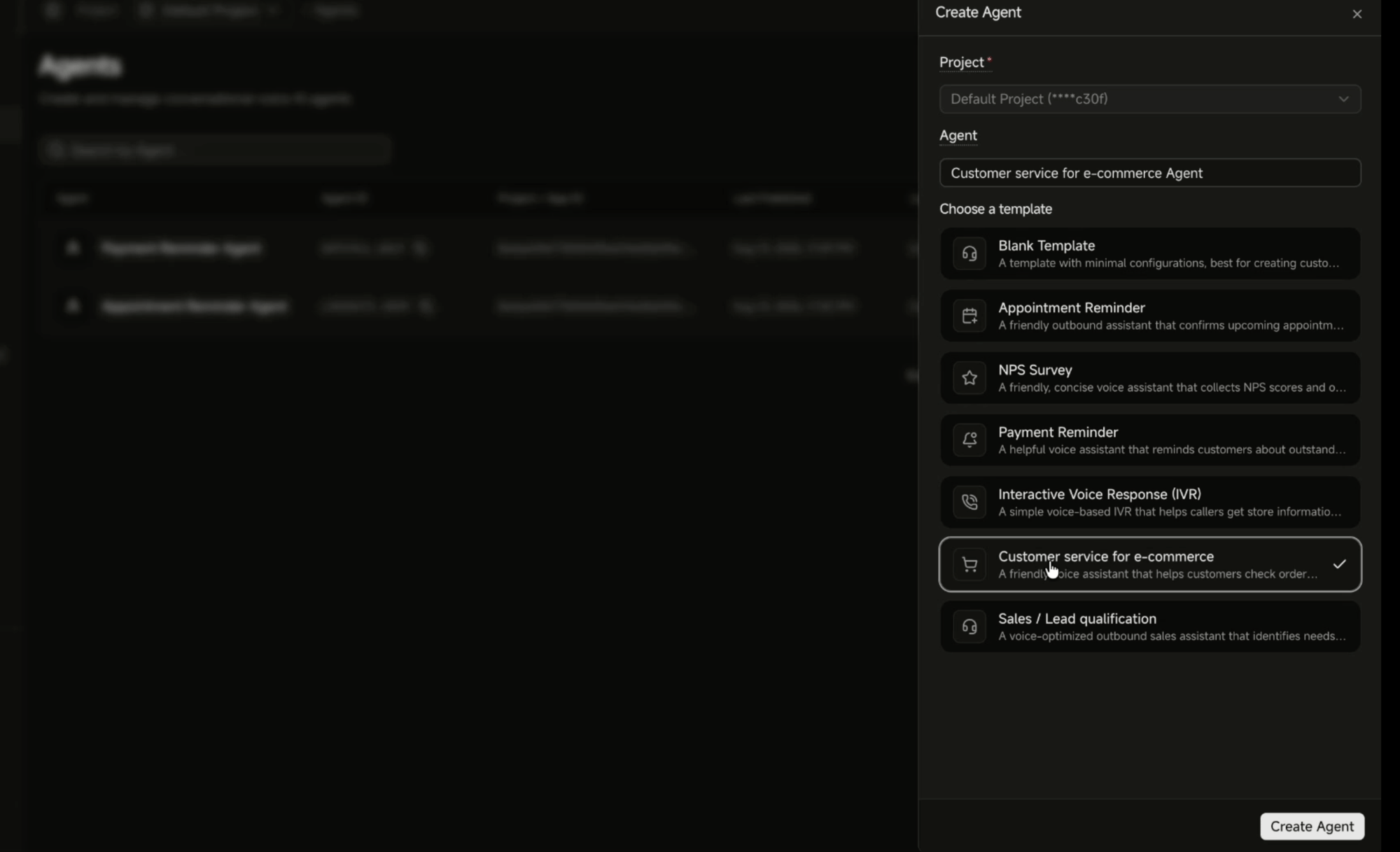
In the Agora Console, open **Agents** and click **Create Agent**. Pick your project, name the agent, and choose a template - Blank, Appointment Reminder, NPS Survey, Payment Reminder, IVR, Customer service for e-commerce, or Sales / Lead qualification.
You'll attach this agent to your number in both directions, so create it before wiring the trunks.
## Part 1: Outbound calls
### Step 2: Create a SIP credential in Vobiz
A Vobiz outbound trunk authenticates incoming traffic with a SIP credential, an IP access control list, or both. This guide uses a credential - it is the quickest route and stays valid if Agora changes its IPs.
Go to [Credentials List](https://console.vobiz.ai/app/sip/out/credentials) and click **+ Add Credential**. Note the username and password - Vobiz stores the password hashed and does not display it again after creation.
See [Credentials List](/docs/platform/sip/credentials) for the full walkthrough.
Prefer an IP allow-list? Agora publishes its outgoing SIP IPs per region on [Set up SIP trunk](https://docs.agora.io/en/ai/studio/deploy/sip-trunk). Take the set that matches your number's country code and add it under [IP Access Control List](/docs/platform/sip/ip-access-control-list) instead of - or alongside - the credential.
### Step 3: Create the outbound trunk
Go to [Outbound Trunks](https://console.vobiz.ai/app/sip/out/trunks) and click **+ Create New Trunk**. Attach the credential from Step 2 under **Credentials**.
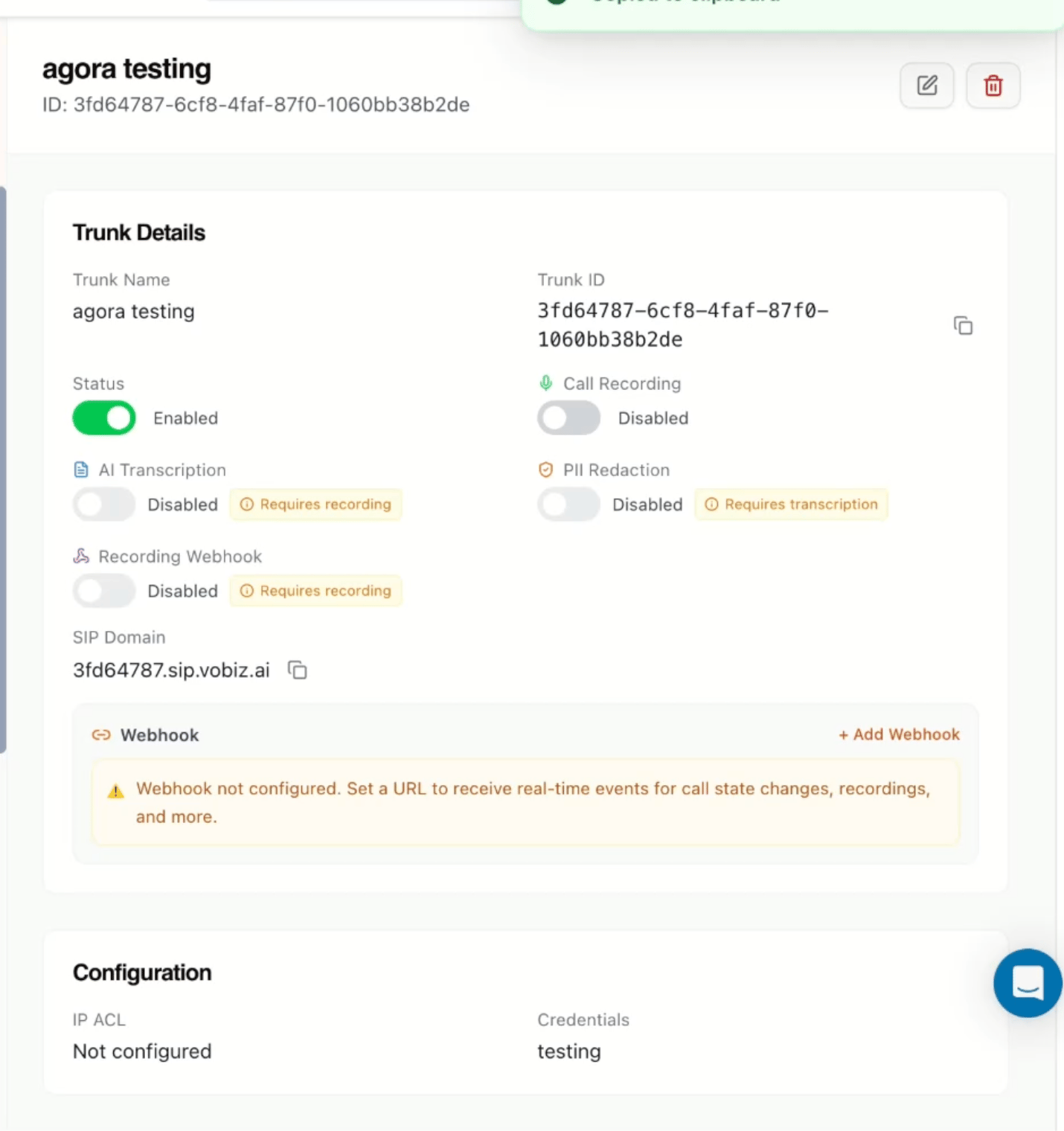
The trunk details panel shows a **SIP Domain** in the form `.sip.vobiz.ai`. Copy it - this is the address Agora sends outbound calls to. Each trunk gets its own domain and it is never shared.
Attach the credential to the trunk. Without either a credential or an IP ACL, the trunk has no way to authenticate traffic from Agora.
### Step 4: Add the phone number in Agora
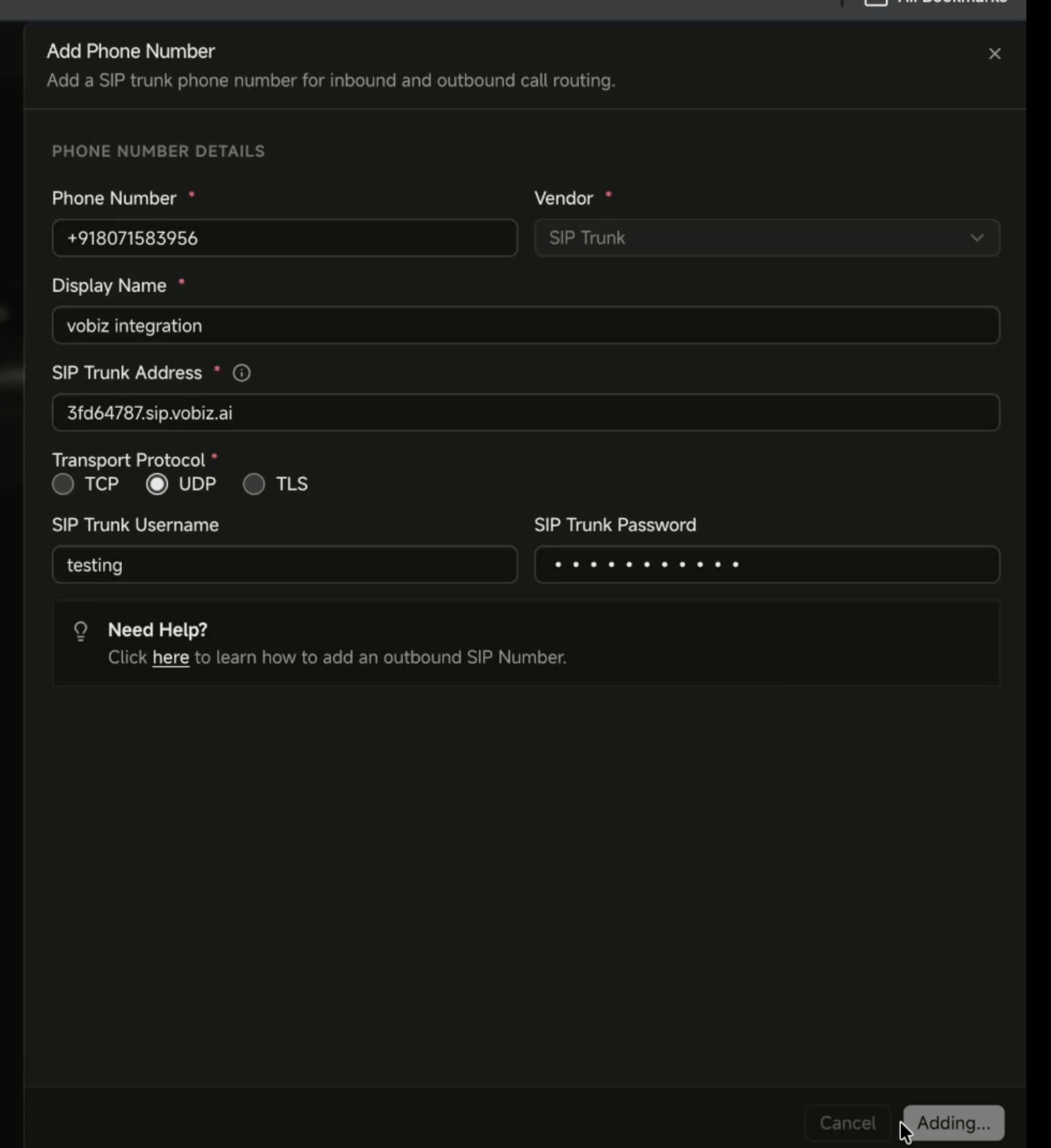
In the Agora Console, choose **Add Phone Number** and set **Vendor** to **SIP Trunk**.
| Field | Value |
| ------------------ | ------------------------------------------------------------------------- |
| Phone Number | Your Vobiz number in E.164, for example `+91XXXXXXXXXX` |
| Vendor | **SIP Trunk** |
| Display Name | Optional label, for example `vobiz integration` |
| SIP Trunk Address | The Vobiz **SIP Domain** from Step 3, for example `a1b2c3d4.sip.vobiz.ai` |
| Transport Protocol | **UDP** |
| SIP Trunk Username | The credential username from Step 2 |
| SIP Trunk Password | The credential password from Step 2 |
Although Agora marks the authentication fields optional, this setup needs them - they are what the Vobiz trunk checks.
### Step 5: Create a campaign
Outbound calls run as campaigns. Open **Campaigns** → **Create New Campaign**, then pick your agent, the number you just added, and upload a contacts CSV.
Set **Launch Timing**, **Call delay**, and **Concurrency limit** to match your Vobiz account limits, then confirm the summary to launch. Outbound is now wired.
## Part 2: Inbound calls
### Step 6: Pick your regional origination URI
Agora terminates inbound calls on a regional SBC. Pick the one matching your number's country code from Agora's [Set up SIP trunk](https://docs.agora.io/en/ai/studio/deploy/sip-trunk) page, which lists the current endpoints and outgoing IPs for every region:
| Region | URI (TCP/UDP) | Country codes |
| --------------------------------- | -------------------------------- | ---------------------------------------------------------- |
| United States | `sbc-us-west-1.viblinx.com:5060` | +1 |
| Americas, Europe, Oceania, Brazil | `sbc-sa-east-1.viblinx.com:5060` | +52, +54, +55, +56, +51, +44, +33, +49, +39, +34, +61, +64 |
| Asia-Pacific, India, Africa | `sbc-ap-south.viblinx.com:5060` | +82, +65, +81, +91, +886, +27, +20, +254 |
Each region also offers a TLS endpoint on port `5061`. Check the Agora page for the authoritative list - endpoints and IPs change there first.
### Step 7: Create the origination URI in Vobiz
Go to [Origination URIs](https://console.vobiz.ai/app/sip/in/uri) and create a URI pointing at the Agora SBC for your region.
**Remove the `sip:` prefix.** Agora presents the value as `sip:sbc-ap-south.viblinx.com:5060`, and the Vobiz URI field takes `domain` or `domain:port`. Paste `sbc-ap-south.viblinx.com` instead.
| Field | Value |
| ----------- | -------------------------------------------- |
| URI | The regional SBC address with `sip:` removed |
| Description | Optional, for example `Agora agent` |
| Transport | **UDP** |
| Active | On |
### Step 8: Create the inbound trunk and link the number
Go to [Inbound Trunks](https://console.vobiz.ai/app/sip/in/trunks) and create a trunk with the origination URI from Step 7 as its **Primary URI**. Then click **Link Numbers**, select your Vobiz number, and confirm.
The count updates to **Linked Numbers (1)** and inbound routing is live. Recording, transcription, and webhooks on this screen are all optional - see [Callbacks](/docs/concepts/callbacks) for the webhook payloads.
### Step 9: Assign the inbound agent in Agora
Back in Agora, edit the phone number and open **Inbound Settings**. Set **Inbound agent** to the agent from Step 1.
**Max call duration** and **Silence timeout** are in seconds. Leave **End call on conversation end** and **End call on silence** on unless you have a reason to hold the leg open.
## Test the integration
* **Inbound** - call your Vobiz number. The Agora agent should answer.
* **Outbound** - launch a campaign with a single contact and call your own phone.
Check [Call Logs](https://console.vobiz.ai/app/sip/logs) in the Vobiz Console to see both legs.
## Troubleshooting
### Outbound calls are rejected with a 401 or 403
The trunk is not accepting the credentials. Confirm the username and password in Agora match the Vobiz credential exactly, and that the credential is attached to the outbound trunk and set to **Active**.
### Outbound calls do not reach Vobiz
Check the SIP Trunk Address is the trunk's own SIP domain, in the form `.sip.vobiz.ai`. Each trunk has a distinct domain.
### The origination URI is rejected when saving
Remove the `sip:` prefix. The field takes `domain` or `domain:port`.
### Inbound calls ring but never reach the agent
Confirm the number appears under **Linked Numbers** on the inbound trunk and the trunk **Status** is Enabled, then check the number has an **Inbound agent** assigned in Agora - a number left **Unassigned** accepts the call and drops it.
### Inbound calls connect but the audio is one-way or fails
Check the origination URI region matches your number's country code. A number routed to the wrong regional SBC may signal correctly while media fails.
## Next steps
Trunk settings, recording, and webhooks
Create and rotate SIP credentials
Route inbound calls to your agent
Vobiz SIP signaling and RTP ranges
 You'll attach this agent to your number in both directions, so create it before wiring the trunks.
## Part 1: Outbound calls
### Step 2: Create a SIP credential in Vobiz
A Vobiz outbound trunk authenticates incoming traffic with a SIP credential, an IP access control list, or both. This guide uses a credential - it is the quickest route and stays valid if Agora changes its IPs.
Go to [Credentials List](https://console.vobiz.ai/app/sip/out/credentials) and click **+ Add Credential**. Note the username and password - Vobiz stores the password hashed and does not display it again after creation.
See [Credentials List](/docs/platform/sip/credentials) for the full walkthrough.
You'll attach this agent to your number in both directions, so create it before wiring the trunks.
## Part 1: Outbound calls
### Step 2: Create a SIP credential in Vobiz
A Vobiz outbound trunk authenticates incoming traffic with a SIP credential, an IP access control list, or both. This guide uses a credential - it is the quickest route and stays valid if Agora changes its IPs.
Go to [Credentials List](https://console.vobiz.ai/app/sip/out/credentials) and click **+ Add Credential**. Note the username and password - Vobiz stores the password hashed and does not display it again after creation.
See [Credentials List](/docs/platform/sip/credentials) for the full walkthrough.
 The trunk details panel shows a **SIP Domain** in the form `
 | Field | Value |
| ------------------ | ------------------------------------------------------------------------- |
| Phone Number | Your Vobiz number in E.164, for example `+91XXXXXXXXXX` |
| Vendor | **SIP Trunk** |
| Display Name | Optional label, for example `vobiz integration` |
| SIP Trunk Address | The Vobiz **SIP Domain** from Step 3, for example `a1b2c3d4.sip.vobiz.ai` |
| Transport Protocol | **UDP** |
| SIP Trunk Username | The credential username from Step 2 |
| SIP Trunk Password | The credential password from Step 2 |
Although Agora marks the authentication fields optional, this setup needs them - they are what the Vobiz trunk checks.
### Step 5: Create a campaign
Outbound calls run as campaigns. Open **Campaigns** → **Create New Campaign**, then pick your agent, the number you just added, and upload a contacts CSV.
| Field | Value |
| ------------------ | ------------------------------------------------------------------------- |
| Phone Number | Your Vobiz number in E.164, for example `+91XXXXXXXXXX` |
| Vendor | **SIP Trunk** |
| Display Name | Optional label, for example `vobiz integration` |
| SIP Trunk Address | The Vobiz **SIP Domain** from Step 3, for example `a1b2c3d4.sip.vobiz.ai` |
| Transport Protocol | **UDP** |
| SIP Trunk Username | The credential username from Step 2 |
| SIP Trunk Password | The credential password from Step 2 |
Although Agora marks the authentication fields optional, this setup needs them - they are what the Vobiz trunk checks.
### Step 5: Create a campaign
Outbound calls run as campaigns. Open **Campaigns** → **Create New Campaign**, then pick your agent, the number you just added, and upload a contacts CSV.
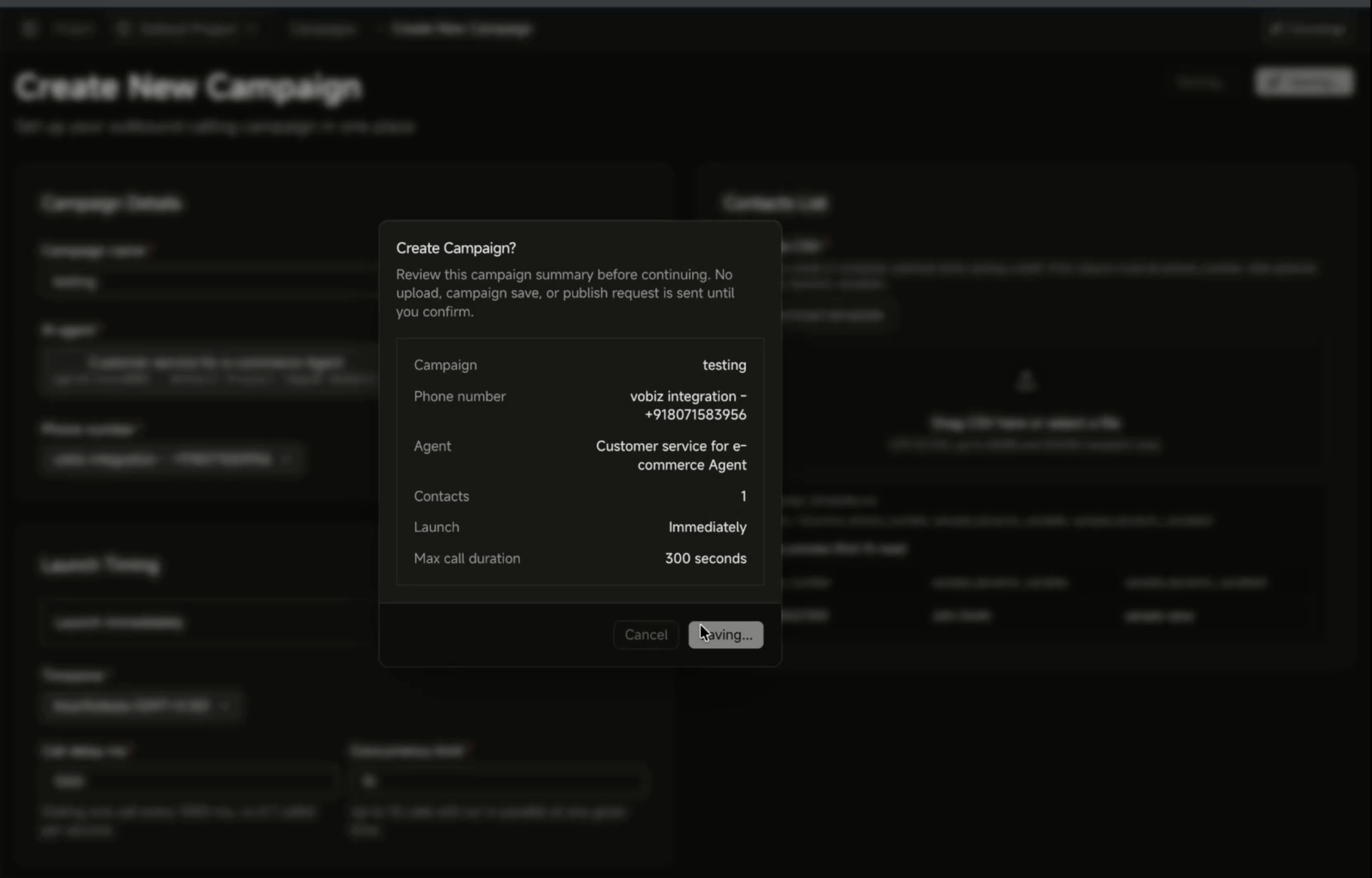 Set **Launch Timing**, **Call delay**, and **Concurrency limit** to match your Vobiz account limits, then confirm the summary to launch. Outbound is now wired.
## Part 2: Inbound calls
### Step 6: Pick your regional origination URI
Agora terminates inbound calls on a regional SBC. Pick the one matching your number's country code from Agora's [Set up SIP trunk](https://docs.agora.io/en/ai/studio/deploy/sip-trunk) page, which lists the current endpoints and outgoing IPs for every region:
| Region | URI (TCP/UDP) | Country codes |
| --------------------------------- | -------------------------------- | ---------------------------------------------------------- |
| United States | `sbc-us-west-1.viblinx.com:5060` | +1 |
| Americas, Europe, Oceania, Brazil | `sbc-sa-east-1.viblinx.com:5060` | +52, +54, +55, +56, +51, +44, +33, +49, +39, +34, +61, +64 |
| Asia-Pacific, India, Africa | `sbc-ap-south.viblinx.com:5060` | +82, +65, +81, +91, +886, +27, +20, +254 |
Set **Launch Timing**, **Call delay**, and **Concurrency limit** to match your Vobiz account limits, then confirm the summary to launch. Outbound is now wired.
## Part 2: Inbound calls
### Step 6: Pick your regional origination URI
Agora terminates inbound calls on a regional SBC. Pick the one matching your number's country code from Agora's [Set up SIP trunk](https://docs.agora.io/en/ai/studio/deploy/sip-trunk) page, which lists the current endpoints and outgoing IPs for every region:
| Region | URI (TCP/UDP) | Country codes |
| --------------------------------- | -------------------------------- | ---------------------------------------------------------- |
| United States | `sbc-us-west-1.viblinx.com:5060` | +1 |
| Americas, Europe, Oceania, Brazil | `sbc-sa-east-1.viblinx.com:5060` | +52, +54, +55, +56, +51, +44, +33, +49, +39, +34, +61, +64 |
| Asia-Pacific, India, Africa | `sbc-ap-south.viblinx.com:5060` | +82, +65, +81, +91, +886, +27, +20, +254 |
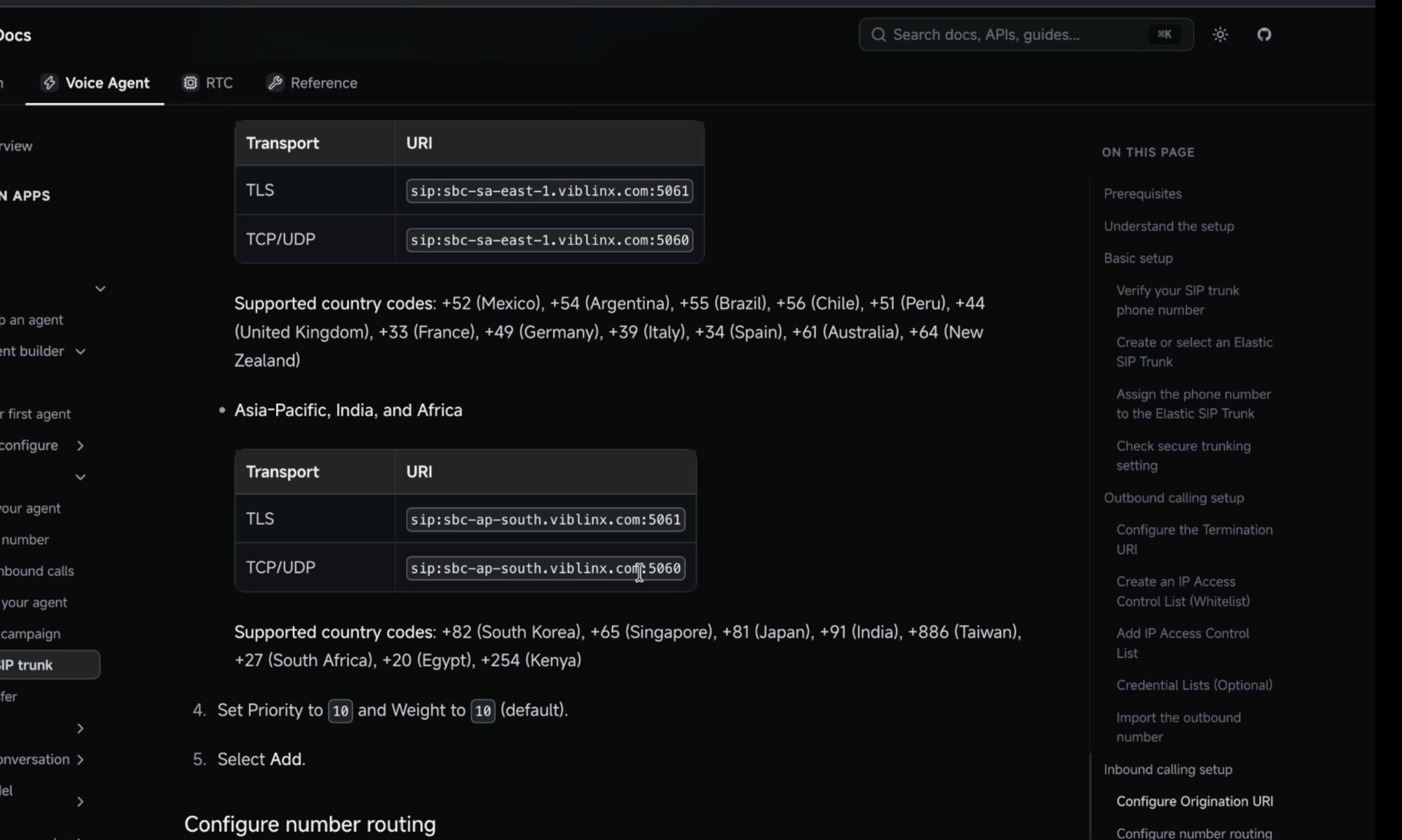 Each region also offers a TLS endpoint on port `5061`. Check the Agora page for the authoritative list - endpoints and IPs change there first.
### Step 7: Create the origination URI in Vobiz
Go to [Origination URIs](https://console.vobiz.ai/app/sip/in/uri) and create a URI pointing at the Agora SBC for your region.
Each region also offers a TLS endpoint on port `5061`. Check the Agora page for the authoritative list - endpoints and IPs change there first.
### Step 7: Create the origination URI in Vobiz
Go to [Origination URIs](https://console.vobiz.ai/app/sip/in/uri) and create a URI pointing at the Agora SBC for your region.
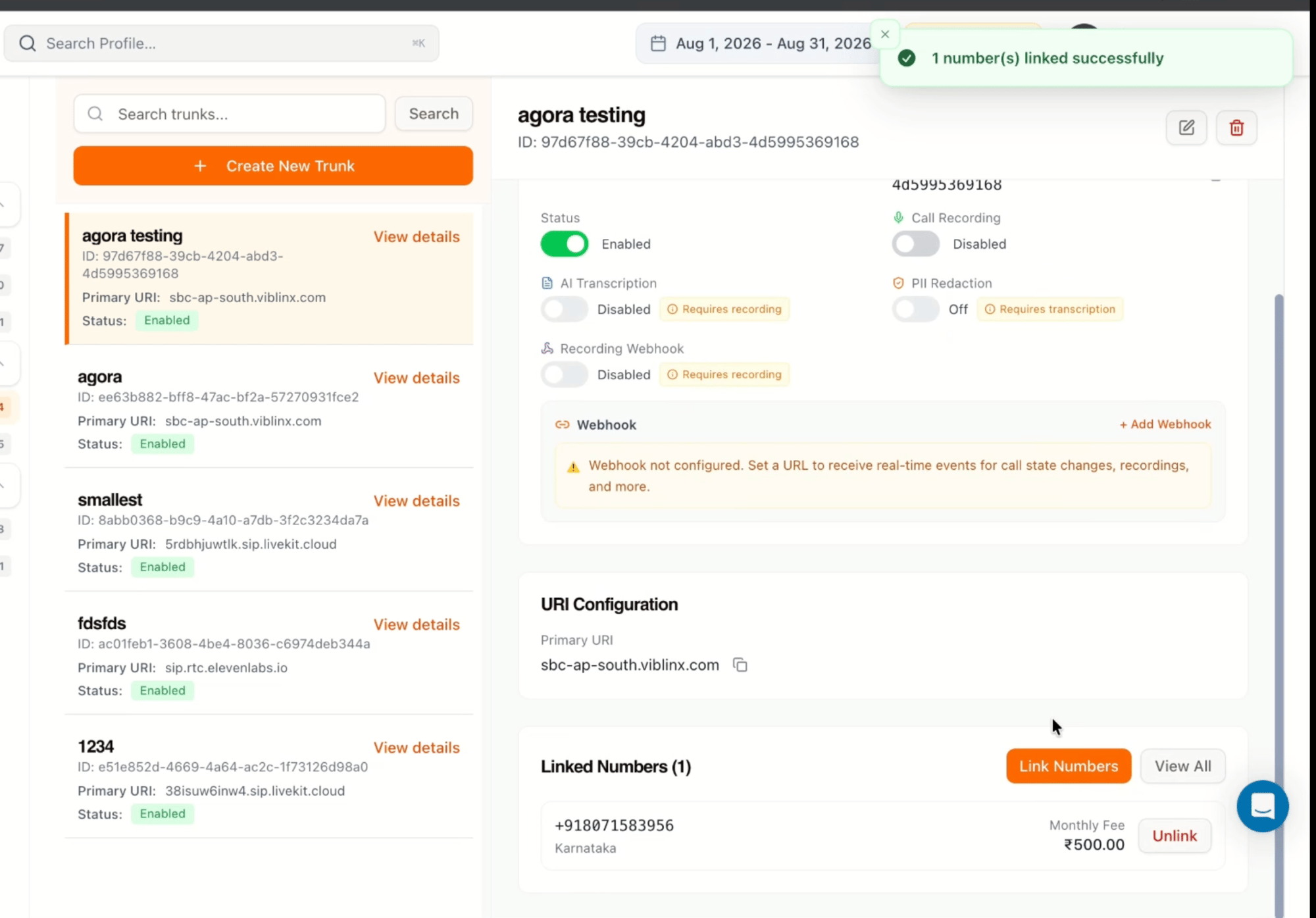 The count updates to **Linked Numbers (1)** and inbound routing is live. Recording, transcription, and webhooks on this screen are all optional - see [Callbacks](/docs/concepts/callbacks) for the webhook payloads.
### Step 9: Assign the inbound agent in Agora
Back in Agora, edit the phone number and open **Inbound Settings**. Set **Inbound agent** to the agent from Step 1.
The count updates to **Linked Numbers (1)** and inbound routing is live. Recording, transcription, and webhooks on this screen are all optional - see [Callbacks](/docs/concepts/callbacks) for the webhook payloads.
### Step 9: Assign the inbound agent in Agora
Back in Agora, edit the phone number and open **Inbound Settings**. Set **Inbound agent** to the agent from Step 1.
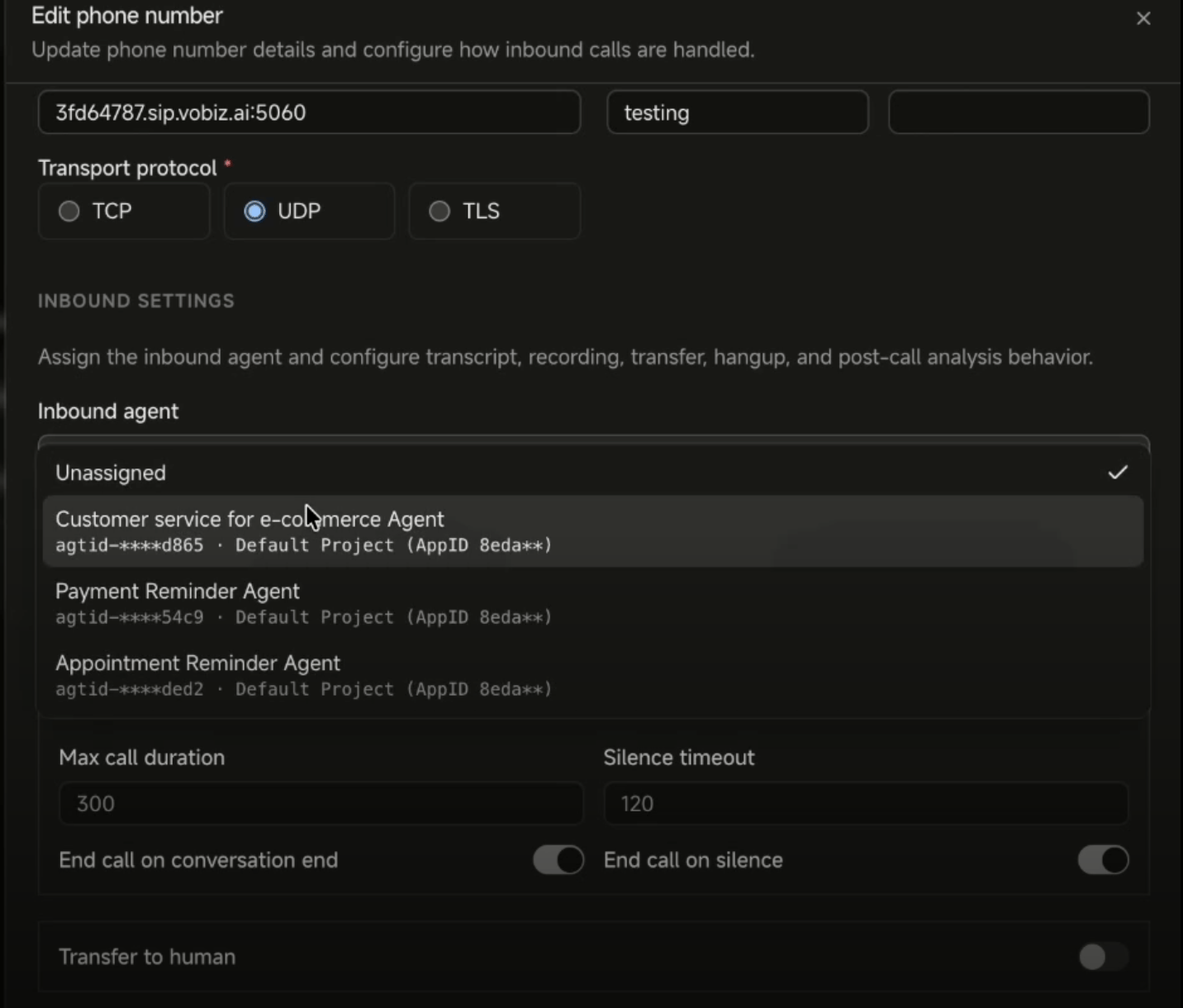 **Max call duration** and **Silence timeout** are in seconds. Leave **End call on conversation end** and **End call on silence** on unless you have a reason to hold the leg open.
## Test the integration
* **Inbound** - call your Vobiz number. The Agora agent should answer.
* **Outbound** - launch a campaign with a single contact and call your own phone.
Check [Call Logs](https://console.vobiz.ai/app/sip/logs) in the Vobiz Console to see both legs.
## Troubleshooting
### Outbound calls are rejected with a 401 or 403
The trunk is not accepting the credentials. Confirm the username and password in Agora match the Vobiz credential exactly, and that the credential is attached to the outbound trunk and set to **Active**.
### Outbound calls do not reach Vobiz
Check the SIP Trunk Address is the trunk's own SIP domain, in the form `
**Max call duration** and **Silence timeout** are in seconds. Leave **End call on conversation end** and **End call on silence** on unless you have a reason to hold the leg open.
## Test the integration
* **Inbound** - call your Vobiz number. The Agora agent should answer.
* **Outbound** - launch a campaign with a single contact and call your own phone.
Check [Call Logs](https://console.vobiz.ai/app/sip/logs) in the Vobiz Console to see both legs.
## Troubleshooting
### Outbound calls are rejected with a 401 or 403
The trunk is not accepting the credentials. Confirm the username and password in Agora match the Vobiz credential exactly, and that the credential is attached to the outbound trunk and set to **Active**.
### Outbound calls do not reach Vobiz
Check the SIP Trunk Address is the trunk's own SIP domain, in the form `